













Image files and video previewing
Showing natively previews for popular image files: HDRI, EXR, PSD, animated GIF, TIFF, TGA, and others. Play videos conveniently with Connecter’s built-in player.

Native thumbnails
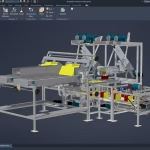
Natively showing embedded previews for 3ds Max, Cinema 4D, Revit, Rhino, Blender, SketchUp and Autocad assets.

Interactive previewing of 3d assets
OpenGL viewer for interactive exploration of popular 3d formats: Cinema 4D, Lightwave, Blender, Collada, FBX with animation, OBJ, 3DS, DXF and STL.

Custom previews with auto-assign
Add a custom-generated custom preview or a gallery of previews to any asset. Use auto-assign tools to automate the assigning of custom previews to assets.

3ds Max material libraries
Previewing the content of .mat library assets. View, rename, copy, or move materials from one library to another in Connecter.

Revit families
Previewing family types within a Revit family asset with thumbnails and type parameters.
 Substance assets
Real-time interactive previewing of Substance assets.
 IES photometric data
Visual previewing of IES photometric assets.
 BVH motion capture data
Previewing of animated data in BVH assets.
 PBR textures
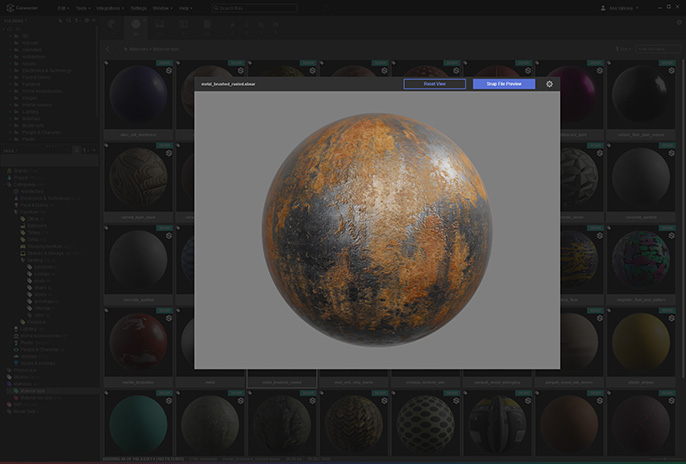
Real-time interactive visualization of custom sets of PBR textures.

Only what’s relevant
Connecter shows you only what’s relevant to your work. You choose which file formats to see and which irrelevant asset types to hide.

Powerful filters
Quickly narrow searches to smaller subsets of assets with advanced filtering by asset type, file format, version and render engine, tags, and more.

Colour coding
Colour code folders and tags for more visual browsing.

Tags with custom icons
Choose from 70+ awesome predefined icons or install your own custom icons sets with Connecter Server.

Show subfolders
Option to show assets in subfolders to quickly get a full view of what’s in a selected folder’s tree.

Stacking
Option to combine similar or related assets in “Stacks” for a more clean and compact browsing experience.

Fast search
Multiple searching options for folders, tags, and assets plus flexible search with wildcards.

Quick filter
Fast filter the assets view by typing an asset’s name.

Folders filtering
Conveniently hide irrelevant folders or apply a global filter by adding folder names in the Ignore Folders list.