Autodesk has promoted Design Consulting to an Autodesk Gold Partner following continued growth since becoming an Autodesk Reseller in November, 2020.
Design Consulting would like to thank our customers, staff and Autodesk for all their support as we move at the speed of business!
Design Consulting provides tailored end to end solutions, expertise and specialisation in Autodesk’s offerings, aligning our solutions with our customers objectives and good old fashioned customer service.
Contact us to find out how we can help your business. Fill out the form below, by live chat, phone or email.
P: 1800 490 514 | E: [email protected]
autocad architecture vs autocad lt, AutoCAD LT vs AutoCAD architecture
AutoCAD and AutoCAD Architecture are both powerful CAD software programs that can be used for a variety of purposes, including architectural design, engineering, and manufacturing. However, there are some key differences between the two programs that can make one a better choice for your specific needs.
In this blog post, we will compare AutoCAD and AutoCAD Architecture in terms of their features, capabilities, and pricing. We will also discuss the factors you should consider when choosing between the two programs.
AutoCAD is a general-purpose CAD software program that can be used for a variety of purposes, including architectural, mechanical, and electrical design. It offers a wide range of features and tools, making it a versatile option for many different industries.
Some of the key features of AutoCAD include:
AutoCAD is a general-purpose CAD software program that can be used to create 2D and 3D drawings. It includes a wide range of features for drafting, editing, and annotating drawings. AutoCAD also supports a variety of file formats, making it easy to share your drawings with others.
AutoCAD Architecture is a specialized CAD software program that is designed for architectural design. It includes a number of features that are specifically designed for creating architectural drawings, such as intelligent walls, doors, and windows. AutoCAD Architecture also includes a library of pre-built architectural objects, which can save you time and effort when creating your drawings.

Both AutoCAD and AutoCAD Architecture are capable of creating high-quality drawings. However, AutoCAD Architecture has a number of features that make it specifically suited for architectural design. These features include:

| Feature | AutoCAD Architecture | AutoCAD | AutoCAD LT |
|---|---|---|---|
| Intelligent objects | Yes | No | No |
| Architectural features | Yes | No | No |
| Parametric modeling | Yes | No | No |
| 2D drafting tools | Yes | Yes | Yes |
| 3D modeling tools | Yes | Yes | No |
| Annotation tools | Yes | Yes | Yes |
| Rendering tools | Yes | Yes | No |
| Schedules | Yes | No | No |
| Documentation tools | Yes | Yes | No |
| Standards compliance | Yes | No | No |
| Collaboration tools | Yes | Yes | No |
| Cloud integration | Yes | Yes | No |
AutoCAD Architecture has a number of unique commands that are specifically designed for architectural design. These commands include:
In addition to these unique commands, AutoCAD Architecture also includes a number of other features that are specifically designed for architectural design. These features include:
Choosing between AutoCAD and AutoCAD Mechanical? Our free eBook offers a detailed comparison to help you make the best choice for your design projects. Gain insights into key features, pricing, and real-world applications.
Download the eBook now to make an informed decision and optimise your workflow.
Organisations can customise AutoCAD for their industries, empowering teams to build and run discipline-specific routines and workflows.
Download the Study here to learn how you can save over 60% in productivity using AutoCAD with Specialised Toolsets.
Contact us to find out how much money you can save on software, training or other services. Fill out the form below, by live chat, phone or email.
P: 1800 490 514 | E: [email protected]
autocad architecture vs autocad lt, AutoCAD LT vs AutoCAD architecture
AutoCAD Map 3D is a powerful GIS software that allows CAD professionals to create, edit, and visualize geospatial data. It is a comprehensive toolset that includes everything you need to work with maps, 3D models, and other spatial data.
AutoCAD Map 3D is a geographic information system (GIS) software that is part of the AutoCAD family of products. It is designed for CAD professionals who need to work with geospatial data. AutoCAD Map 3D includes a comprehensive toolset for creating, editing, and visualizing maps, 3D models, and other spatial data.
AutoCAD Map 3D includes a wide range of features for working with geospatial data, including:
There are many benefits to using AutoCAD Map 3D, including:
AutoCAD Map 3D is a more powerful and feature-rich version of AutoCAD than AutoCAD LT and AutoCAD. AutoCAD Map 3D includes all of the features of AutoCAD LT and AutoCAD, plus a number of additional features for working with geospatial data.
| Feature | AutoCAD Map 3D | AutoCAD LT | AutoCAD |
|---|---|---|---|
| Data management | Yes | No | No |
| 2D and 3D drafting | Yes | Yes | Yes |
| Visualization | Yes | No | No |
| Analysis | Yes | No | No |
| Collaboration | Yes | No | No |
The right version of AutoCAD for you depends on your specific needs. If you only need to:
AutoCAD Map 3D can be used with other Autodesk apps to create a more comprehensive and integrated workflow. For example, AutoCAD Map 3D can be used with AutoCAD Civil 3D to create 3D models of infrastructure projects. AutoCAD Map 3D can be used with Autodesk 3ds Max to create photorealistic renderings of maps and models.
AutoCAD Map 3D can be connected to a variety of GIS mapping data sources, including:
To connect AutoCAD Map 3D to a GIS mapping data source, you can use the following steps:
Once you have connected AutoCAD Map 3D to a GIS mapping data source, you can view and edit the data in AutoCAD Map 3D. You can also use AutoCAD Map 3D to perform spatial analysis on the data.
Here are some of the benefits of connecting AutoCAD Map 3D with GIS mapping data sources:
If you need to work with geospatial data, then connecting AutoCAD Map 3D with GIS mapping data sources is a great way to improve your workflow and productivity.
Organisations can customise AutoCAD for their industries, empowering teams to build and run discipline-specific routines and workflows.
AutoCAD Map 3D 2024 supports the new coordinate systems in the following categories:
Refer to the 2024 Help file for further information
Choosing between AutoCAD and AutoCAD Mechanical? Our free eBook offers a detailed comparison to help you make the best choice for your design projects. Gain insights into key features, pricing, and real-world applications.
Download the eBook now to make an informed decision and optimise your workflow.
Discover how Autodesk AutoCAD 2024 can streamline your workflow, increase productivity, and optimise your design process.
Contact us to find out how much money you can save on software, training or other services. Fill out the form below, by live chat, phone or email.
P: 1800 490 514 | E: [email protected]
AutoCAD and AutoCAD Mechanical are both powerful CAD software programs that can be used for a variety of purposes. However, there are some key differences between the two programs that may make one a better fit for your needs than the other.
In this blog post, we will compare AutoCAD and AutoCAD Mechanical in detail. We will discuss the features, interface, pricing, and best uses of each program. By the end of this post, you will be able to decide which CAD software is right for you.
AutoCAD is a general-purpose CAD software program that can be used for a variety of purposes, including architectural, mechanical, and electrical design. It offers a wide range of features and tools, making it a versatile option for many different industries.
Some of the key features of AutoCAD include:
AutoCAD Mechanical is a specialised CAD software program that is specifically designed for mechanical engineering design. It includes a number of features and tools that are specifically useful for mechanical engineers, such as tools for creating and dimensioning parts, as well as tools for generating bills of materials.
Some of the key features of AutoCAD Mechanical include:

There are a number of key differences between AutoCAD and AutoCAD Mechanical. These differences include:
AutoCAD LT and AutoCAD Mechanical are both CAD software programs that can be used for drafting, designing, and documenting. However, there are some key differences between the two programs.
AutoCAD LT is a 2D drafting and design software program that is designed for general engineering and drafting purposes. It includes a wide range of features and tools for creating and editing 2D drawings, as well as for dimensioning, annotating, and rendering drawings. AutoCAD LT is a less expensive option than AutoCAD Mechanical, and it is a good choice for users who need a 2D drafting and design software program for general engineering and drafting purposes.
AutoCAD Mechanical is a 2D and 3D drafting, designing, and documentation software program that is specifically designed for mechanical engineering. It includes a wide range of features and tools for creating and editing 2D and 3D drawings, as well as for dimensioning, annotating, and rendering drawings. AutoCAD Mechanical also includes a library of standard parts and components, as well as tools for creating bills of materials, generating 3D printing files, and performing analysis and simulation. AutoCAD Mechanical is a more expensive option than AutoCAD LT, but it is a good choice for users who need a 2D and 3D drafting, designing, and documentation software program for mechanical engineering.

| Feature | AutoCAD LT | AutoCAD Mechanical |
|---|---|---|
| Features | 2D drafting and design | 2D and 3D drafting, designing, and documentation |
| Interface | General-purpose interface | Specialized interface designed for mechanical engineers |
| Pricing | Less expensive | More expensive |
| Best for | General engineering and drafting | Mechanical engineering |
Inventor to AutoCAD Mechanical
There are two ways to import 3D models into AutoCAD Mechanical:
If the model changes in Inventor, the changes will be updated in AutoCAD Mechanical if the following conditions are met:
If these conditions are not met, the changes will not be updated in AutoCAD Mechanical.
Here are some additional things to keep in mind when importing 3D models into AutoCAD Mechanical:
By following these steps, you can import 3D models into AutoCAD Mechanical and keep the models up to date with changes made in Inventor.

AutoCAD Mechanical to Inventor
Inventor has a feature called AnyCAD that allows you to import and work with 2D DWG files in Inventor part, assembly, and drawing environments. AnyCAD is a powerful tool that can help you to save time and improve the efficiency of your design workflow.
To import a 2D DWG file into Inventor, follow these steps:
The DWG file will be imported into Inventor as a Reference Model. Reference Models are special types of Inventor models that are linked to the original DWG file. Any changes that you make to the DWG file will be automatically updated in the Reference Model in Inventor.
Here are some additional things to keep in mind when importing 2D DWG files into Inventor:
By following these steps, you can import 2D DWG files into Inventor and keep the files up to date with changes made to the original DWG file.
Here are some additional benefits of using AnyCAD:
AnyCAD is a powerful tool that can help you to save time and improve the efficiency of your design workflow. If you are working with 2D DWG files, I encourage you to try using AnyCAD in Inventor.
The best CAD software for you depends on your specific needs. If you are a mechanical engineer who needs specialized tools for mechanical engineering design, then AutoCAD Mechanical is the better choice. If you are a general engineer or designer who needs a more versatile CAD software program, then AutoCAD is the better choice.
Mechanical CAD software is designed for the design of mechanical parts and assemblies. It does not offer the same level of features as AutoCAD Plant 3D for plant design, such as:
AutoCAD Plant 3D and P&ID tools:
Autodesk Inventor and SolidWorks Pipe and Tubing Tools:
Choosing between AutoCAD and AutoCAD Mechanical? Our free eBook offers a detailed comparison to help you make the best choice for your design projects. Gain insights into key features, pricing, and real-world applications.
Download the eBook now to make an informed decision and optimise your workflow.
Organisations can customise AutoCAD for their industries, empowering teams to build and run discipline-specific routines and workflows.
Contact us to find out how much money you can save on software, training or other services. Fill out the form below, by live chat, phone or email.
P: 1800 490 514 | E: [email protected]
AutoCAD Plant 3D is a powerful toolset for plant design. It offers a wide range of features that are specifically designed for the needs of plant designers and engineers. These features include:
In this blog we’ll explore the differences in using the AutoCAD Plant 3D Toolset over:
AutoCAD LT is a less expensive version of AutoCAD that is designed for 2D drafting and design. It does not offer the same level of features as AutoCAD Plant 3D, including:
AutoCAD is a more powerful version of AutoCAD LT that offers a wider range of features. However, it does not offer the same level of specialization for plant design as AutoCAD Plant 3D. AutoCAD Plant 3D includes features that are specifically designed for plant design, such as:
Mechanical CAD software is designed for the design of mechanical parts and assemblies. It does not offer the same level of features as AutoCAD Plant 3D for plant design, such as:
AutoCAD Plant 3D and P&ID tools:
Autodesk Inventor and SolidWorks Pipe and Tubing Tools:
BIM software is designed for the design and construction of buildings. It offers a wide range of features for 3D modeling, clash detection, and quantity takeoff. However, it does not offer the same level of features as AutoCAD Plant 3D for plant design, such as:
BIM software such as Revit is designed for the design and construction of buildings. It offers a wide range of features for 3D modeling, clash detection, and quantity takeoff. However, it does not offer the same level of features as AutoCAD Plant 3D for plant design, such as:
AutoCAD Plant 3D Piping Tools
Revit MEP Piping Tools:
Autodesk Revit and Fabrication Products (Estmep, CADmep and CAMduct) Integration
Revit MEP can connect to Autodesk fabrication products such as ESTmep, CADmep, and CAMduct:
The Revit MEP can connect to these Autodesk fabrication products through the Autodesk Fabrication Connector. The Autodesk Fabrication Connector is a plugin that allows Revit MEP to export models and data to ESTmep, CADmep, and CAMduct. This allows Revit MEP users to take advantage of the fabrication capabilities of these products.
Here are some of the benefits of connecting Revit MEP to Autodesk fabrication products:
To get the most out of Plant 3D, it is recommended to setup Plant 3D and P&ID templates, catalogs and specs and do training. Whether it’s software, training, setup or something custom, Design Consulting has the capabilities to achieve your objectives.
Choosing between AutoCAD and AutoCAD Mechanical? Our free eBook offers a detailed comparison to help you make the best choice for your design projects. Gain insights into key features, pricing, and real-world applications.
Download the eBook now to make an informed decision and optimise your workflow.
Organisations can customise AutoCAD for their industries, empowering teams to build and run discipline-specific routines and workflows.
The Ortho Table Setup dialog box includes simplified options and more table capabilities for orthographic drawings. You can now add the Bill of Materials (BOM) for piping, equipment, steel, as well as nozzle and spool lists into ortho drawings.
The Edit Parts and Edit Properties functions are enhanced in both Spec and Catalog Editors.
Edit parts within a selected parts family for inclusion in a spec sheet or catalog.
Refer to the 2024 Help file for further information
View all parts available for a specific size in the selected spec. Use the search box to look for specific components in the Pipe Spec Viewer.
Any changes to the size and spec lists are both updated in Pipe Spec Viewer and the Part Insertion panel on the ribbon.
In this release, ortho single-line piping offers more enhancements including a new interface for some piping criteria providing better control when you display piping in a single-line representation in orthographic drawings.
Contact us to find out how much money you can save on software, training or other services. Fill out the form below, by live chat, phone or email.
P: 1800 490 514 | E: [email protected]
AutoCAD® allows users to achieve a level of productivity for design creation that is not matched with AutoCAD LT®.
Autodesk commissioned a study that explored the productivity and commercial differentiations between AutoCAD and AutoCAD LT when performing tasks ranging from creating geometry to creating plans and elevations, extracting object data, and applying and monitoring CAD standards.
Results showed that AutoCAD could allow a user to generate designs up to 3.9 times quicker* compared with AutoCAD LT, when these tasks were performed by an experienced AutoCAD user.
Parametric constraints – Time savings with AutoCAD up to 33%. AutoCAD offers complete geometric and dimensional constraint creation, editing, and management of parametric constraints.
Plans and elevations – Time savings with AutoCAD up to 46%. The 3D modeling tools in AutoCAD allow for easy manipulation to generate 2D plan and elevation objects.
Isometric drafting – Time savings with AutoCAD up to 61%. AutoCAD makes it easy to view 3D objects in isometric views and has visual styles that can be set to hide hidden detail.
Data extraction – Time savings with AutoCAD up to 90%. AutoCAD provides the functionality to extract data and create tables automatically, either in the drawing or in a Microsoft Excel® file.
CAD standards – Time savings with AutoCAD up to 81%. AutoCAD provides CAD standard functionality with a highly efficient method of checking standards against new and existing DWG files.
Text edting (Express Tools) – Time savings with AutoCAD up to 80%. AutoCAD includes Express Tools with advanced workflows when changing and manipulating text.
AutoLISP – Time savings with AutoCAD up to 50%. AutoLISP functionality is available in AutoCAD and AutoCAD LT. Direct access to AutoLISP editors only from AutoCAD
saves time when editing the application.
Markup Import and Markup Assist – Time savings with AutoCAD up to 71%. Using machine learning, AutoCAD can interpret handwritten annotation and suggest conversions to AutoCAD objects, saving time and reducing errors.
Smart Blocks: Placement and Replacement – Time savings with AutoCAD up to 40%.
The Smart Blocks: Replacement tool in AutoCAD provides a simple interface where multiple blocks can be selected and replaced by a chosen block in one operation.
Application programming interface (API) and
the app store – AutoCAD offers an API not available in AutoCAD LT that allows users to automate tedious and time-consuming tasks. AutoCAD users are also able to purchase and download apps in the Autodesk App Store and develop apps to benefit
AutoCAD users on your team.
Organisations can customise AutoCAD for their industries, empowering teams to build and run discipline-specific routines and workflows.
AutoCAD LT now includes AutoLISP.
Leverage thousands of previously written programs created for use in AutoCAD-based programs. AutoCAD LT supports AutoLISP Source (LSP) files, compiled LSP files, Fast-load AutoLISP (FAS), and Visual LISP Applications (VLX) files.
Faster cross-platform markup workflows through expanded machine learning capabilities & essential experience improvements
AutoCAD 2024 offers more advanced features for 3D modeling, customisation with add-on apps and APIs, rendering, and CAD standards, among other features, while AutoCAD LT 2024 is a more affordable version that still offers many of the essential features for 2D drafting, annotation, and automation.
| Features | AutoCAD 2024 | AutoCAD LT 2024 |
|---|---|---|
| Find and replace blocks based on other blocks in your drawing | Yes | No |
| Stay informed of relevant file changes with details of multi-user activities in a DWG file | Yes | No |
| Utilise AutoLISP programs to automate repetitive tasks and enhance workflows | Yes | Yes |
| Extend AutoLISP programs with third-party automation libraries, and utilize specialised editors to write and debug programs | Yes | No |
| Create and edit 2D geometry | Yes | Yes |
| Annotate drawings with traces, text, dimensions, leaders & tables | Yes | Yes |
| Customize the ribbon and tool palettes | Yes | Yes |
| Attach and import data from PDF files | Yes | Yes |
| Share and use data from DGN files, Navisworks, & Bing Maps | Yes | Yes |
| Create and edit 3D models with solids, surfaces, & mesh objects | Yes | No |
| Customize with add-on apps and APIs | Yes | No |
| Extract object data to tables | Yes | No |
| Create renderings with lighting, materials, & visual styles | Yes | No |
| Apply and monitor CAD standards | Yes | No |
| Automate counting objects and blocks | Yes | Yes |
| Share drawings with colleagues directly from AutoCAD or AutoCAD LT | Yes | Yes |
| Import feedback and incorporate changes with a click of a button | Yes | No |
| Learn new features and workflows to work faster with My Insights | Yes | No |
With AEC3DPRINT command, you can natively export the AEC objects to an STL file format that’s compatible with 3D printing without converting to 3D solids.
New MVBlocks and block references are available in Design Center.
More than 200 new MVBlocks and block references are added to the AutoCAD Architecture (US Imperial) and AutoCAD Architecture (US Metric) content packs for Design Center. The added content is available in metric profile for non-English languages. The content includes external lighting, bathroom accessories, furniture, site, kitchen fittings, and more.
Refer to the 2024 Help file for further information
The section line symbol within AutoCAD Mechanical is updated to support the AWS Y14.3 – 2012 standard revision. To support AWS Y14.3 – 2012, all aspects of the section line symbol are revised to correspond with AWS Y14.3 – 2012.
AutoCAD Mechanical continues to support the AWS Y14.3 – 2003 standard revision to allow documents created in previous releases to be opened, edited, and saved without updating the section line symbol standard. By supporting AWS Y14.3 – 2012 and AWS Y14.3 – 2003, you can annotate new and as-built designs using the required standard revision.
The taper and slope symbol within AutoCAD Mechanical is updated to support the ISO 3040:2016(E) standard revision. To support the ISO 3040:2016(E), all aspects of the taper and slope symbol is revised to correspond with ISO 3040:2016(E).
AutoCAD Mechanical continues to support the ISO 3040:2009(E) standard revision to allow documents created in previous releases to be opened, edited, and saved without updating the taper and slot symbol standard. By supporting ISO 3040:2016(E) and ISO 3040:2009(E), you can annotate new and as-built designs using the required standard revision.
Refer to the 2024 Help file for further information
The Ortho Table Setup dialog box includes simplified options and more table capabilities for orthographic drawings. You can now add the Bill of Materials (BOM) for piping, equipment, steel, as well as nozzle and spool lists into ortho drawings.
The Edit Parts and Edit Properties functions are enhanced in both Spec and Catalog Editors.
Edit parts within a selected parts family for inclusion in a spec sheet or catalog.
Refer to the 2024 Help file for further information
View all parts available for a specific size in the selected spec. Use the search box to look for specific components in the Pipe Spec Viewer.
Any changes to the size and spec lists are both updated in Pipe Spec Viewer and the Part Insertion panel on the ribbon.
In this release, ortho single-line piping offers more enhancements including a new interface for some piping criteria providing better control when you display piping in a single-line representation in orthographic drawings.
AutoCAD Map 3D 2024 supports the new coordinate systems in the following categories:
Refer to the 2024 Help file for further information
Create a schematic symbol table from schematic reports.
The schematic report lists the symbols used in the project along with its description in a table. You can also surf through a particular symbol that is used in various locations of the project.
Wire type can now be synchronized for all wires in the network with the same signal code across the drawings.
In previous releases, when you update the type of the wire connected to the source arrows, the destination wire type was not updated. In AutoCAD Electrical 2024 toolset, when the wire type is updated at the source arrow, all wires in the network are updated to the same wire type of the source. New wire layers are created along with its properties if the destination drawing doesn’t contain the new wire type.
Refer to the 2024 Help file for further information
Choosing between AutoCAD and AutoCAD Mechanical? Our free eBook offers a detailed comparison to help you make the best choice for your design projects. Gain insights into key features, pricing, and real-world applications.
Download the eBook now to make an informed decision and optimise your workflow.
Discover how Autodesk AutoCAD 2024 can streamline your workflow, increase productivity, and optimise your design process.
Contact us to find out how much money you can save on software, training or other services. Fill out the form below, by live chat, phone or email.
P: 1800 490 514 | E: [email protected]
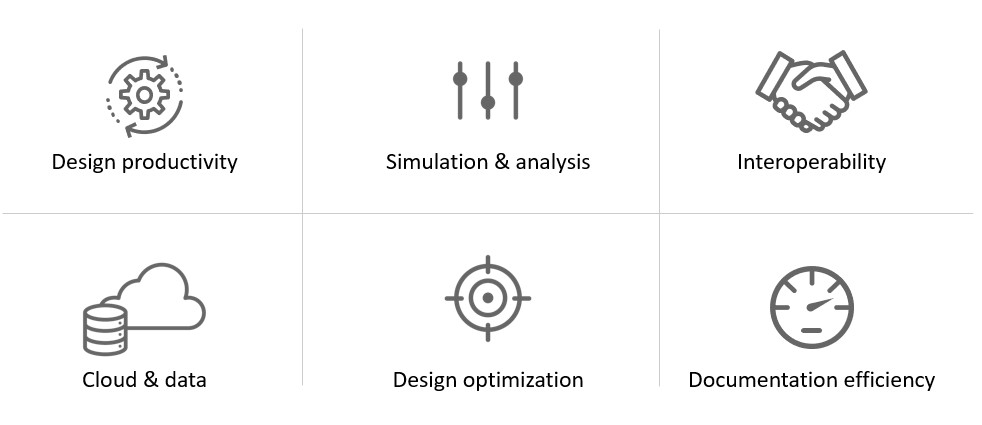
The new features in Autodesk Revit 2024 fall under these six categories:
A new My Insights panel has been added to the Revit Home.
By aggregating usage data and finding trends in your workflows, Revit helps you quantify your most common commands and keystrokes, and offers suggestions for how you can optimize and save time when completing design tasks.
It provides information, recommendations, hints and tips to make your work in Revit more effective.
The page displays cards, you can react to these cards and click the Learn more button to access additional online content.
Use the sample model to learn about features and workflows. The sample model is an example of a mixed use project created using Revit. The model shows examples of how many elements are used to create a project. Examples of construction documents as well as coordinated structural, MEP, site, and point cloud files are included in order to provide a complete model.
Use the Help icons located through the model to learn about specific elements and workflows demonstrated with the model. Track your progress learning about the sample model with the “How Do I?” schedule included in the model. The updated project templates make starting projects and developing your own templates easier.
New Imperial and Metric English “All Discipline” templates are included in a standard installation. The templates include a new starting view, updated fonts, and families loaded for each category.
Improve design deliverables by applying consistent color standards. The new colour books browser replaces how you can select Pantone colors.
Visit: https://download.autodesk.com/global/acb/index.html to download.
Expand your ability to create impactful representations using the new Textures visual style to apply the texture of render materials without lighting effects.
This style maintains a consistent textural appearance so that a material is always displayed in the same way no matter how it is oriented to the light source.
Expedite your renderings updates with the Auto Sync link in Twinmotion with Revit 2024.
Once Auto Sync is enabled while in a 3D view, all visible geometry in this view is automatically kept in sync.
Project parameters were previously sorted by the date/time of creation, now project parameters are sorted alphabetically in type and instance properties dialogs
Once you have built your family and defined your family types, you can use the “Family Types” export tool to generate a text file.
In Revit 2024, family type parameter data gets included in the export, helping create a family type catalog with less efforts.
Get more flexibility when modifying scope box parameters. With the scope box feature, you can control the extents of levels, grids, reference plans, and even the views themselves in plan views.
Height and name parameters have been moved from the Options bar to the Properties palette when creating a scope box in Revit 2024. After a scope box is created, you can edit its height value directly in the Properties palette.
Improve the quality of your site design with the Toposolid capabilities in Autodesk Revit 2024.
Toposolids represent topography as solid geometry and replaces the Toposurface functionality in previous releases with new icons under the Massing and Site ribbon reflect these new capabilities.
There are two methods to create a Toposolid:
1) Sketch the boundary and and defining elevation points
2) Create it from an import file, either a CAD import or a point file in CSV format.
Existing Toposurfaces upgraded from previous versions can be converted into Toposolids with the “Generate Toposolids” contextual tool. Here you can access the legacy Toposurface settings. Linked topography generated from Civil 3D and hosted in Autodesk Docs will be automatically converted into a Toposolid. The Property Line Data settings is now available as a stand-alone drop-down menu of the Model Site ribbon panel.
Improve the site documentation with expanded surface types by building Toposolids as system families with different instance and type properties, to represent different types of surface sections such as roads and sidewalks, soil infills, grade slabs, sport fields, water bodies, etc.
In Autodesk Revit 2024, each Toposolid type can display different compound layer configurations and different ways of representing contour line intervals.
Toposolids can be set up as a room bound element, suitable for open space programming. The instance properties of a toposolid report a myriad of dimensional parameters, including slope, perimeter, area, volume, elevation, and thickness, among others.
Another Site Design feature in Revit 2024 allows you to design topography features faster and deliver better site plans by defining an area of a toposolid to offset from the original toposolid surface.
For example, you can use sub-divisions to draw parking lots roads, or islands on a toposolid. Creating a sub-division does not result in separate surfaces. Use the split tool to achieve that. Use the instance properties of the sub-division to assign another material to the toposolid.
The sub-division is positively offset from the original surface and must have a thickness > 0. Inherit Contours toggle will display contours from the parent toposolid on the sub-division.
Building pads are now retired in Autodesk Revit 2024. Existing pads present in upgraded models can still be edited, but you won’t have the ability to create new ones. To represent an excavation or a tunnel, use cut tools using in-place void-mass families to perform boolean operations.
In addition, you can cut a Toposolid with elements of multiple categories, including other Toposolids, Ceilings, Floors, Slab Edges, Roofs, Fascia, Gutter, Roof Soffits, Structural Foundations, Walls, Wall Sweeps, Mass Void Forms. Use the Split Tool to freely Split Toposolids in separate element, using sketch lines as the cutting edges. Annotations such as Spot Elevation and Dimensions will remain in place after the split operation. The Split portion with the larges volume will inherit the original ElementID.
Reduce your site construction cost with balanced cut and fill analysis. Revit 2024 can report cut and fill volumes on a site to aid in determining the costs of landscape modification during site development.
Apply cut and fill volume analysis to Toposolids using Graded Regions. The grading tool marks an existing Toposolid as demolished and makes a copy with a matching boundary in the current phase .
Grade areas of the topography using the point shape-editor, where you can add, delete, or change the elevation of points. Report the cut and fill volumes of a graded region with a Toposolid schedule.
You can preview the display of a Toposolid control points during pre-highlight and selection. Turn off the display of points toggle if you experience performance issues.
The toggle is available as a drop-down panel of the Shape Editing tool. The points will be always accessible when to edit the Toposolid using the Modify sub-element tool.
Enjoy your site modeling experience with the expanded functionality of Toposolids with it now being easier than ever to model fences that follow the surface of a topography.
Railing now are hosted by Toposolids. In addition, it can host elements from the categories of Site, Parking, Floor Based Elements. Slab edge families can be applied to the edge of a toposolid. For example a slab edge might be used to model a curb edge on your site.
For program developers, Revit 2024 has added APIs for Toposolid-related functions: Toposolid Creations, Generate Toposolid from Toposurface, simplifying Toposolid Points, Subdivision Creations, and Contour Settings.
These new alignment options for the freeform rebar in Revit 2024, increase 3D rebar modeling versatility and help you define the accurate reinforcement for standard and non-standard shapes of concrete elements.
You can now choose how to align the bars in the rebar set and also you can make the bars in the set to be parallel to the planar face selected in the Align/Close constraint. You can also set the alignment options for free form rebar sets, using the Bar Alignment parameter in the Properties palette of the structural rebar or using the in-canvas toggle.
Increase 3D rebar modelling versatility by greater control over free form rebars in Revit 2024. You can now toggle the stirrup orientation for the aligned distribution free form rebar by pressing Space bar, however, only applies only for the closed stirrups in the set.
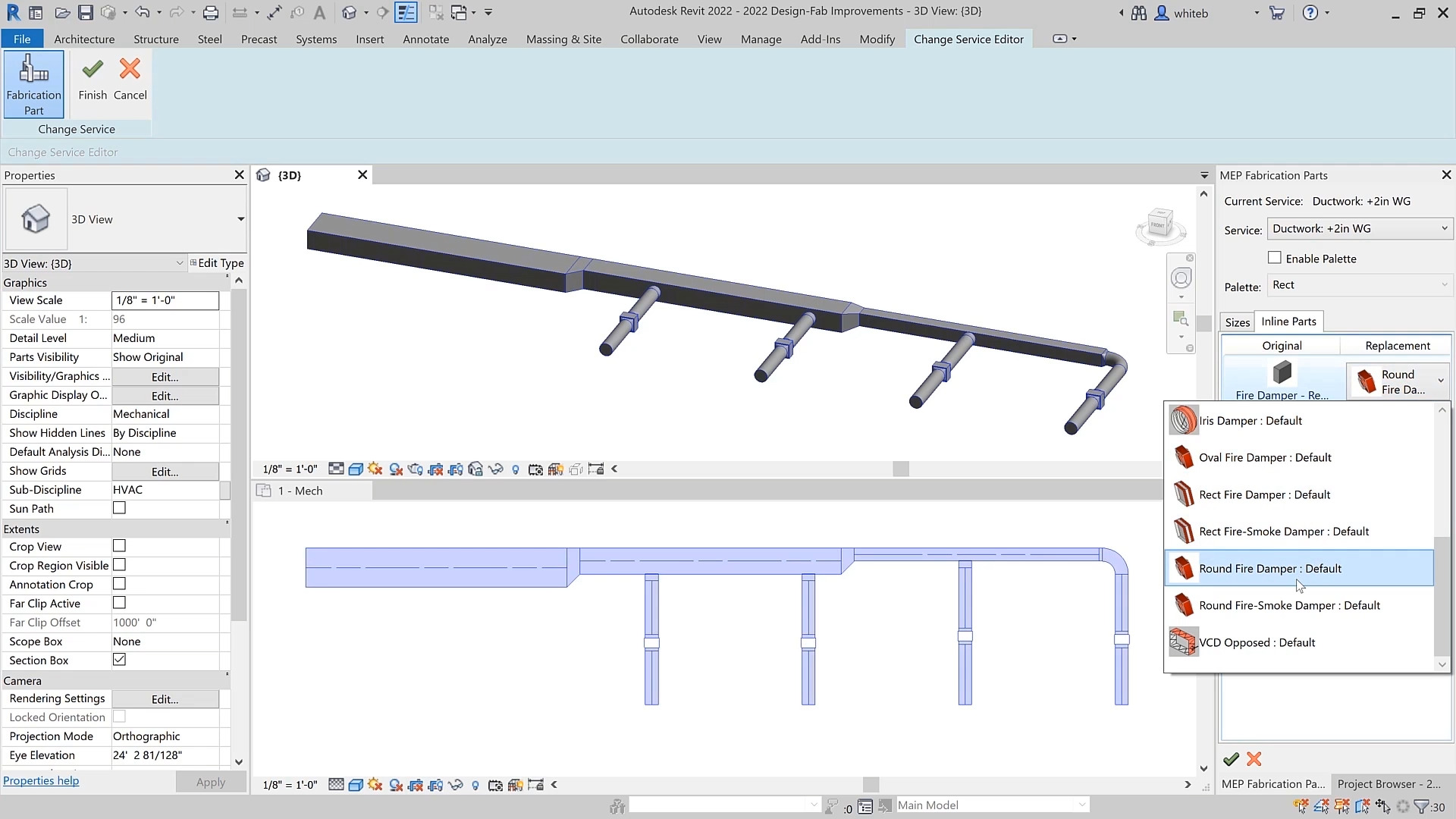
Create stiffeners on ductwork with dedicated features with the new MEP Fabrication Ductwork Stiffener command in Autodesk Revit 2024 under the system tab.
This command enables manual placement of loaded stiffener families. Currently stiffener families can be placed and hosted onto straight segments of Fabrication Ductwork. After placement, the hosted stiffener instances would move and resize with the duct segments as users make modifications.
A new family category MEP Ancillary Framing has been added for the basic components used in creating MEP supporting elements such as duct stiffeners, hangers and supports, or equipment racks. Revit 2024 comes with typical Ancillary Framing families used to construct duct stiffeners, including angle irons, struts, rods, angle rings and more.
You can create a schedule with MEP Fabrication Ductwork Stiffener embedded into a Fabrication Ductwork schedule. This allows to more clearly report stiffener data such as stiffener type and their relative location on the duct along with their hosting duct segments, helping with quantification in the fabrication process. Internal stiffeners can be created by constraining internal supporting members such as threaded rods families or conduits families to either side of a duct connector. A built-in parameter is used to differentiate the classification of stiffeners. By setting the parameter value as Internal Stiffeners, Revit creates holes on the stiffener’s hosting ductwork based on shared ancillary framing components.
When you export the fabrication ductwork in a project to a maj. File, hole information will be generated based on internal stiffeners’ locations and shared sub-components. This allows to generate more accurate cut patterns in legacy fabrication products such as Autodesk CAMduct.
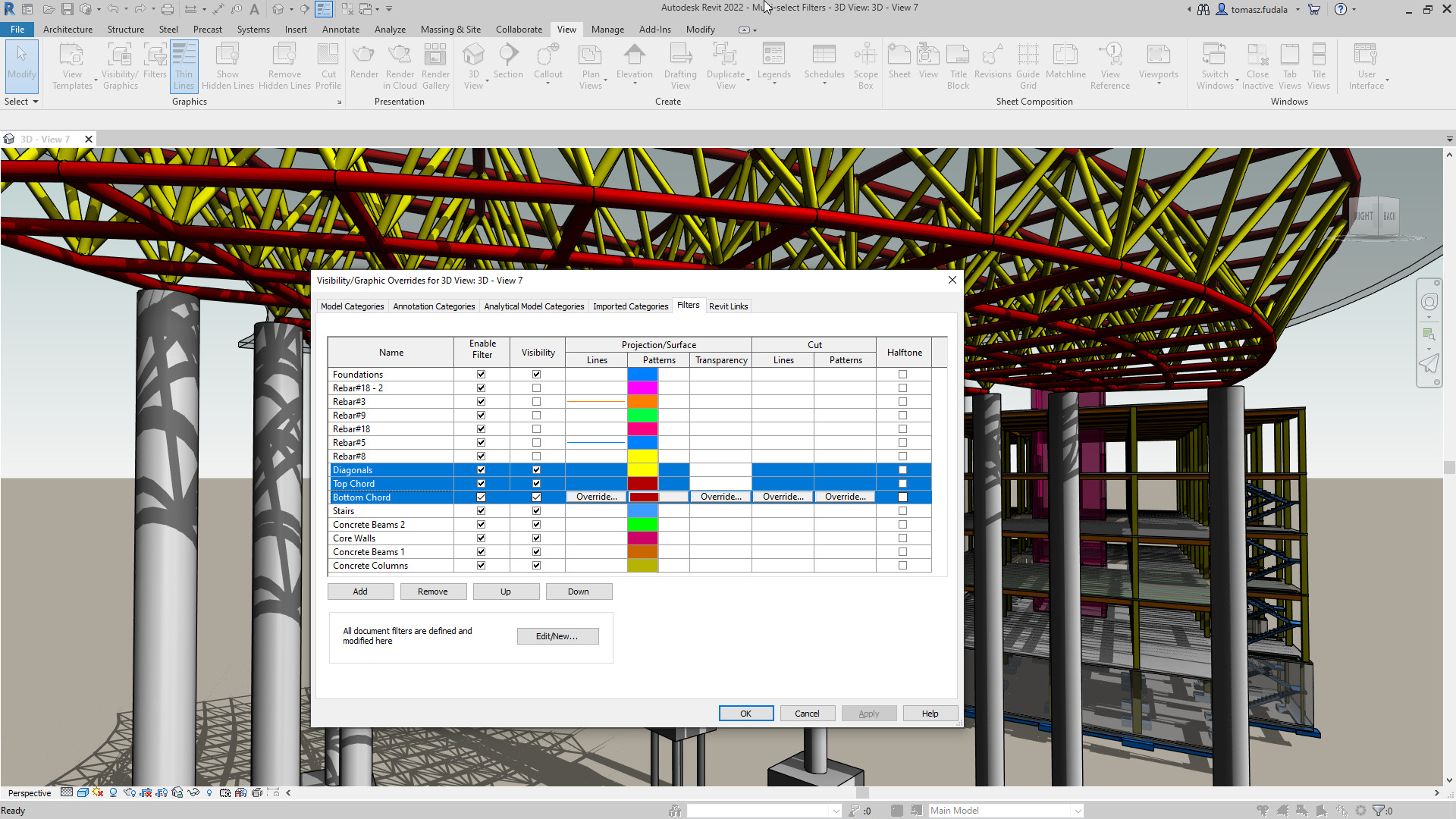
In Revit 2024, you can easily and accurately control the display of MEP components with visibility filters with access to additional elevation parameters to control the visibility of MEP components in your views.
These improvements to elevation parameters will help you document for installation on sloped MEP segments more efficiently in Revit 2024.
Revit 2024 has wall thickness as a built-in parameter for pipes to more efficiently create documentation for pipes based on the information available in the model.
This wall thickness parameter is available for pipe tagging and scheduling. You can also use this wall thickness parameter in view filters to control the appearance of pipes in a view.
Improve efficiency when hiding ducts with insulation. In previous releases of Revit, the insulation remained visible when hiding duct and pipe with insulation, however, now in Revit 2024, the insulation gets hidden regardless the method you use to hide the insulation on duct or pipe elements.
Get more flexibility when modifying scope box parameters. With the scope box feature, you can control the extents of levels, grids, reference plans, and even the views themselves in plan views.
Height and name parameters have been moved from the Options bar to the Properties palette when creating a scope box in Revit 2024. After a scope box is created, you can edit its height value directly in the Properties palette.
Better visualise the impact of sunlight and shadows. You can access the Sun Settings dialog directly from the ribbon.
Smaller time intervals measured in seconds are now available for single-day solar studies. Study shadows with a higher precision using 15, 30, 45, or 60-second intervals. Drag the sun along its path when using perspective view.
Toggle this functionality on or off in the Energy Settings dialog and select a 3D view to create the EAM from to create a faster and more accurate Energy Analytical Model for use in Insight, Systems Analysis and 3rd party tools (via gbXML export). New capabilities for Energy Analysis provide workflow simplification especially when working with linked Architectural models. 3D views can now be chosen to more selectively define what elements are used in Energy Analytical Model creation. This essentially provides an additional means of controlling what elements are used in EAM creation that’s independent from the room bounding setting.
In Revit 2024, there’s more versatile and accurate definition of structural loads, to improve analytical modeling flexibility. Structural engineers can now apply hosted loads to specific areas of panels and members. Additionally, you can now copy loads to other hosts.
Now you can create multiple associations between structural elements to better coordinate updates across the physical and analytical models.
You can associate multiple analytical panels or members to a single physical object (or vice versa). For example, several analytical panels to represent a single physical floor, several beams associated to a single multi-span analytical member, etc. This new feature helps better coordinate updates across physical and analytical models.
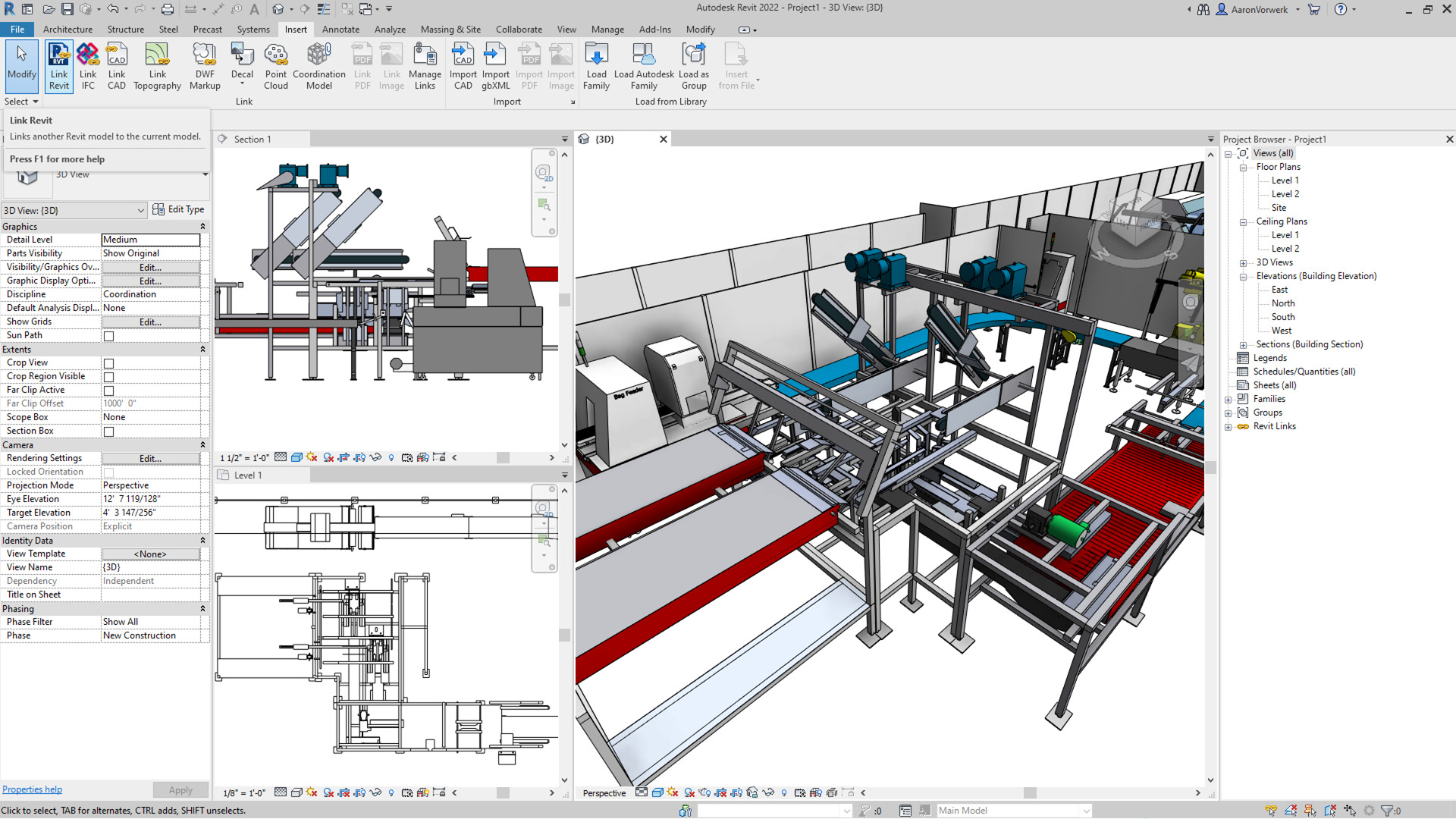
The new Link Coordination Model feature with Revit and Autodesk Docs makes it easier for project teams to evolve work together.
You can select individual coordination objects by pressing the TAB key until it highlights the element you want to select and get properties of this object displayed in the Properties palette.
These properties are in read-only mode and therefore cannot be edited.
Enable fast and convenient snap on coordination model objects. When linking a coordination model into your Revit project, you can snap to coordination model objects.
This is controlled by a new “Snap to Coordination Models” option located in the “Snaps” dialog box.
For example, you can use the “Measure” tool to get a distance between an object in your current Revit project and another object hosted in a linked coordination model.
You can select individual coordination objects by pressing the TAB key until it highlights the element you want to select and get properties of this object displayed in the Properties palette.
These properties are in read-only mode and therefore cannot be edited.
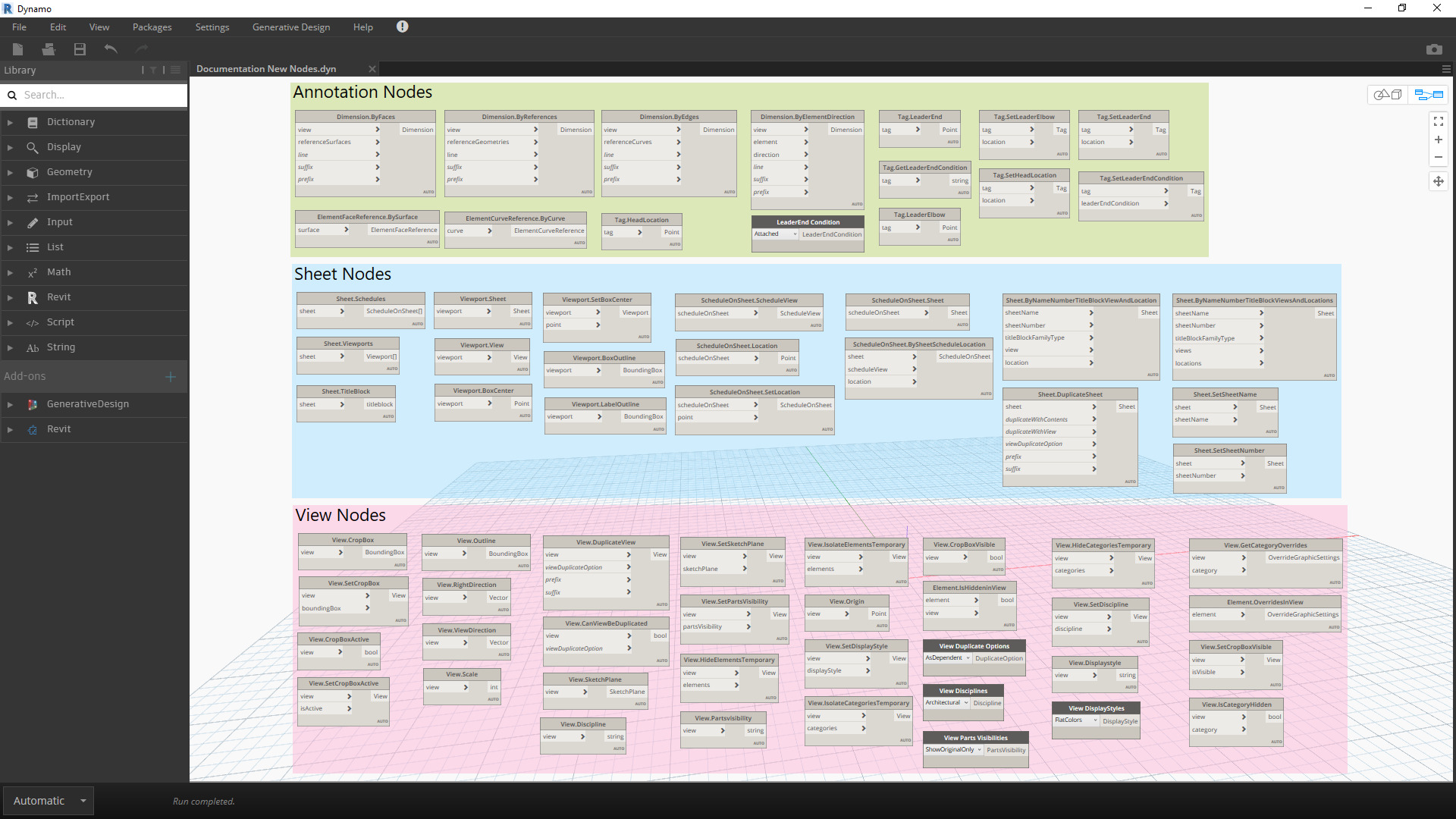
Dynamo 2.17 includes the following features: node recommendations powered by machine learning, settings import and export, graph import to workspace, and more. There are several improvements to Node Autocomplete:
You can import and export Dynamo settings from the Preferences panel. Settings will be exported as an XML file.
Insert graphs into the workspace by going to File Insert and selecting a DYN file. If you already have nodes or a graph in the workspace, the inserted file content will appear below the existing content. To avoid potential issues, Manual run mode will be changed to Automatic.
Also, there are several improvements to the Documentation Browser:
Achieve better design outcomes more efficiently, with these enhancements to Generative Design and Dynamo Player, in Revit 2024. View graph issues and dependencies, add image outputs, and try out new sample graphs in Dynamo Player for Revit 2024.
Save time when placing views and schedules on sheets. You can place multiple views and schedules on a sheet at the same time, either by dragging them onto the sheet in the drawing area or using the Place View command for views.
The Select View dialog contains a search functionality.
When dragging views (and schedules) onto the sheet, they are positioned tiled on the cursor to make selection and arrangement on the sheet easier.
Move multiple elements between sheets while keeping their original positions. The ‘Move View Aligned to Sheet’ command has been generalized to ‘Move Aligned to Sheet’ and expanded to support moving the following sheet-based elements:
Views, Schedules and Panel Schedules can be moved aligned between sheets directly from the Project Browser.
Views, Schedules, Panel Schedules and all additional sheet-based elements can be moved aligned together directly from the sheet drawing area too.
More easily track and call out changes to document sets with a new Revision Clouds category available now for schedules. You can use fields from Views, Sheets and Revision Clouds to create your Revit schedule. This schedule may also contain schedules key and shared parameters.
Check out the Autodesk Revit 2024 Help section for more information regarding the 2024 release.
Discover how Autodesk Vault 2024 can streamline your workflow, increase productivity, and optimise your design process.
Vault is available from Design Consulting on-premise or cloud, so contact us to discuss which instance suits you best.
Contact us to find out how much money you can save on software, training or other services. Fill out the form below, by live chat, phone or email.
P: 1800 490 514 | E: [email protected]
Autodesk AutoCAD 2024 is out with a focus on Accelerating Creativity, Tailored Functionality and a Connected Design Experience.
Focus on quickly creating and collaborating on innovative solutions using assistive machine learning technology to improve design workflows.
Bridge information gaps in collaborative AutoCAD workflows and stay connected to essential data throughout project lifecycles
Provides valuable information to you at the right time and in the right context to assist with steps that you can automate.
Counting blocks is now up to 70% faster and reusing design content with blocks is up to 47% faster.
Automatically place blocks in your drawing based on where you’ve inserted the same ones thus far, reducing the number of clicks and saving you valuable time in the process.
Quickly find the blocks you need with machine learning powered functionality, delivering powerful time-saving automations.
Organisations can customise AutoCAD for their industries, empowering teams to build and run discipline-specific routines and workflows.
Added support for Apple Silicon increased AutoCAD for Mac’s overall performance by 2x*
Autodesk creates an ecosystem of industry-leading design software and technology partners.
AutoLISP, a staple feature of AutoCAD desktop, now enables customisations to automate a sequence of commands in AutoCAD on the web
AutoCAD LT now includes AutoLISP.
Leverage thousands of previously written programs created for use in AutoCAD-based programs. AutoCAD LT supports AutoLISP Source (LSP) files, compiled LSP files, Fast-load AutoLISP (FAS), and Visual LISP Applications (VLX) files.
Faster cross-platform markup workflows through expanded machine learning capabilities & essential experience improvements
The CUI, tool palettes, and templates have undergone enhancements to facilitate the transfer of customised files and locations.
To utilise personalized configurations:
The Start, File and Layout Tabs have been improved.
Enhancements to the Trace environment continue, with the introduction of the COPYFROMTRACE command and additional settings controls on the toolbar.
The following improvements have been made to Autodesk Docs:
AutoCAD 2024 offers more advanced features for 3D modeling, customisation with add-on apps and APIs, rendering, and CAD standards, among other features, while AutoCAD LT 2024 is a more affordable version that still offers many of the essential features for 2D drafting, annotation, and automation.
| Features | AutoCAD 2024 | AutoCAD LT 2024 |
|---|---|---|
| Find and replace blocks based on other blocks in your drawing | Yes | No |
| Stay informed of relevant file changes with details of multi-user activities in a DWG file | Yes | No |
| Utilise AutoLISP programs to automate repetitive tasks and enhance workflows | Yes | Yes |
| Extend AutoLISP programs with third-party automation libraries, and utilize specialised editors to write and debug programs | Yes | No |
| Create and edit 2D geometry | Yes | Yes |
| Annotate drawings with traces, text, dimensions, leaders & tables | Yes | Yes |
| Customize the ribbon and tool palettes | Yes | Yes |
| Attach and import data from PDF files | Yes | Yes |
| Share and use data from DGN files, Navisworks, & Bing Maps | Yes | Yes |
| Create and edit 3D models with solids, surfaces, & mesh objects | Yes | No |
| Customize with add-on apps and APIs | Yes | No |
| Extract object data to tables | Yes | No |
| Create renderings with lighting, materials, & visual styles | Yes | No |
| Apply and monitor CAD standards | Yes | No |
| Automate counting objects and blocks | Yes | Yes |
| Share drawings with colleagues directly from AutoCAD or AutoCAD LT | Yes | Yes |
| Import feedback and incorporate changes with a click of a button | Yes | No |
| Learn new features and workflows to work faster with My Insights | Yes | No |
With AEC3DPRINT command, you can natively export the AEC objects to an STL file format that’s compatible with 3D printing without converting to 3D solids.
New MVBlocks and block references are available in Design Center.
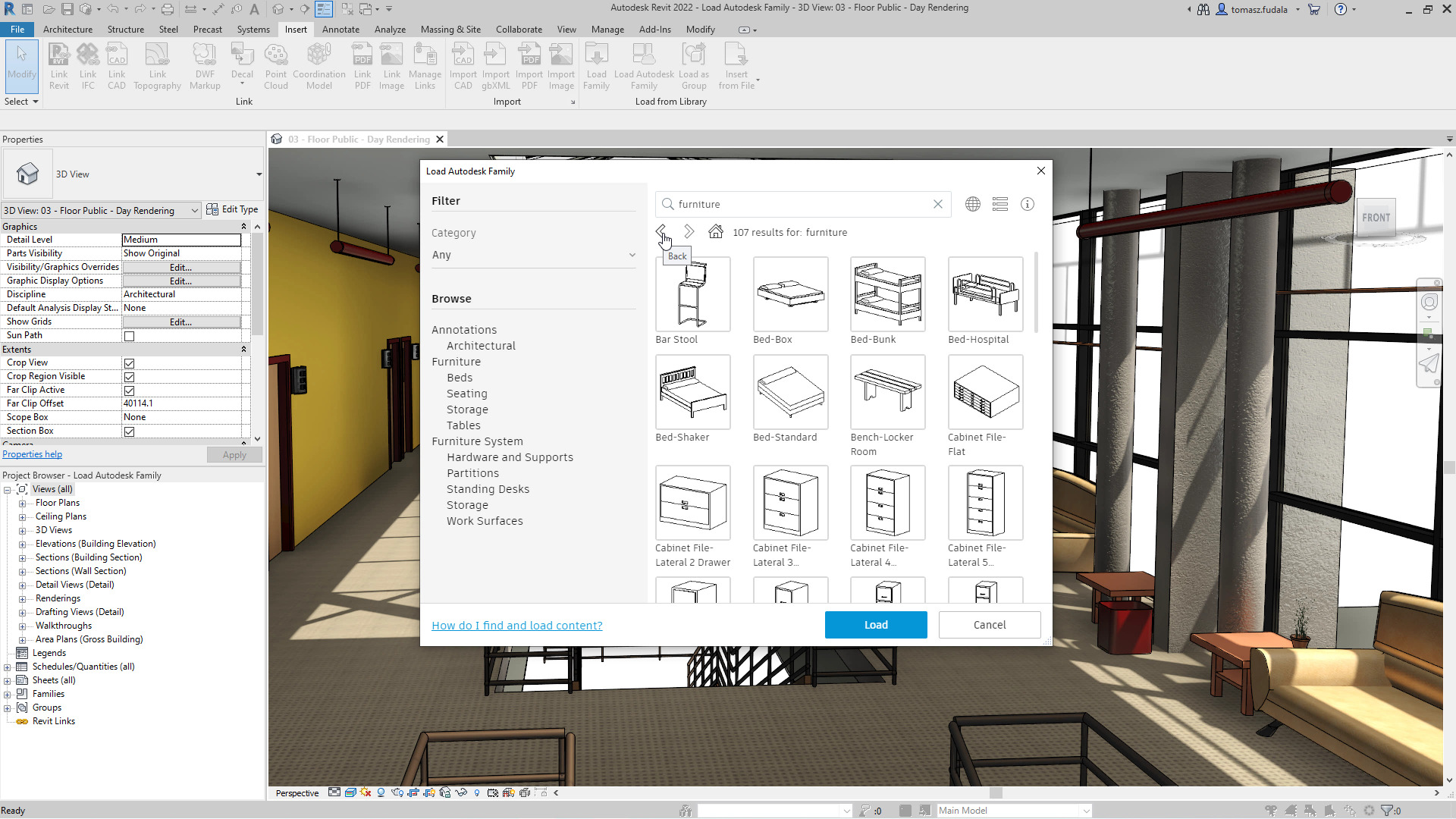
More than 200 new MVBlocks and block references are added to the AutoCAD Architecture (US Imperial) and AutoCAD Architecture (US Metric) content packs for Design Center. The added content is available in metric profile for non-English languages. The content includes external lighting, bathroom accessories, furniture, site, kitchen fittings, and more.
Refer to the 2024 Help file for further information
The section line symbol within AutoCAD Mechanical is updated to support the AWS Y14.3 – 2012 standard revision. To support AWS Y14.3 – 2012, all aspects of the section line symbol are revised to correspond with AWS Y14.3 – 2012.
AutoCAD Mechanical continues to support the AWS Y14.3 – 2003 standard revision to allow documents created in previous releases to be opened, edited, and saved without updating the section line symbol standard. By supporting AWS Y14.3 – 2012 and AWS Y14.3 – 2003, you can annotate new and as-built designs using the required standard revision.
The taper and slope symbol within AutoCAD Mechanical is updated to support the ISO 3040:2016(E) standard revision. To support the ISO 3040:2016(E), all aspects of the taper and slope symbol is revised to correspond with ISO 3040:2016(E).
AutoCAD Mechanical continues to support the ISO 3040:2009(E) standard revision to allow documents created in previous releases to be opened, edited, and saved without updating the taper and slot symbol standard. By supporting ISO 3040:2016(E) and ISO 3040:2009(E), you can annotate new and as-built designs using the required standard revision.
Refer to the 2024 Help file for further information
The Ortho Table Setup dialog box includes simplified options and more table capabilities for orthographic drawings. You can now add the Bill of Materials (BOM) for piping, equipment, steel, as well as nozzle and spool lists into ortho drawings.
The Edit Parts and Edit Properties functions are enhanced in both Spec and Catalog Editors.
Edit parts within a selected parts family for inclusion in a spec sheet or catalog.
Refer to the 2024 Help file for further information
View all parts available for a specific size in the selected spec. Use the search box to look for specific components in the Pipe Spec Viewer.
Any changes to the size and spec lists are both updated in Pipe Spec Viewer and the Part Insertion panel on the ribbon.
In this release, ortho single-line piping offers more enhancements including a new interface for some piping criteria providing better control when you display piping in a single-line representation in orthographic drawings.
AutoCAD Map 3D 2024 supports the new coordinate systems in the following categories:
Refer to the 2024 Help file for further information
Create a schematic symbol table from schematic reports.
The schematic report lists the symbols used in the project along with its description in a table. You can also surf through a particular symbol that is used in various locations of the project.
Wire type can now be synchronized for all wires in the network with the same signal code across the drawings.
In previous releases, when you update the type of the wire connected to the source arrows, the destination wire type was not updated. In AutoCAD Electrical 2024 toolset, when the wire type is updated at the source arrow, all wires in the network are updated to the same wire type of the source. New wire layers are created along with its properties if the destination drawing doesn’t contain the new wire type.
Refer to the 2024 Help file for further information
Choosing between AutoCAD and AutoCAD Mechanical? Our free eBook offers a detailed comparison to help you make the best choice for your design projects. Gain insights into key features, pricing, and real-world applications.
Download the eBook now to make an informed decision and optimise your workflow.
Discover how Autodesk AutoCAD 2024 can streamline your workflow, increase productivity, and optimise your design process.
Contact us to find out how much money you can save on software, training or other services. Fill out the form below, by live chat, phone or email.
P: 1800 490 514 | E: [email protected]
The following has been introduced into the latest Revit 2023.1 Release:
Autodesk announced that they went into a partnership with Epic Games and now Twinmotion is officially included with Revit and it looks like it’s the plug-in for Revit rather than the standalone Twinmotion product.
Autodesk Revit and Architecture Engineering and Construction Collection subscribers should be able to open their Autodesk Desktop App and start downloading Revit 2023.1 and Twinmotion for Revit now.
Check out the Revit Blog for further details
DC is an authorised Autodesk Reseller providing products and services for the Architecture, Engineering, Construction, Infrastructure and Manufacturing Sectors.
Feel free to contact us on 1800 490 514, [email protected], by live chat or fill out the form below.
Managing a construction project is challenging at the best of times, but manual and inefficient fabrication workflows can easily drag out any build.
With modern digital collaboration and workflow platforms now available, building and construction managers no longer need to play guesswork with their metal fabrication requirements.
In this blog we will look at the challenge of disparate workflows and how Design Consulting can integrate a number of tools to streamline fabrication to improve project management and overall building quality.
Most construction projects use some amount of steel for structural members, perforated sheets for facades and tubing for balustrades.
This construction-level fabrication is a form of “construction manufacturing” and the fabrication requirements are generally unique to the project.
As a result of the unique requirements the industry is accustomed to fragmented processes with siloed technology.
For example, estimators might have their own way of requesting what is needed in a PDF or spreadsheet document; a design team might use CAD for design, but not with fabrication-level tools; and the machining team have their separate software and processes.
Then there are external stakeholders. Construction teams routinely have to send and receive designs from customers, consultants and regulators, who also might have something else to add.
What is all this manual work costing? Quite a lot in time and materials.
Construction industry leaders need to assess how they are doing fabrication workflow now and are the tools in use connected with team members and customers?
In the corporate world, people don’t print out a document and surface mail it to someone and then repeat the process over and over, but that’s how bad the manual processes can be with fabrication workflows.
The construction industry is overdue for a change.
Moving to a digital fabrication workflow platform is a good example of digital transformation in the construction sector.
It is about taking the design from the start and going through to manufacture with the same data source, so there is no need to recreate anything in a different program that is disconnected.
With a modern digital collaboration platform, when a change happens it flows through to all stakeholders by connecting departments, end-users and software platforms
For example, with estimating most people use a spreadsheet and manually draw lines in PDFs. Why do that when you can extract data from a model and use design estimating tools?
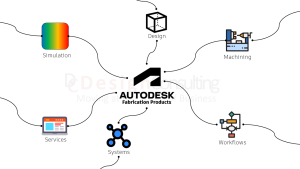
The suite of Autodesk fabrication products work with its most popular CAD and analysis tools for a good level of integration.
For example, Autodesk Fabrication CADmep gives you the ability to create fabrication-intent models of piping, plumbing and ductwork systems. Construction companies can connect CADmep with ESTmep, CADduct and Revit for complete end-to-end workflows.
For more information on how fabrication workflow products integrate with each other please see the documentation on our Fabrication page
DC is an authorised Autodesk Reseller providing products and services for the Architecture, Engineering, Construction, Infrastructure and Manufacturing Sectors.
Feel free to contact us on 1800 490 514, [email protected], by live chat or fill out the form below.
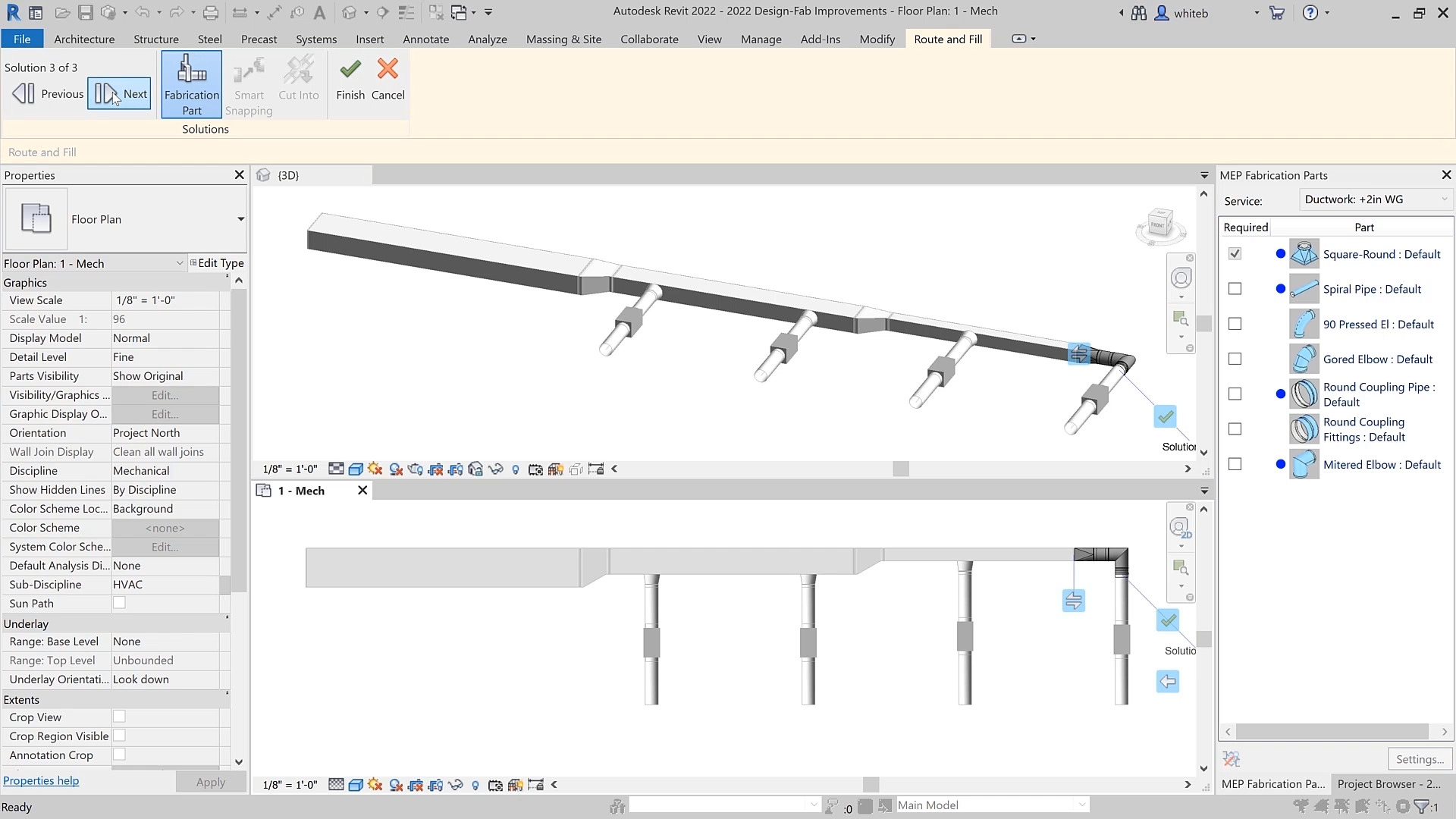
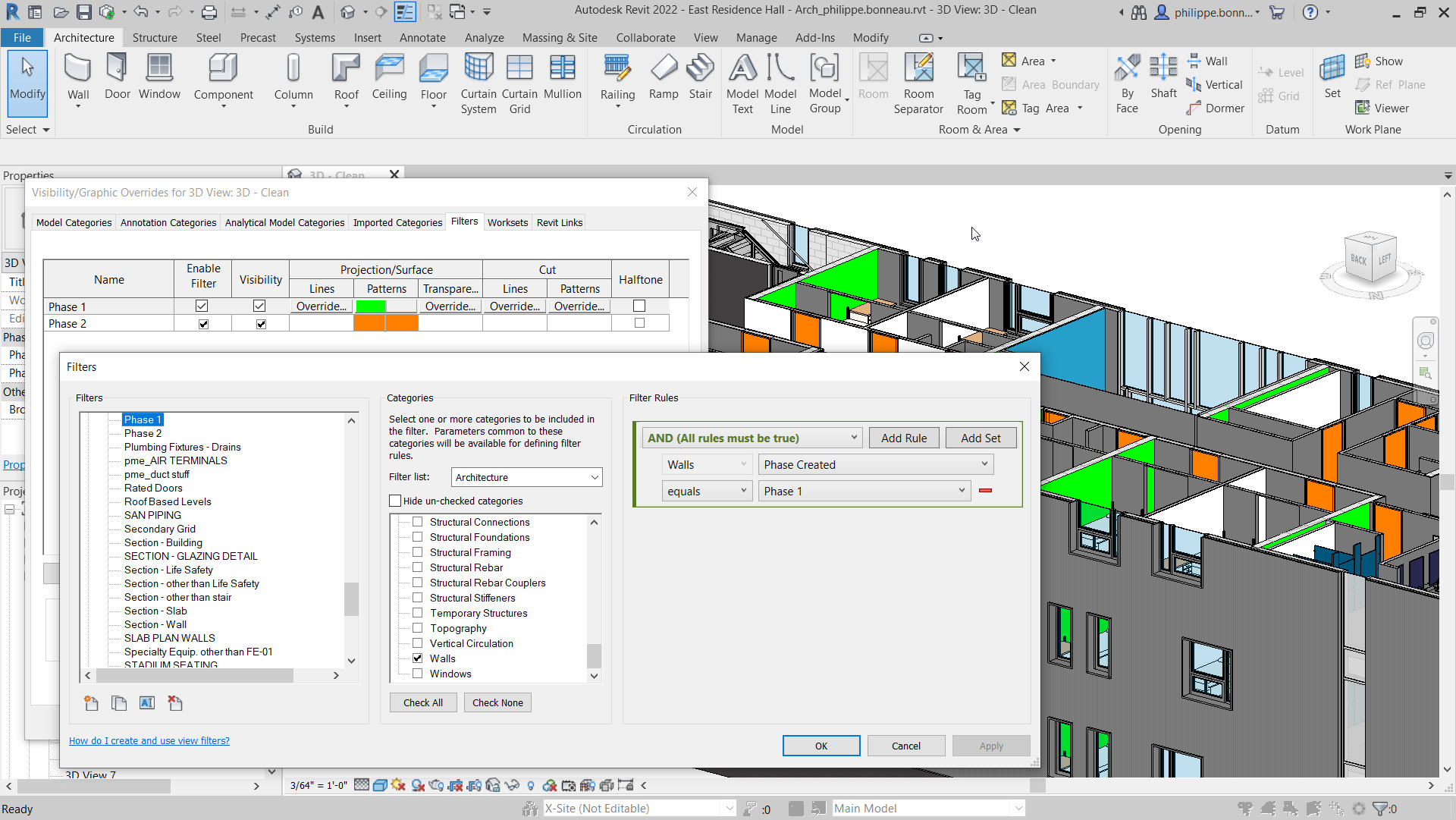
Autodesk Revit 2022’s main focus has been on four main areas:
The 2022 release now has tapered walls.
Change any wall to a tapered wall by changing the cross-section parameter to tapered.
Update the sloping angles using instance overrides or the wall’s temporary dimensions.
Align wall-hosted components to the sloped interior or exterior faces of the wall with clean joins at corner conditions.
Modify the sketch boundaries of a slanted wall along its work plane.
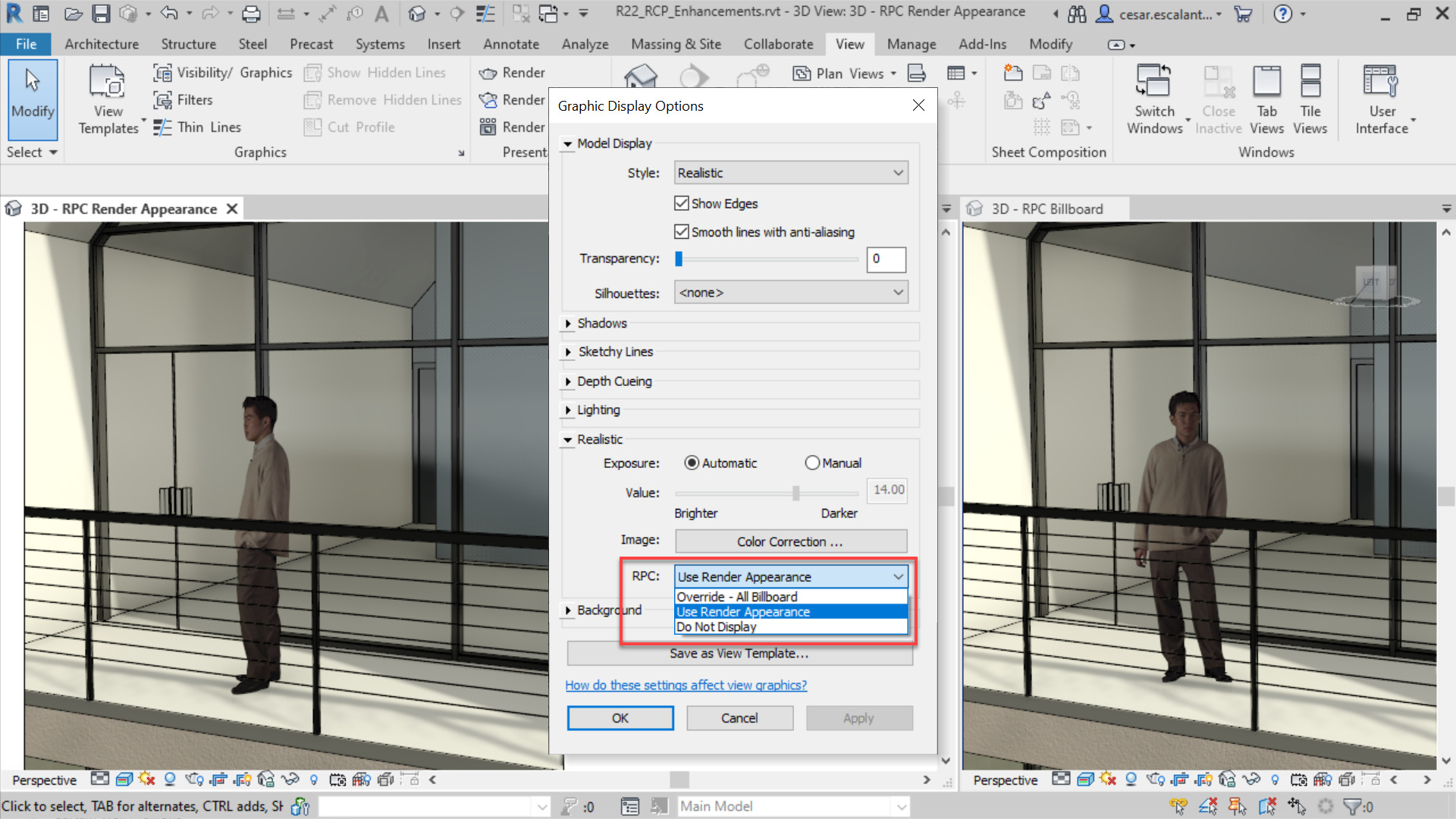
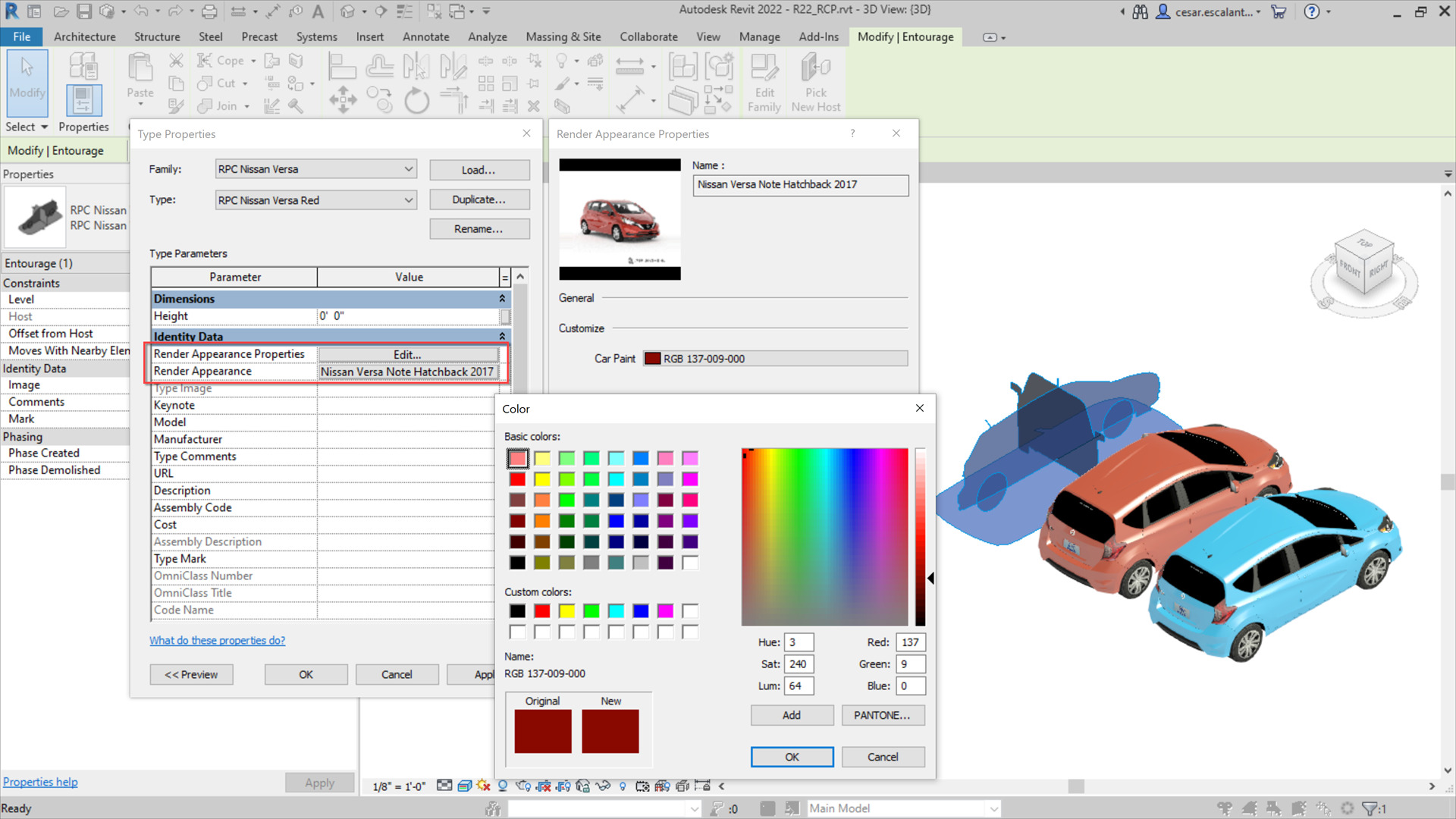
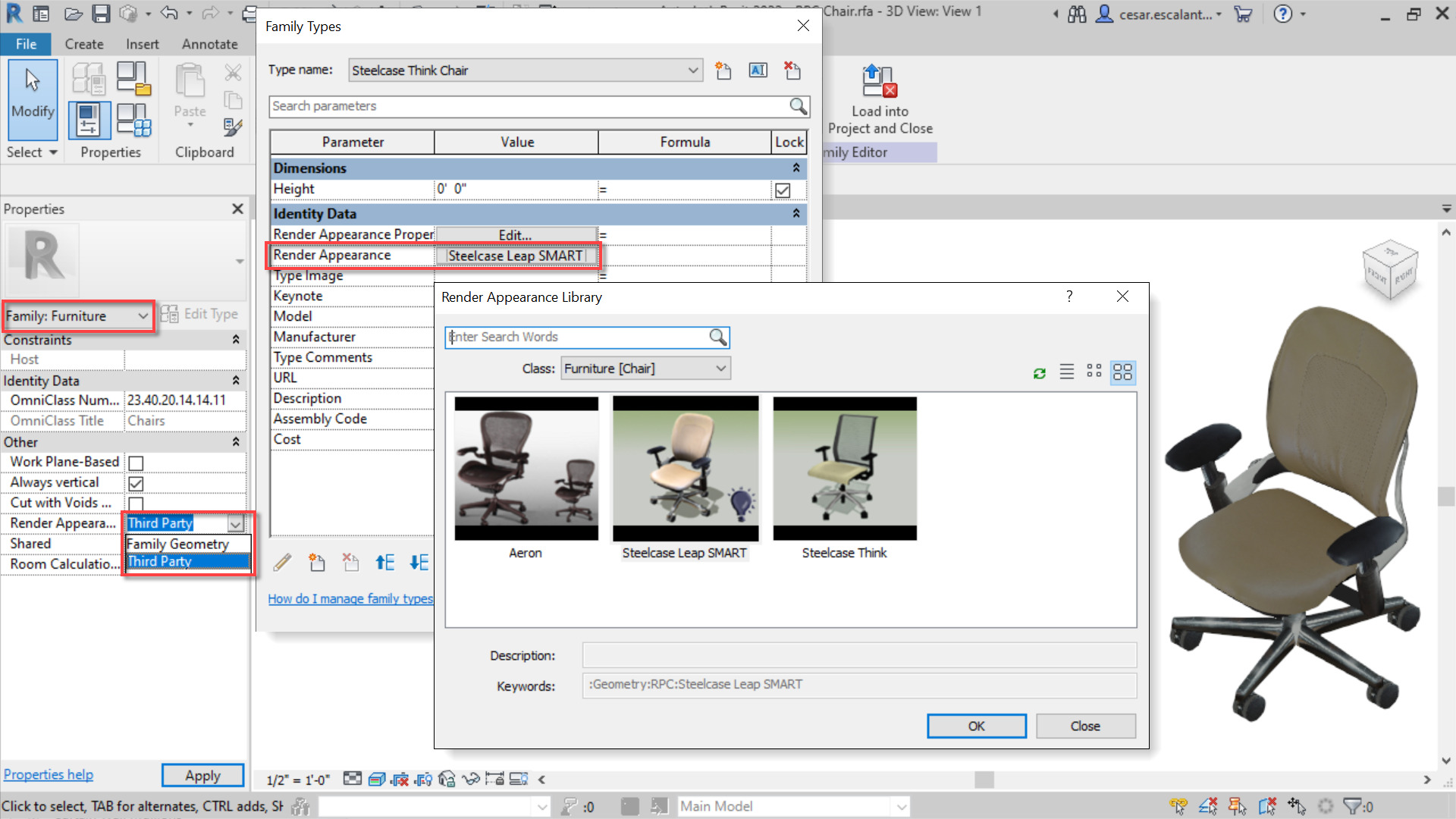
2022 now supports the RPC 2.0 file format:
The support of the RPC 2.0 format displays high-resolution, complex images with physical-based materials and lighting with greater parameter intelligence and control.
The following generative design enhancements have been added:
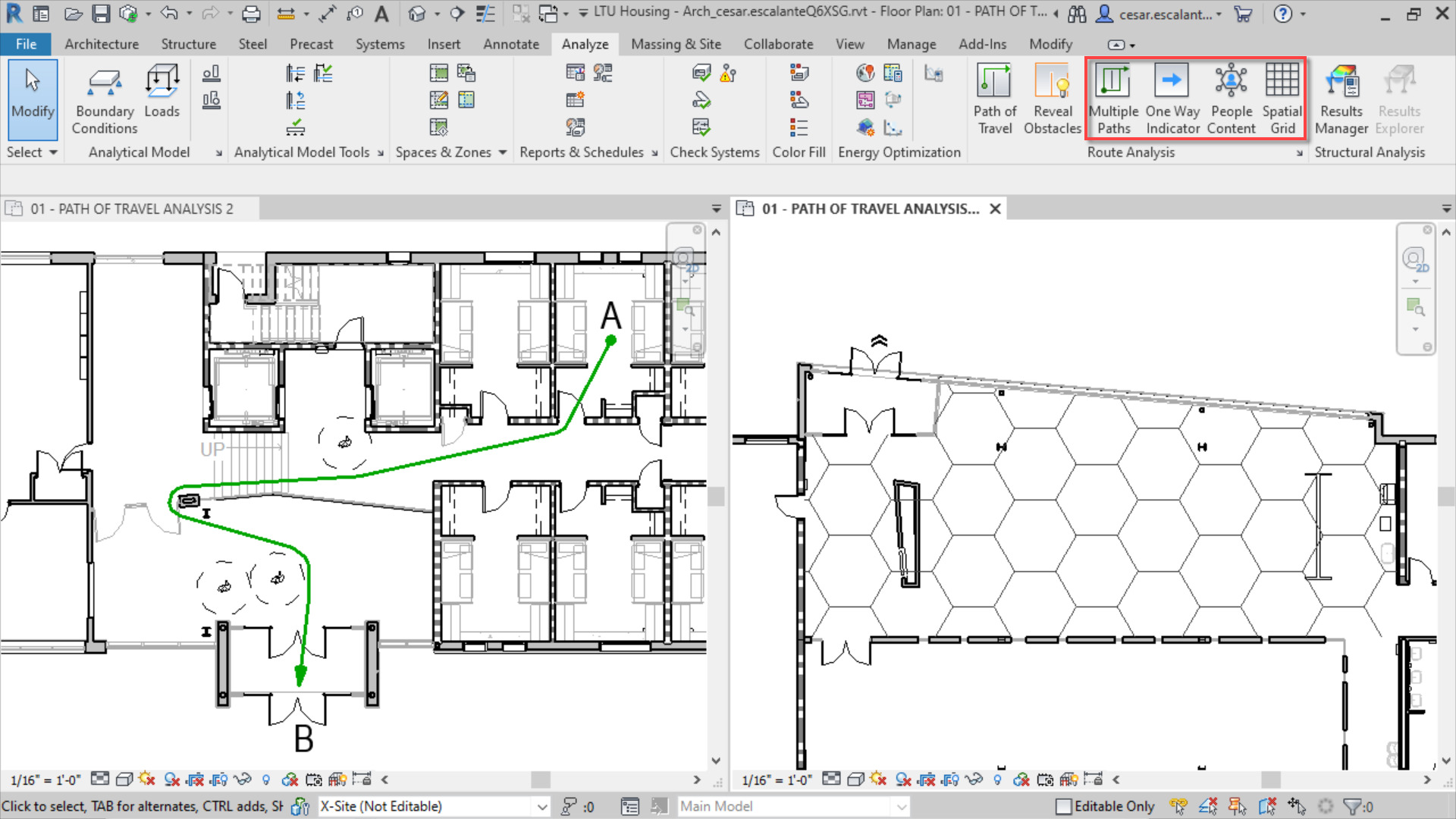
The People Flow Toolkit technology preview has been added into Revit as standard, providing four new tools under Route Analysis to visualise, automate and analyse the impacts of physical distancing and routes within a design.
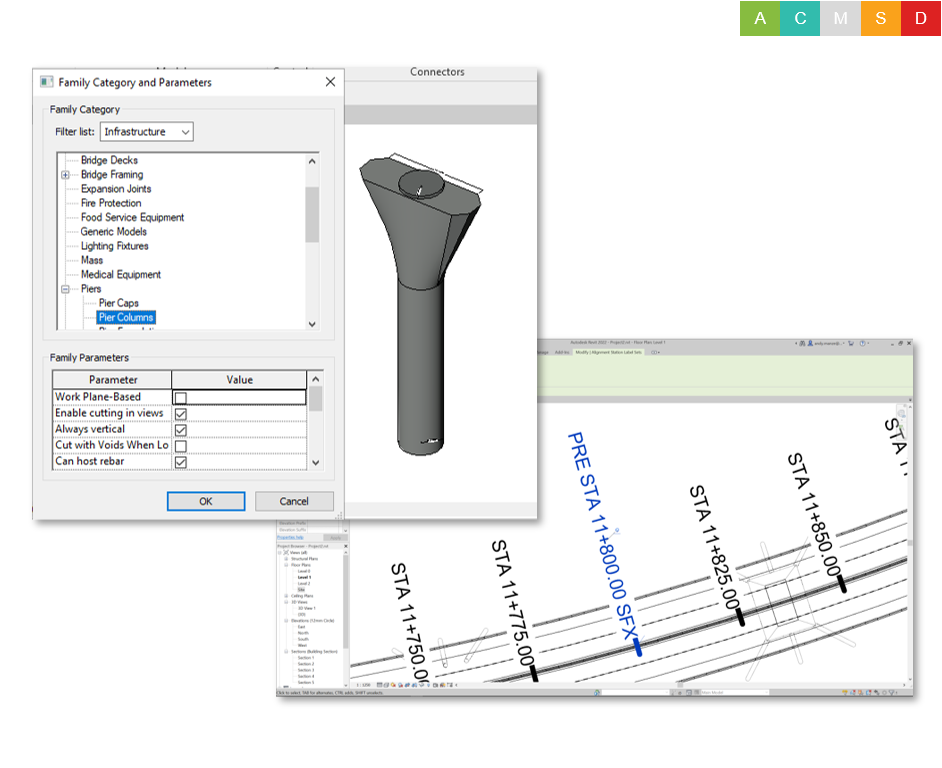
Revit families created using the generic model family template can be assigned to the Bridge and Road categories and subcategories (e.g. Abutments, Piers, and many more).
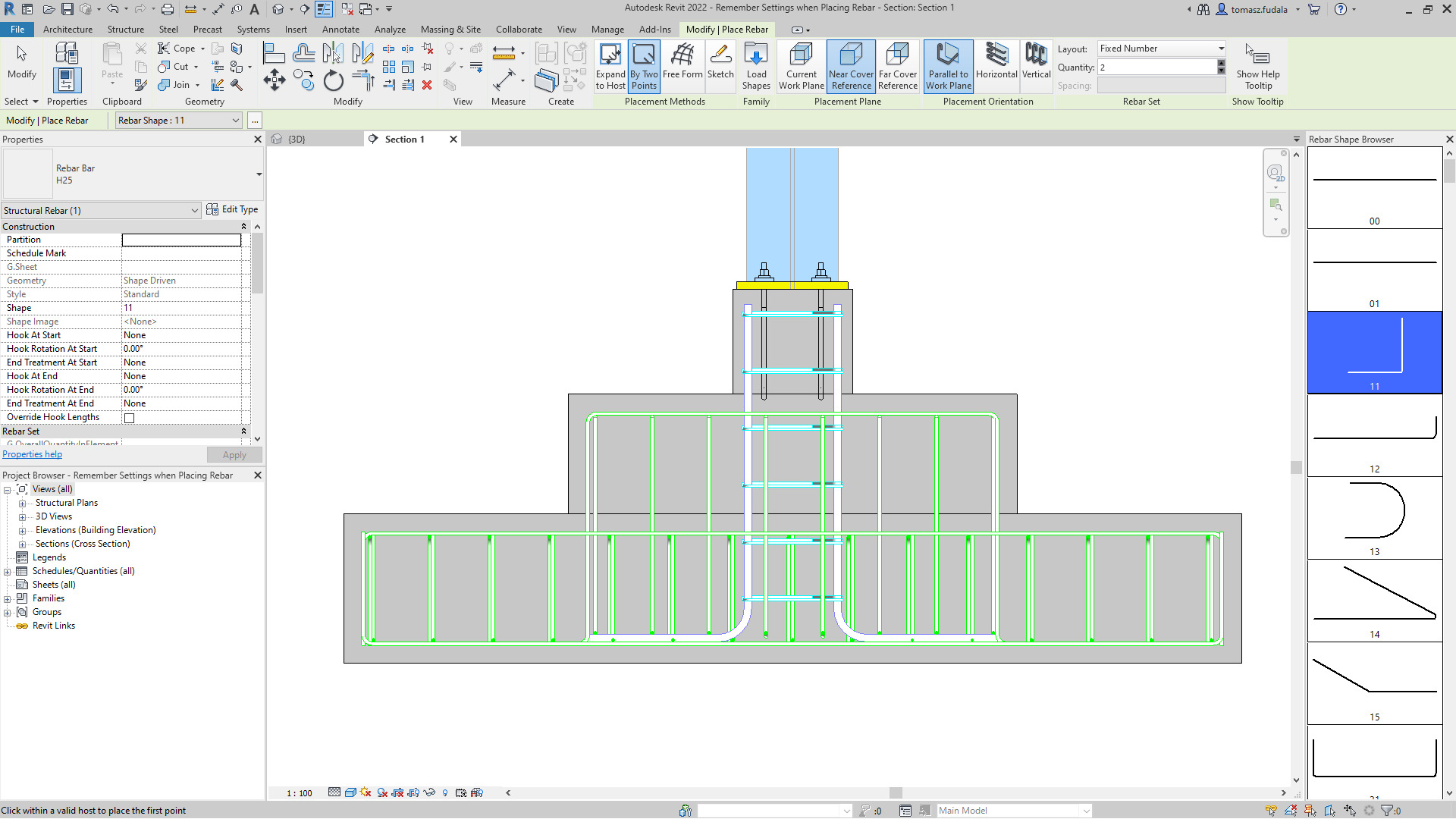
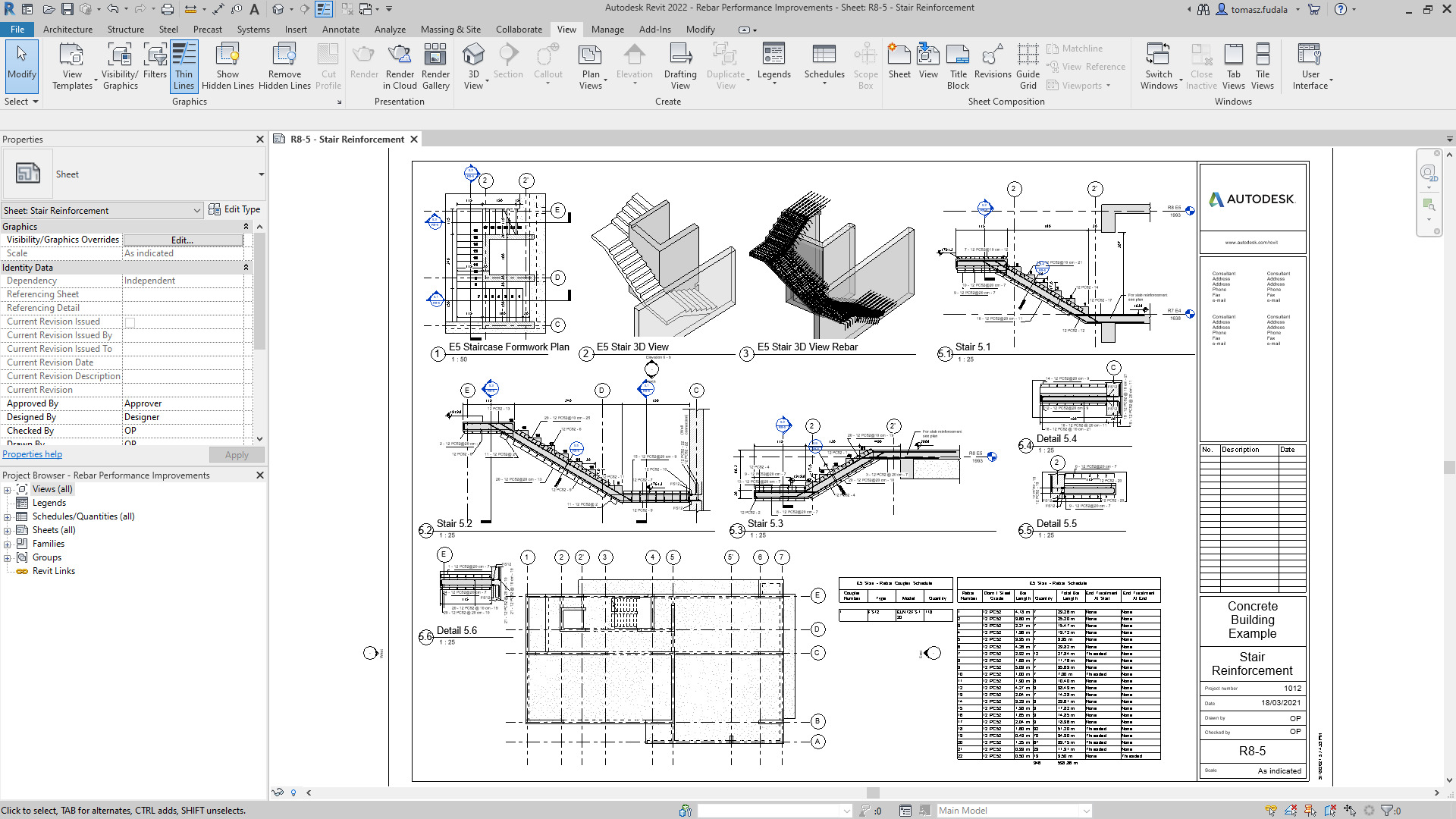
Rebar can be hosted and be defined as cuttable in views, scheduled, tagged, etc.
There has also been minor enhancements to alignment stationing:
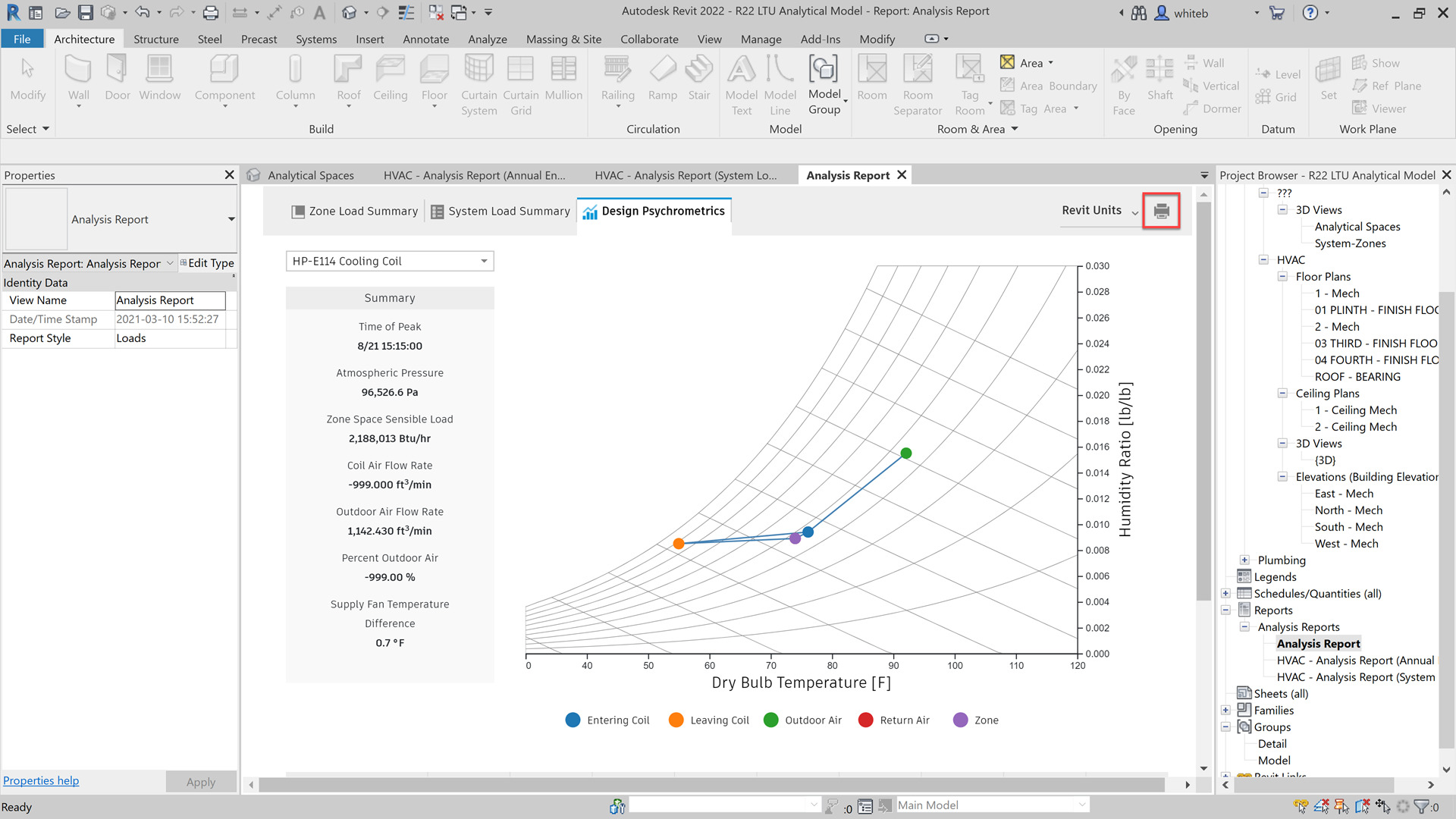
A new feature has been included in the Revit Systems Analysis to get more detailed loads and psychrometric reports.
A user can view a floor plan, 3D view or explore results in the report on a single screen.
After running a simulation on a Systems Analysis model view the summary information for QA/QC checks on multiple unit systems. Reports show a breakdown of load components, totals for sizing equipment, a psychrometric chart, and detailed psychrometric state point properties in a printable formats.
The workflows for exporting to gbXML have been consolidated into a new dialog.
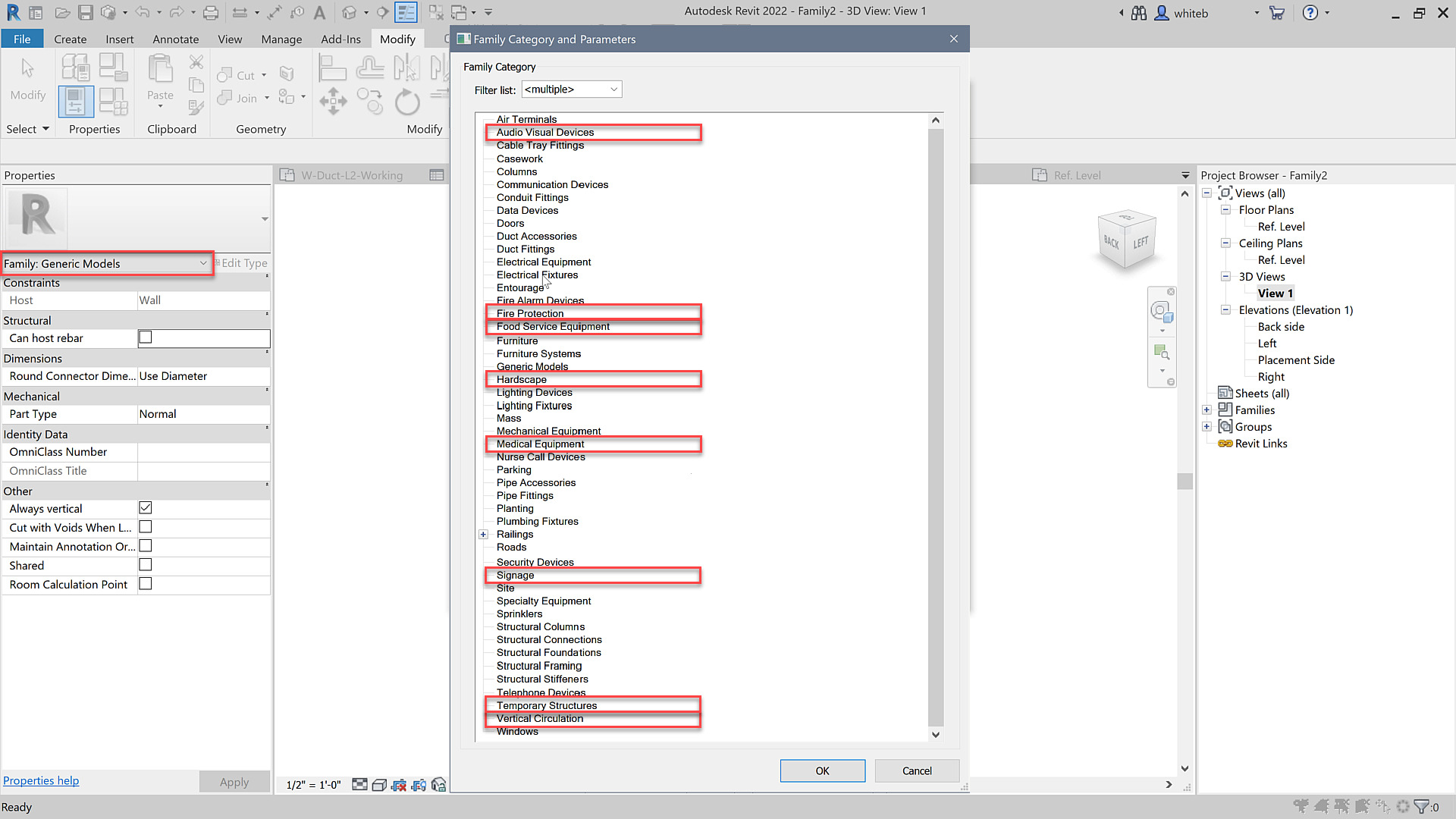
There are new Family Categories for Equipment and Building Elements:
Expanded Category List for MCS and MTs has also been included.
When creating multi-category schedules you will find more categories and sub-categories are available in the table.
This improvement enhances the ability to schedule system categories.
Rebar modelling and detailing has been improved in 2022 with the ability for structural enginers and detailers to move/remove individual bars in rebar sets or area and path reinforcement systems to avoid clashes with other rebars, openings or other elements, while maintaining the logic of the rebar set or system.
Revit 2022 allows you to quickly filter and find available parameters when creating schedules or when working with project parameters.
When you create a schedule or when working in the Project Parameters dialog, the Fields tab in the Schedule Properties dialog includes a filter section
Filter the available parameters based on the following criteria: Parameter Name, Parameter Type, Discipline, Value, Type or Instance
A native, configurable 2D PDF export feature is included in Autodesk Revit 2022.
Offering similar options to the Print dialog, such as a user-defined selection of views and sheets or the ability to export the visible portion of a view.
In the the Export Setup section of the dialog, users can setup PDF naming rules and can use this feature to generate PDF file names automatically based on your project or shared name parameters.
By automatically analysing the the selected views and sheets, the exporter can detect output size and orientation.
Link a Rhino (3DM) file into Revit and if the source file changes, users can reload the file and it will update inside of Revit.
In addition, you can link your Rhino files in Autodesk Docs.
Revit 2022 has achieved IFC4 Reference View certification for architecure and structure exports.
The IFC property set definitions and the associated Revit shared parameter definitions have been updated with the latest IFC4 PSDs of version 4.0.2.2 (partial update from the scope of IFC4 RV1.2 MVD).
Performance of linking in some IFC files containing elements with many parameters has been improved and Autodesk has added the ability for IfcExporter to pick up information from SiteLocation regarding the GeoCoordinateReference in EPSG code format as required by IFC.
Revit can now maintain a link between Revit and Inventor by using the Revit exporter from Inventor.
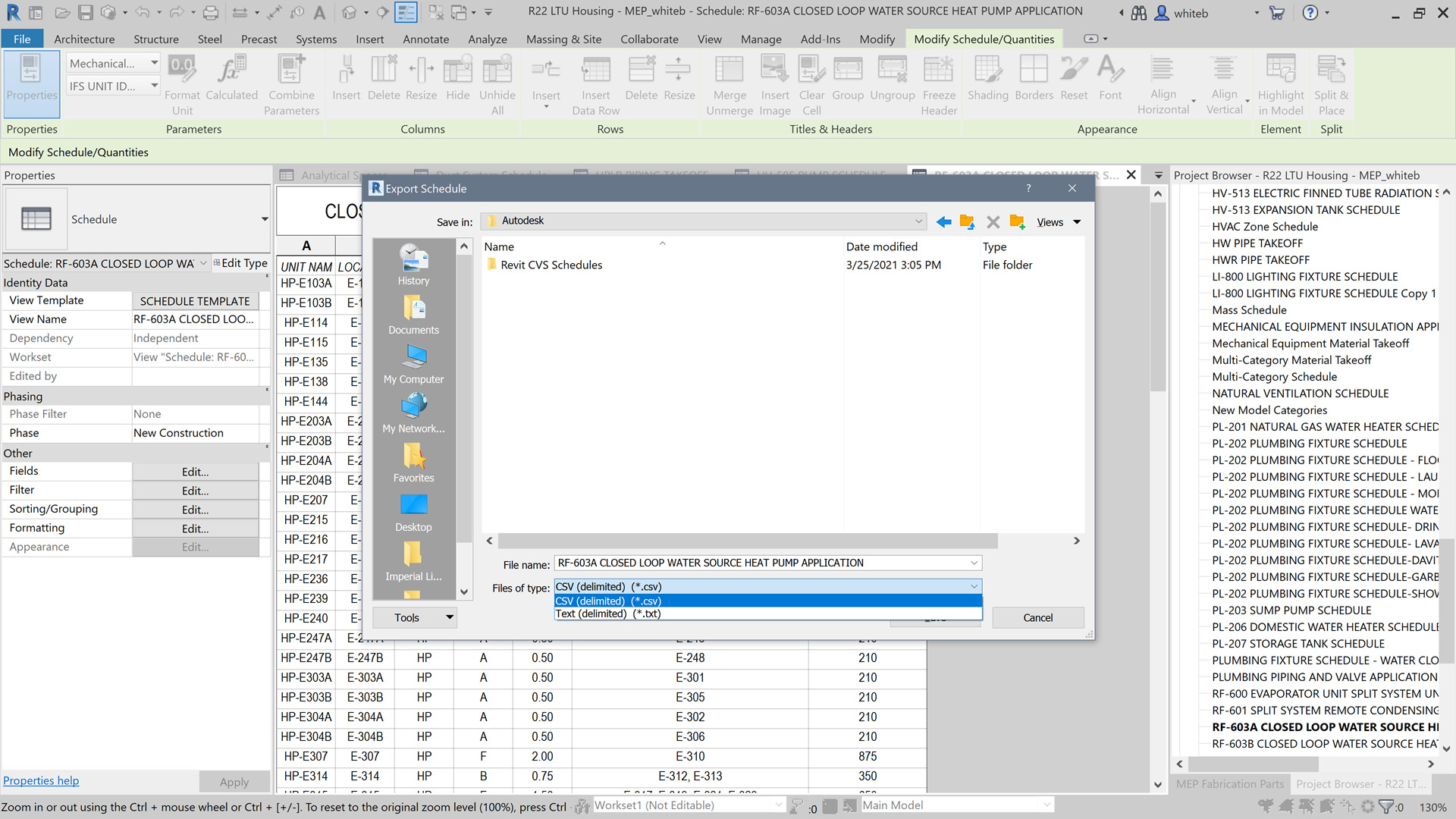
Worksets can now be scheduled in 2022 and users can add a Workset parameter in workshared models when creating a schedule.
The workset parameter can also be accessed when creating takeoffs and lists (view, sheet) and title blocks allowing users to filter and format schedules based on worksets.
The following improvements have been made to:
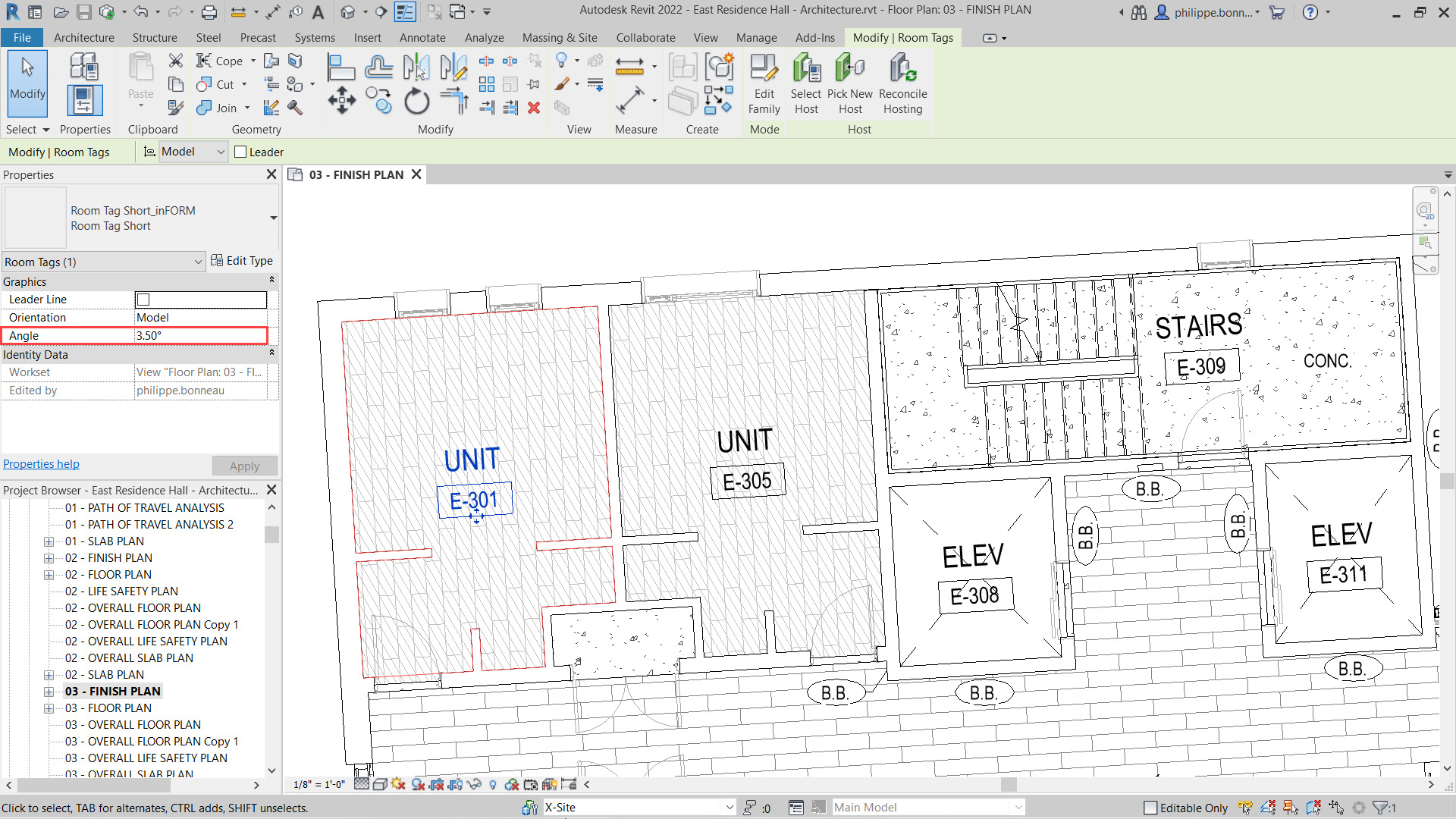
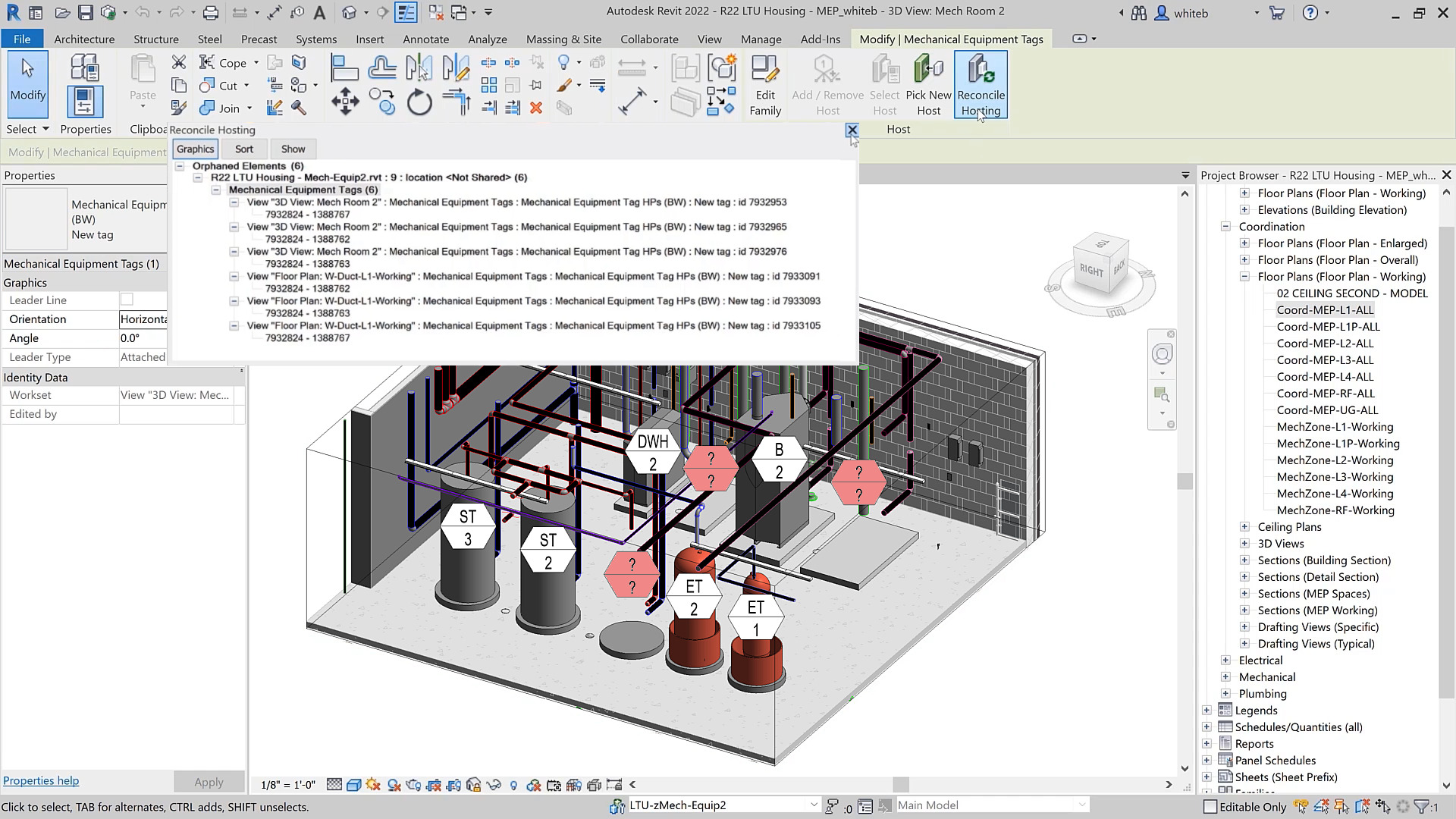
When you rotate a tag in Revit, a new Angle parameter for tags, found in the Properties Palette is available.
If you rotate the tag with the Rotate command, the angle value is automatically calculated, but you can enter a specific value afterwards if you like.
If a view in your project contains similar elements, you may prefer that they share a tag.
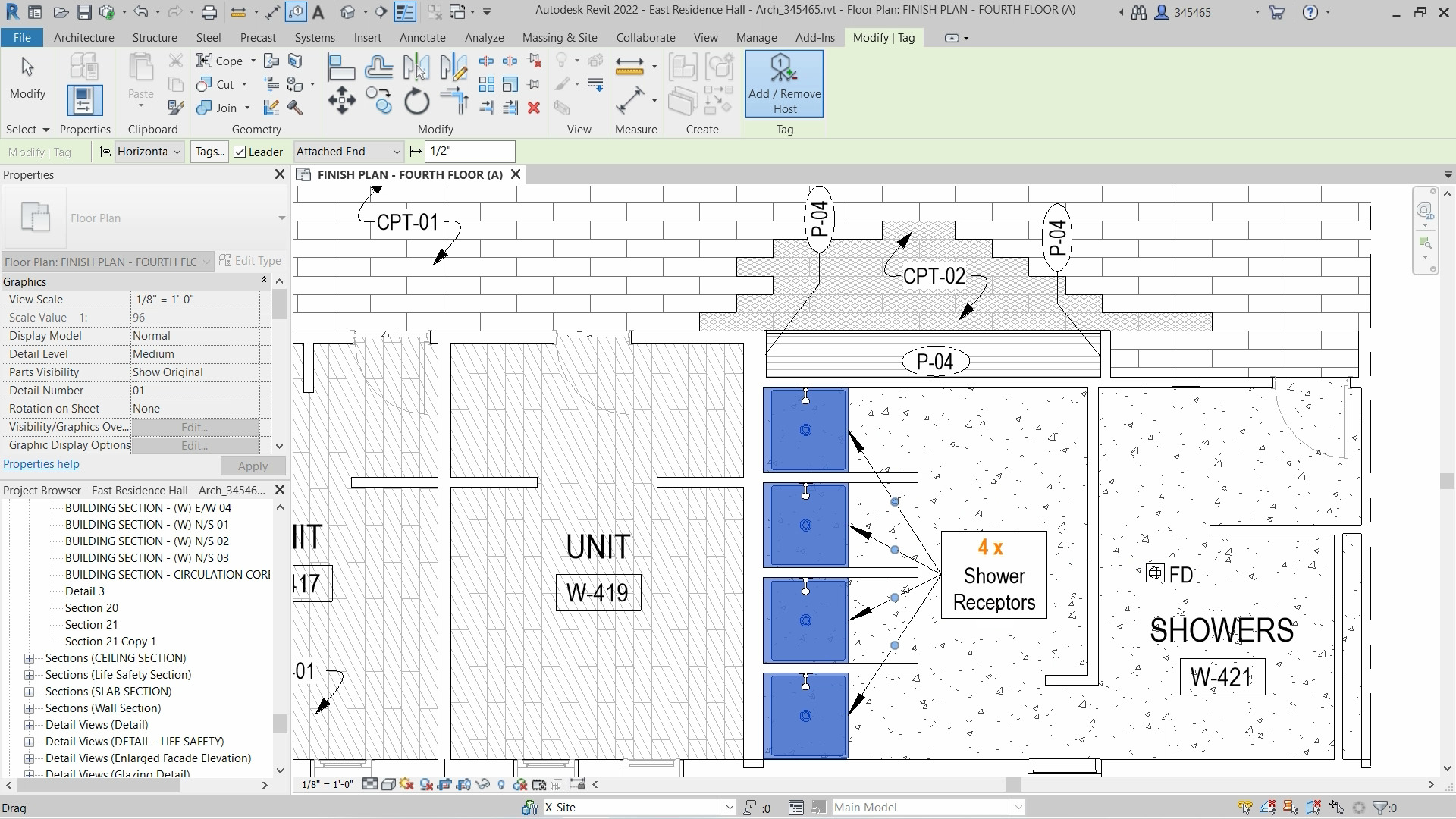
In Revit 2022, users have the ability to apply a single tag to multiple elements and optionally, indicate the total quantity.
Once a tag has been placed in the model, users can add or remove leaders to similar host elements by selecting the tag and using the Add / Remove Host option.
The quantity of host elements is automatically tracked and displayed both in the tag itself and in the Properties Palette.
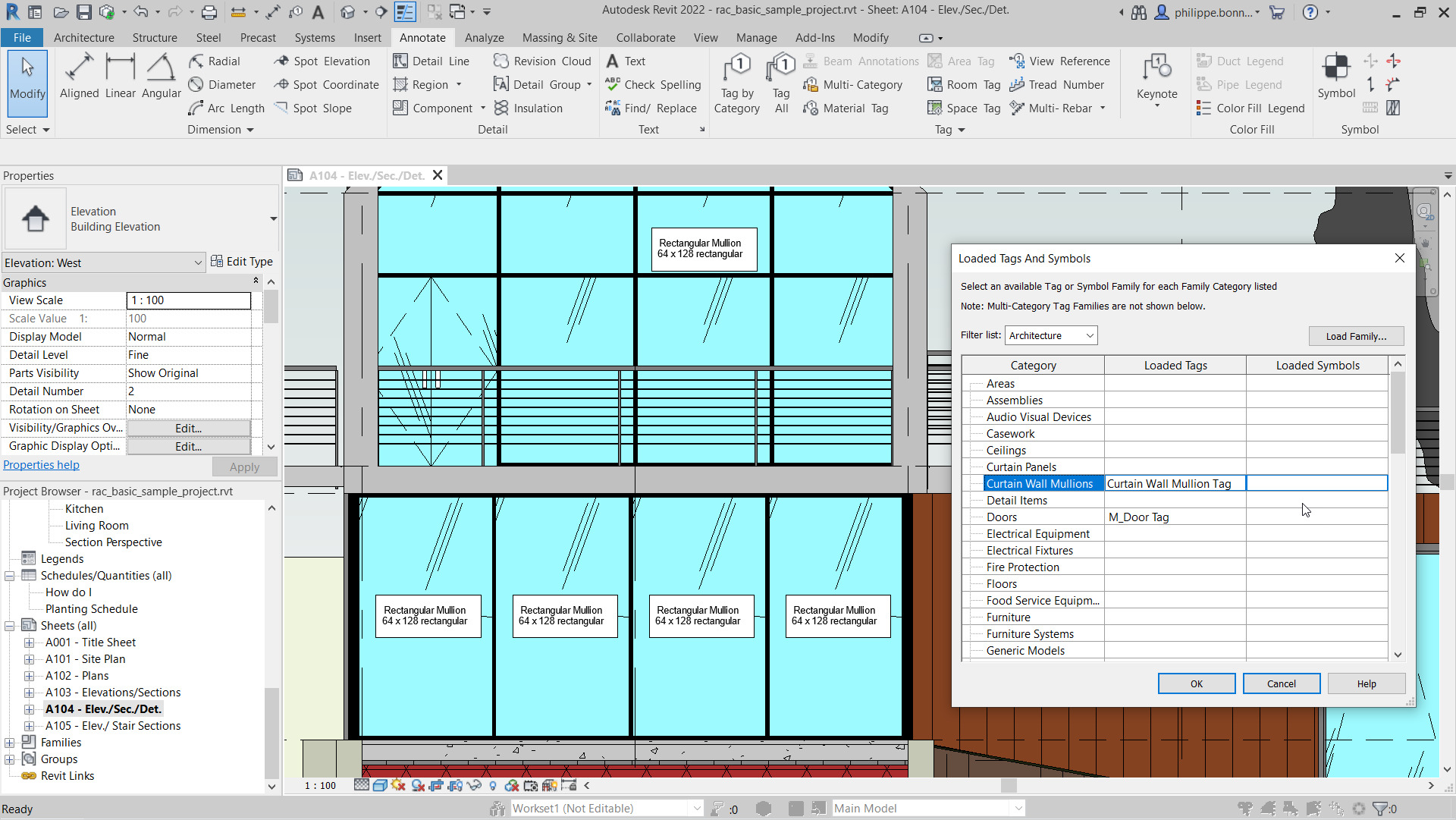
Revit 2022 enables tags to be applied to curtain wall mullions.
A new category has been added for Curtain Wall Mullions in the Loaded Tags and Symbols dialog.
Users can to load the tag for curtain wall mullions provided with Revit 2022 or create their own tag specifically for this category.
Users can use the Tag by Category command or the Tag All command to tag curtain wall mullions.
If you would learn more about Autodesk software, please contact us by calling on 1800 490 514, by filling out the form or clicking the live chat in the bottom right-hand corner.
See what software is included in the AEC Industry Collection.
Programs and plug-ins to boost productivity.
The Autodesk AEC Industry Collection is a compilation of software titles for the architecture, engineering, construction and infrastructure industries which give the ability to 3D model, design, visualise, animate, coordinate, simulate, document and draft designs in 2D.
Create high-quality, detailed designs for building and infrastructure projects.
Optimise designs with analysis, generative design, visualisation and simulation tools.
Improve predictability in the field by coordinating and simulating projects and schedules.
The Autodesk AEC Industry Collection is a compilation of software titles for the architecture, engineering, construction and insfrastructure industries which give the ability to 3D model, design, visualise, animate, coordinate, simulate, document and draft designs in 2D.
The most comprehensive selection of cutting-edge BIM and CAD design, visualisation and analysis software and cloud tools comes within the AEC Collection.
Compare buying the AEC Collection to buying each title separately. If you need more than one application, getting an Industry Collection is the best value choice. Please note that all prices quoted below exclude GST.
Compare the AEC Collection to other products such as Revit, AutoCAD Revit LT suite and Revit LT.
| AEC Collection | Revit | AutoCAD Revit LT Suite | Revit LT | |
$Call for Price /year Inc. GST | $Call for Price /year Inc. GST | $Call for Price /year Inc. GST | $Call for Price /year Inc. GST | |
| 3D Modelling | ||||
| 2D Design | ||||
| 2D Drafting | ||||
| Architectural Modelling | ||||
| Structural Modelling | Limited | Limited | ||
| MEP Modelling | ||||
| Parts and Assemblies | ||||
| Solar Studies | ||||
| Global Parameters | ||||
| Conceptual Massing | ||||
| Local Rendering | ||||
| Cloud Based Rendering | ||||
| Analysis | ||||
| Schedules | ||||
| Collaboration | ||||
| Copy/paste elements in linked Revit files | ||||
| Linked Revit file visibility customisation | ||||
| Point Clouds | ||||
| Standard Revit Exporters | ||||
| Additional Revit Exporters | ||||
| Application Programming Interface (API) | ||||
| Energy, lighting, solar analysis | ||||
| Non-Linear Structural Analysis | ||||
| Civil Infrastructure Design | ||||
| Structural Steel Detailing | ||||
| Electrical Schematics | ||||
| GIS Mapping | ||||
| Raster Tools | ||||
| Plant Design | ||||
| P&ID Schematics | ||||
| Clash Detection | ||||
| 5D Scheduling | ||||
| Project Review and Coordination | ||||
| Production Rendering and Animation | ||||
| Bridge loading, analysis and code checking | ||||
| Generative Design | Buy Now | Buy Now | Buy Now | Buy Now |
If you would learn more about Autodesk software, please contact us by calling on 1800 490 514, by filling out the form or clicking the live chat in the bottom right-hand corner.