Empowering AEC Professionals: Unleashing the Potential of the New AutoCAD Revit LT Suite
Design Consulting Subscription Benefits
Advantages buying from by Design Consulting:
Subscription and Support Benefits: Both Design Consulting and Autodesk offer the same subscription and support benefits.
Support with Design Consulting: Design Consulting provides additional support services, and speedier response, which are not available when buying directly from Autodesk.
Align Licenses to Existing Contracts/End Dates: Design Consulting allows you to align your licenses with your existing contracts or end dates, ensuring a smooth transition and management of your software licenses.
Merge Serial Numbers: Design Consulting offers the capability to merge multiple serial numbers into a single account, simplifying license management and administration.
Payment Methods: Design Consulting accepts both direct debit and credit card payments, providing you with flexible options for making payments.
Payment Terms: Design Consulting offers a 14-day payment term, allowing you some flexibility in settling your payments.
Staff: Design Consulting has a team of experts with 10+ years of experience, providing you with specialised knowledge and guidance.
Staff Location: Design Consulting has Australian staff, which may be beneficial if you prefer local support and communication.
Powerful Software and an Affordable Price
In the fast-paced world of architecture, engineering, and construction (AEC), having the right software suite is essential for success. AutoCAD Revit LT Suite stands as a powerful and comprehensive solution tailored to meet the needs of AEC professionals. This guide explores the capabilities, features, and benefits of AutoCAD Revit LT Suite, showcasing its ability to empower professionals in the industry. From streamlined design workflows to collaborative project coordination, discover how AutoCAD Revit LT Suite revolutionises architectural design and helps architects, designers, and construction professionals unleash their full potential.
The Power of BIM
Autodesk AutoCAD Revit LT Suite is a dynamic software package that combines the precision and drafting capabilities of AutoCAD LT with the intelligent 3D modeling tools of Revit LT. This powerful suite provides AEC professionals with an all-encompassing solution for their design and documentation needs. Architects, designers, and construction professionals can seamlessly transition from 2D drafting to 3D modeling, unlocking new possibilities for creativity, accuracy, and collaboration.
One of the standout features is its adoption of Building Information Modeling (BIM) methodologies. BIM is a collaborative approach to design and construction that enables stakeholders to create, visualise, and analyse building projects in a 3D digital environment. By embracing BIM, the suite allows users to create intelligent, parametric 3D models that enhance collaboration, improve accuracy, and streamline project coordination. With BIM, architects and designers can easily generate accurate construction documentation, extract quantities and schedules, and perform clash detection to identify and resolve design conflicts early in the process.
Furthermore, AutoCAD Revit LT Suite offers advanced 3D design and visualisation tools that empower users to bring their designs to life. With realistic rendering capabilities and immersive visualisation features, architects and designers can present their ideas to clients and stakeholders in a compelling and engaging manner. This not only enhances communication but also facilitates better design decision-making, as stakeholders can visualise the end result and provide valuable feedback during the design phase.
Streamlined construction documentation is another key aspect of AutoCAD Revit LT Suite. With a comprehensive set of tools for generating accurate and detailed construction documentation, architects and designers can effortlessly create plans, sections, elevations, and schedules. The software ensures clarity and consistency throughout the documentation process, reducing errors and facilitating efficient project execution.
Collaboration is crucial in the AEC industry, and AutoCAD Revit LT Suite excels in this aspect. The suite offers robust collaboration features, allowing multiple team members to work on a project simultaneously. With cloud-based collaboration tools, real-time data sharing and project coordination become seamless. Team members can access and update project information from anywhere, promoting effective communication and enhancing productivity.
One of the standout advantages of AutoCAD Revit LT Suite is its interoperability. The suite seamlessly integrates AutoCAD LT and Revit LT, allowing users to leverage the strengths of both software. AutoCAD LT provides precise 2D drafting and detailing capabilities, while Revit LT offers powerful 3D modeling and analysis tools. By combining these functionalities, AutoCAD Revit LT Suite empowers users with enhanced flexibility and efficiency in their design workflows.
A
No posts found!
AutoCAD Revit LT Suite vs. AutoCAD vs. Revit vs. Architecture Engineering and Construction Collection
Features/Advantages
AutoCAD Revit LT Suite
AutoCAD
Revit
AEC Collection
2D Drafting and Detailing
✓
✓
–
✓
3D Modeling
✓
✓
✓
✓
Building Information Modeling (BIM)
✓
–
✓
✓
Construction Documentation
✓
✓
✓
✓
Visualization and Rendering
✓
✓
✓
✓
Clash Detection and Coordination
✓
–
✓
✓
Collaborative Workflows
✓
–
–
✓
Quantity Takeoff and Cost Estimation
✓
–
–
✓
Cost-Effectiveness
High
Moderate
High
Varies
Interoperability
✓
✓
–
✓
Specialized Tools
Limited
–
Extensive
Extensive
Training and Support
✓
✓
✓
✓
Customization and Plugins
Limited
Extensive
Extensive
Extensive
Industry-Specific Functionality
–
–
✓
✓
Integrated Analysis and Simulation
–
–
✓
✓
Cloud Collaboration
✓
–
–
✓
Multi-Disciplinary Collaboration
–
–
✓
✓
Get in Touch
Feel free to contact us on 1800 490 514, email us at [email protected], by live chat or by filling out the form below
AutoCAD LT 2024: The Best 2D Drafting and Design Software
AutoCAD LT 2024 is the latest version of Autodesk’s popular 2D drafting and design software. It offers a wide range of features and tools that make it ideal for a variety of industries, including architecture, engineering, construction, and manufacturing. AutoCAD LT 2024 is a powerful and versatile tool that can help you create accurate and precise drawings, designs, and documentation.
AutoCAD LT 2024 includes a number of new features and enhancements, including:
A new Dimension Style Manager that makes it easy to create and manage dimension styles.
A new Object Snap Tracking feature that helps you accurately snap to objects when drawing.
A new 3D Orbit mode that allows you to view your drawings in 3D from any angle.
Improved performance and stability.
AutoCAD LT 2024 offers a number of benefits, including:
Accuracy: AutoCAD LT 2024 helps you create accurate and precise drawings, designs, and documentation.
Productivity: AutoCAD LT 2024 includes a number of features and tools that can help you save time and work more efficiently.
Versatility: AutoCAD LT 2024 is a powerful and versatile tool that can be used for a variety of projects.
Cost-effectiveness: AutoCAD LT 2024 is a cost-effective solution for businesses and individuals who need 2D drafting and design software.
Industries
AutoCAD LT 2024 is ideal for a variety of businesses, including:
Architecture firms
Engineering firms
Construction companies
Manufacturing companies
CAD drafting firms
Any business that needs to create accurate and precise 2D drawings, designs, and documentation.
AutoCAD LT 2024 is the best 2D drafting and design software for businesses of all sizes. It offers a wide range of features and tools that can help you create accurate and precise drawings, designs, and documentation. AutoCAD LT 2024 is a powerful and versatile tool that can help you improve your business’s efficiency, productivity, and bottom line.
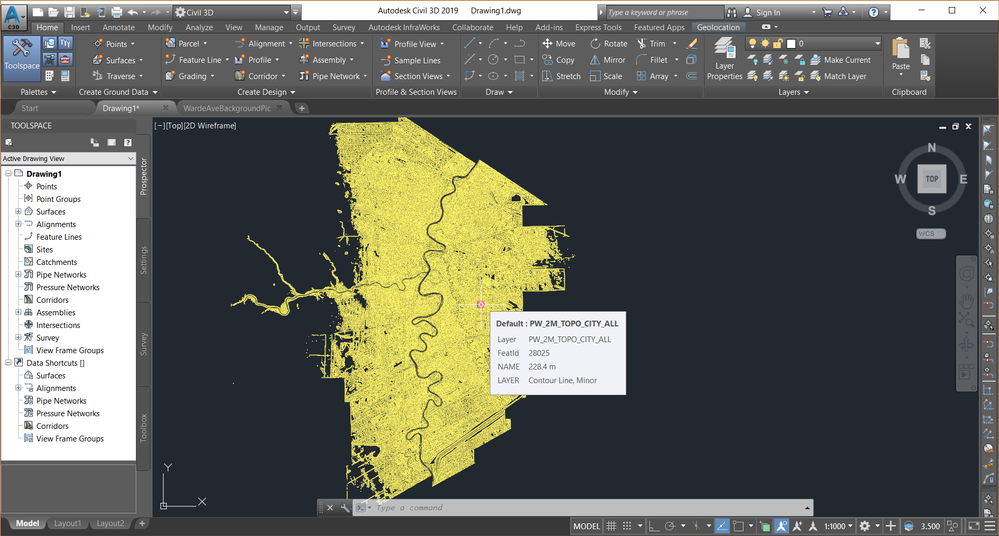
Optimise Your Civil Engineering Design with Autodesk Civil 3D
Autodesk Civil 3D
Autodesk Civil 3D is a powerful software solution designed specifically for civil engineering professionals. With its comprehensive tools and intelligent design capabilities, Civil 3D empowers engineers to streamline their design workflows, enhance collaboration, and deliver accurate and efficient civil infrastructure projects. In this in-depth guide, we will explore the key features, benefits, and unique aspects of Autodesk Civil 3D, along with a comparison to AutoCAD.
Key Features of Autodesk Civil 3D
Dynamic Design Functionality
Civil 3D offers dynamic design functionality that allows engineers to create and modify design elements efficiently. Whether you are working on road design, site grading, or pipe networks, Civil 3D enables you to dynamically adjust alignments, profiles, and cross-sections. This dynamic nature of Civil 3D ensures that design changes are automatically propagated throughout the project, reducing errors and saving valuable time.
Intelligent Object Relationships
Civil 3D introduces the concept of intelligent object relationships, where design elements such as alignments, profiles, and surfaces are interconnected. This means that any modifications made to one element automatically update all related objects, maintaining consistency and accuracy across the project. By establishing these intelligent relationships, Civil 3D enables engineers to make changes quickly and with confidence.
Data-Rich 3D Modeling
Civil 3D facilitates data-rich 3D modeling, enabling engineers to create detailed and accurate representations of their design projects. The software allows for the creation of intelligent 3D surfaces, incorporating terrain data, aerial imagery, and survey data. This comprehensive modeling capability enables engineers to visualize their designs in a realistic and immersive environment, enhancing design understanding and communication.
Integrated Analysis and Simulations
Civil 3D offers integrated analysis and simulation tools to help engineers evaluate the performance of their designs. Conduct hydraulic and hydrological analysis, assess earthwork quantities, and simulate traffic movements to ensure optimal design outcomes. These analysis capabilities within Civil 3D provide engineers with valuable insights and enable them to make informed design decisions.
Comparison: Civil 3D vs AutoCAD
To better understand the differences between Civil 3D and AutoCAD, let’s compare the key features of both software solutions:
Features
Civil 3D
AutoCAD
Dynamic Design Functionality
✔️
Limited
Intelligent Object Relationships
✔️
Limited
Data-Rich 3D Modeling
✔️
Limited
Integrated Analysis
✔️
Limited
Industry-Specific Tools
✔️
Limited
Roadway Design
✔️
Limited
Grading and Earthwork Analysis
✔️
Limited
Pipe and Utility Design
✔️
Limited
While AutoCAD is a versatile software solution for general drafting and design, Civil 3D is specifically tailored for civil engineering projects, offering specialized tools and functionality. Civil 3D provides an all-in-one solution for tasks such as roadway design, grading, and pipe networks, making it the go-to choice for civil engineering professionals.
Civil 3D for Infrastructure and Civil Engineering
Autodesk Civil 3D is the ultimate software solution for civil engineering professionals, providing a comprehensive set of tools and functionalities to streamline design workflows, enhance collaboration, and deliver accurate civil infrastructure projects. With its dynamic design functionality, intelligent object relationships, data-rich 3D modeling, and integrated analysis capabilities, Civil 3D empowers engineers to optimize their designs, minimize errors, and achieve project success. Embrace the power of Autodesk Civil 3D and unlock new possibilities in your civil engineering projects today.
Standard Terms and Conditions 1. General: These standard terms and conditions apply to the business transactions described in the proposal attached hereto and set forththebusiness terms on which Design Consulting Pty Ltd and any of its subsidiaries and affiliates (the “Company”) agree to sell products to and/orperform services for the customer. These terms and conditions may only be changed…
Design Automation with Inventor: Boosting Efficiency and Productivity
In today’s fast-paced world, businesses are constantly seeking innovative ways to streamline their design processes and enhance productivity. One such solution is design automation, which empowers engineers and designers to automate repetitive tasks and focus on more complex aspects of their projects. In this blog, we will delve into the world of design automation with Autodesk Inventor, exploring the utilisation of iLogic, macros, the Inventor API, and Forge Design Automation. Let’s embark on this journey towards increased efficiency and productivity!
Leveraging iLogic for Design Automation
iLogic is a powerful feature integrated into Autodesk Inventor that allows users to automate design processes by defining rules and logic. By creating iLogic rules, designers can automate repetitive tasks, customise designs based on specific parameters, and streamline the overall design workflow. This section will discuss the fundamentals of iLogic, provide practical examples, and showcase its potential for design automation.
Streamlining Design with Macros
Macros offer another excellent way to automate design processes in Autodesk Inventor. A macro is a script or set of commands that can be executed to perform repetitive tasks automatically. With macros, designers can automate complex sequences of actions, such as generating parts, assemblies, or drawings, significantly reducing the time and effort required. This section will explore the basics of using macros, highlight their benefits, and provide code examples for practical implementation.
The Inventor API (Application Programming Interface) provides developers with a powerful toolset to extend the capabilities of Autodesk Inventor. By utilizing the API, designers can create custom applications, add-ins, and scripts that automate specific design tasks or enhance existing functionalities. This section will introduce the Inventor API, discuss its key features, and demonstrate how it can be leveraged to automate repetitive design processes effectively.
Harnessing the Power of Autodesk Platform Services
Autodesk Platform Services (aka Forge) is a cloud-based platform that enables the automation of design and engineering workflows at scale. By integrating Forge Design Automation with Autodesk Inventor, businesses can automate time-consuming tasks, reduce manual errors, and improve collaboration among teams. This section will provide an overview of Forge Design Automation, discuss its benefits, and explore real-world examples of how it can enhance design automation processes.
Automating Revit with JP Pro
JP Pro is a power job processor built on Autodesk Vault Professional that allows you to automate publishing of files, email notifications, synchronisation and much more..
Ready to Automate?
Contact us on 1800 490 514, [email protected] or fill out the contact us form below.
Revolutionising Design Efficiency: Exploring the Power of Automation in Revit
Revit, developed by Autodesk, has revolutionized the architectural design industry with its robust capabilities and user-friendly interface. From generating accurate 3D models to facilitating collaboration, Revit empowers designers to create remarkable architectural projects efficiently. However, one of its most notable features lies in its ability to automate design processes, enabling users to save time and effort. Let’s explore some of the various ways Revit users can leverage automation to transform their design workflows.
Automating Repetitive Tasks
Repetitive tasks can eat up a significant amount of a designer’s time. Thankfully, Revit provides tools and features that allow users to automate these repetitive tasks. By creating custom families, utilising parametric modeling, and employing the power of Dynamo (a visual programming tool integrated with Revit), designers can automate processes such as placing doors, windows, or other elements, as well as generating floor plans, sections, and elevations. This automation not only saves time but also reduces the chances of errors.
Rule-Based Design
Revit allows designers to define specific rules and constraints for their projects. By utilizing tools such as Design Options and Conditional Statements, users can automate the design process based on predefined criteria. For example, designers can create rules that automatically adjust room sizes based on occupancy or generate different design alternatives based on specified parameters. This rule-based design approach empowers designers to explore numerous design iterations quickly and efficiently.
Schedule and Quantity Automation
Generating schedules and quantities is an essential part of the design process, but it can be time-consuming. Revit simplifies this task by automating the process of extracting data from the model and generating schedules and quantity takeoffs. By utilizing Revit’s powerful scheduling capabilities and integrating Revit with tools like Excel, designers can automate the generation of material schedules, cost estimates, and other project documentation. This automation ensures accuracy, consistency, and significant time savings.
Parametric Design and Generative Design
Revit’s parametric design capabilities allow designers to create relationships between different elements in the model. By utilising parameters, formulas, and nested families, designers can automate the design process by defining flexible relationships and enabling quick design iterations. Furthermore, with the integration of generative design tools, such as Autodesk’s Project Refinery, Revit users can explore automated design alternatives driven by artificial intelligence algorithms. This automation revolutionises the design process, helping designers discover innovative solutions and optimise project outcomes.
Dynamo
Dynamo is a visual programming extension for Revit that allows designers to automate complex design tasks. With its node-based interface, users can create custom workflows and automate repetitive processes in Revit. By dragging and connecting nodes, designers can generate parametric designs, manipulate geometry, extract data, and perform various other tasks with ease. Dynamo’s flexibility and versatility make it a powerful tool for automating design processes in Revit.
PyRevit
PyRevit is a powerful automation tool that extends the functionality of Revit by allowing users to create custom commands, automate repetitive tasks, and streamline workflows. Built on the Python programming language, PyRevit provides designers with the flexibility to write scripts, create macros, and develop plugins that automate complex design processes. Whether it’s automating the creation of views, managing project data, or performing model analysis, PyRevit enhances productivity and empowers designers to achieve more in less time.
Exploring the Power of Automation in Revit with Autodesk Platform Services (Forge)
Autodesk Platform Services, also known as Forge, is a cloud-based development platform that provides designers with a set of APIs and services to build custom applications and automate workflows in Revit. With Forge, designers can integrate their Revit models with other applications, extract data, perform advanced analysis, and automate repetitive tasks. Whether it’s creating a custom dashboard, integrating with external databases, or developing AI-powered automation, Forge offers a powerful suite of tools to extend the capabilities of Revit and drive design efficiency.
Automating Revit with IMAGINiT Clarity
IMAGINiT Clarity is a powerful software solution designed to automate and optimize Revit workflows. By integrating with Revit, Clarity enables designers to streamline processes, enhance collaboration, and increase productivity. With Clarity, you can automate tasks such as model checking, sheet creation, PDF generation, and more. By eliminating manual efforts and reducing errors, IMAGINiT Clarity empowers Revit users to focus on design and innovation while maximising efficiency.
Ready to Automate?
Contact us on 1800 490 514, [email protected] or fill out the contact us form below.
Connected Structural Design with the Autodesk Architecture Engineering and Construction Collection
The construction industry has seen a significant transformation in recent years with the adoption of new technologies and software. Structural engineering is no exception, as it plays a crucial role in the success of any construction project. Autodesk Architecture, Engineering, and Construction (AEC) Industry Collection is a suite of powerful software tools that enable structural engineers and fabricators to streamline their workflows and improve collaboration.
In this blog post, we will explore how Advance Steel, a software tool within the AEC Industry Collection, works with other applications such as Revit, Autodesk Docs, Robot Structural Analysis, Navisworks, and more to create a connected design process. We will also discuss the benefits of this approach for structural engineers and fabricators on construction projects.
How Does Advance Steel Work With Other Applications in the Collection?
With the AEC Industry Collection, structural engineers can create detailed designs, collaborate with architects and other stakeholders, and analyse their designs for efficiency and safety. Fabricators can use the software to create shop drawings and CNC files, and contractors can use it to manage construction projects and ensure that they stay on schedule and on budget.
Advance Steel is a software tool within the AEC Industry Collection that provides 3D modeling and detailing for steel structures. It is designed to streamline the design and fabrication process for steel structures, making it easier for engineers and fabricators to collaborate and ensure accuracy.
Advance Steel can be used to create detailed steel models in 3D, including connections, plates, and bolts. It also provides tools for creating drawings, bills of materials, and NC files for fabrication. With Advance Steel, engineers and fabricators can ensure that their designs are accurate and meet industry standards.
How Advance Steel works with other applications in the AEC Industry Collection
One of the key benefits of the AEC Industry Collection is that it provides a connected design process. This means that engineers and fabricators can use multiple software tools in the collection to streamline their workflows and ensure accuracy.
Here are some of the ways that Advance Steel works with other applications in the AEC Industry Collection:
Revit: Advance Steel can be used with Revit to create detailed steel models that include all of the necessary information for fabrication. Revit can also be used to create detailed architectural and MEP models, which can be linked to the steel model in Advance Steel for coordination.
Autodesk Docs: Autodesk Docs is a cloud-based document management platform that can be used to store and share project information. With Autodesk Docs, engineers and fabricators can collaborate on design files, RFIs, submittals, and more.
Robot Structural Analysis: Robot Structural Analysis is a software tool that can be used to analyse steel structures for safety and efficiency. With Robot Structural Analysis, engineers can perform finite element analysis (FEA) on their steel models to ensure that they meet industry standards.
Navisworks: Navisworks is a software tool that can be used for project coordination and clash detection. With Navisworks, engineers can import steel models from Advance Steel and other software tools to check for clashes and ensure.
Other Applications: The AEC Industry Collection includes a wide range of other software tools that can be used in conjunction with Advance Steel. For example, Fabrication CADmep can be used to create detailed ductwork and piping models that can be linked to the steel model in Advance Steel for coordination.
Benefits of Connected Design for Structural Engineers and Fabricators
The connected design process enabled by the AEC Industry Collection provides several benefits for structural engineers and fabricators. Here are some of the key advantages:
Improved Collaboration: By using multiple software tools in the AEC Industry Collection, engineers and fabricators can collaborate more effectively. They can share design files, coordinate different aspects of the project, and ensure that everyone is working from the same information.
Streamlined Workflows: The connected design process also streamlines workflows by reducing the need for manual data entry and rework. Engineers and fabricators can move seamlessly between different software tools, and the data is automatically synchronised.
Increased Accuracy: By using software tools like Advance Steel, engineers and fabricators can ensure that their designs are accurate and meet industry standards. They can also perform analysis and simulations to ensure that the structure is safe and efficient.
Faster Time-to-Market: The connected design process enables faster time-to-market by reducing the time needed for design and fabrication. This can help construction companies stay on schedule and avoid delays.
Cost Savings: Finally, the connected design process can also lead to cost savings by reducing the need for rework and minimising errors. This can help construction companies stay on budget and avoid costly mistakes.
How Dynamo is Revolutionising Structural Design with Advance Steel and Revit
Dynamo is a visual programming tool that is transforming the way structural engineers and designers work. When combined with software tools like Advance Steel and Revit, it offers several benefits that can help streamline workflows and increase efficiency. In this article, we’ll explore the benefits of using Dynamo with Advance Steel and Revit for structural design.
Automating Repetitive Tasks
One of the main benefits of using Dynamo with Advance Steel and Revit is the ability to automate repetitive tasks. For example, Dynamo can be used to automatically create connections between steel elements in Advance Steel based on predefined rules. This can save time and reduce errors, allowing engineers and designers to focus on more complex tasks.
Enhanced Collaboration
Dynamo also improves collaboration between different teams involved in the structural design process. By using a visual programming language, designers and engineers can easily share scripts and workflows with other team members, regardless of their level of technical expertise. This helps to improve communication and ensures that everyone is working from the same information.
Increased Accuracy and Quality
Using Dynamo with Advance Steel and Revit can help improve the accuracy and quality of structural designs. For example, Dynamo can be used to automatically calculate loads and reactions for a structure, or to optimize the size and shape of steel members. This can lead to more efficient and cost-effective designs, as well as better structural performance.
Streamlined Workflows
Dynamo helps to streamline workflows by eliminating the need for manual data entry and reducing the potential for errors. By automating repetitive tasks and using a visual programming language, engineers and designers can move seamlessly between different software tools, saving time and reducing the potential for delays and mistakes.
Improved Visualization
Finally, using Dynamo with Advance Steel and Revit can improve visualisation of the design. With Dynamo, engineers and designers can create complex geometry and parametric models, allowing for greater flexibility and better visualisation of the structure. This can help identify potential issues and make design decisions more effectively.
Features
AutoCAD
Advance Steel
Revit
2D Drafting
Comprehensive set of 2D drafting tools, including line, circle, polyline, arc, and text tools
Limited 2D drafting tools, including line, circle, and text tools
Limited 2D drafting tools, including line, circle, and text tools
3D Modeling
Offers basic 3D modeling tools, including extrude, revolve, and loft tools
Offers more advanced 3D modeling tools, including parametric modeling tools and the ability to automatically generate steel elements
Offers advanced 3D modeling tools, including parametric modeling tools and the ability to create complex geometry
Steel Modeling
Limited steel modeling tools, including the ability to create steel elements manually
Offers more advanced steel modeling tools, including the ability to automatically generate steel elements and parametric modeling tools
Offers basic steel modeling tools, including the ability to create steel elements manually
Steel Detailing
Limited steel detailing tools, including the ability to create drawings of steel elements
Offers more advanced steel detailing tools, including the ability to automatically create part drawings, DXF and NC1 files, and CNC data export
Offers basic steel detailing tools, including the ability to create drawings of steel elements
Connection Design
No connection design tools
Offers comprehensive connection design tools, including the ability to create and analyze connections
Offers limited connection design tools, including the ability to create basic connections
Structural Analysis
No structural analysis tools
Offers more advanced structural analysis tools, including the ability to analyze and optimize steel structures
Offers basic structural analysis tools, including the ability to analyze and check steel structures
Fabrication
No fabrication tools
Offers comprehensive fabrication tools, including the ability to create shop drawings, CNC data export, and automatic creation of bills of materials
Limited fabrication tools, including the ability to create shop drawings and bills of materials
Collaboration
Offers basic collaboration tools, including the ability to share drawings and collaborate on design
Offers more advanced collaboration tools, including the ability to connect to Dynamo and synchronize with Revit models
Offers advanced collaboration tools, including the ability to connect to Dynamo and synchronize with Advance Steel models
AutoCAD offers a comprehensive set of 2D drafting tools, including line, circle, polyline, arc, and text tools. It also offers basic 3D modeling tools, such as extrude, revolve, and loft tools. However, it has limited steel modeling and detailing tools, connection design, structural analysis, and fabrication tools.
Advance Steel offers more advanced steel modeling and detailing tools than AutoCAD. It can automatically generate steel elements, create part drawings, DXF and NC1 files, and export CNC data. It also has comprehensive connection design and fabrication tools. Advance Steel is specifically designed for steel design and fabrication, making it a powerful tool for structural engineers and steel fabricators.
Revit offers advanced 3D modeling tools and basic steel modeling and detailing tools. It can connect to Dynamo and synchronise with Advance Steel models, which makes it an excellent tool for collaboration with architects and other stakeholders in the building design process.
In summary, the choice between AutoCAD, Advance Steel, and Revit depends on the specific needs of the project and the users. AutoCAD is a general-purpose drafting tool, while Advance Steel is specifically designed for steel design and fabrication, and Revit is an excellent tool for collaboration and building design coordination.
Analysing Structural Designs: Advance Steel Vs Revit Vs Robot Structural Analysis
Feature
Advance Steel
Revit
Robot Structural Analysis
Finite Element Analysis
Yes
Yes
Yes
Static Analysis
Yes
Yes
Yes
Dynamic Analysis
Yes
No
Yes
Buckling Analysis
Yes
No
Yes
Nonlinear Analysis
Yes
No
Yes
Eigenvalue Analysis
Yes
No
Yes
Response Spectrum Analysis
Yes
No
Yes
Pushover Analysis
Yes
No
Yes
Design Optimization
Yes
No
Yes
Steel Connections Analysis
Yes
No
Yes
Concrete Analysis
No
Yes
Yes
Wood Analysis
No
Yes
Yes
Masonry Analysis
No
Yes
Yes
Design Code Compatibility
Multiple
Multiple
Multiple
Integration with Other Tools
Revit, Dynamo
Navisworks
Revit, Navisworks
Overall, all three software products offer FEA capabilities for structural analysis, including static analysis and finite element analysis. However, Robot Structural Analysis offers more advanced analysis options such as dynamic analysis, buckling analysis, nonlinear analysis, eigenvalue analysis, response spectrum analysis, and pushover analysis. Advance Steel offers the ability to analyze steel connections, while Revit offers analysis options for concrete, wood, and masonry.
In terms of design code compatibility, all three software products support multiple design codes. Additionally, Revit and Robot Structural Analysis can integrate with Navisworks for clash detection and coordination, while Advance Steel and Revit can connect with Dynamo for automation and optimization of structural designs.
Structural Design Collaboration with the AEC Collection
Structural steel design collaboration is a critical aspect of any construction project. Autodesk AEC Collection offers several collaboration tools, including Navisworks and Autodesk Docs, that can help structural engineers collaborate effectively throughout the design and construction process.
Navisworks is a project review and coordination tool that allows engineers and designers to combine models and data from various sources, including Advance Steel and Revit. Navisworks can help identify and resolve potential design conflicts, allowing for more efficient construction planning and reducing the risk of costly errors during construction.
Autodesk Docs is a cloud-based collaboration tool that allows team members to share and access project information, documents, and models from anywhere and on any device. With Autodesk Docs, structural engineers can collaborate in real-time with other team members, including architects, contractors, and owners. The tool can also help track changes, versioning, and approval workflows, ensuring that all team members are working on the latest version of the project documents.
Connected Structural Design
The Autodesk Architecture Engineering and Construction Collection is a powerful suite of software programs that can help architects create better designs and collaborate more effectively with other professionals in the construction industry. By using programs such as Revit, Navisworks, and Docs, architects can create digital models of buildings and share them with other stakeholders, streamlining the design process and reducing errors. By collaborating with MEP/HVAC, Structural and Civil engineers and designers, architects can ensure that their designs are not only visually appealing but also practical and functional, resulting in better-performing buildings that meet safety and regulatory requirements.
Ready to get your Design Connected?
Discover how Autodesk Architecture Engineering and Construction Collection can streamline your workflow, increase productivity, and optimise your design process.
Get up to 20% Off Software or Services!
Contact us to find out how much money you can save on software, training or other services. Fill out the form below, by live chat, phone or email.
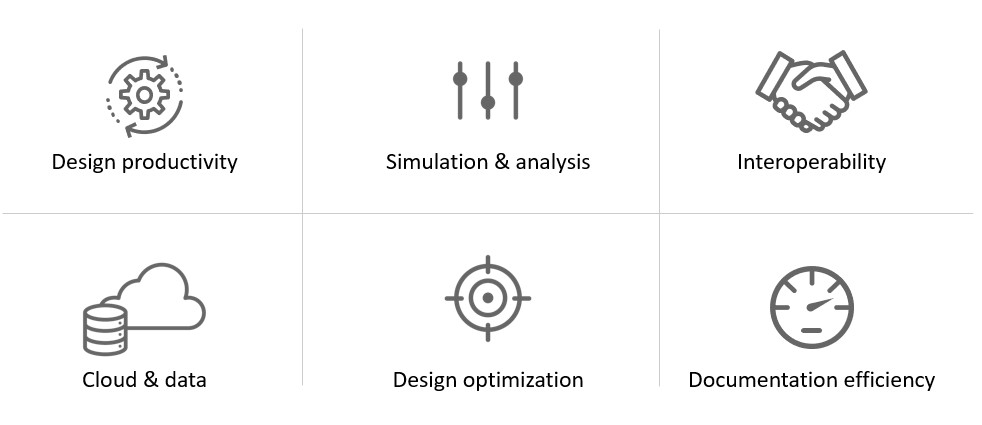
The new features in Autodesk Revit 2024 fall under these six categories:
Design productivity
Simulation & analysis
Interoperability
Cloud & data
Design optimization
Documentation efficiency
Design Productivity
General
My Insights in Revit Home
A new My Insights panel has been added to the Revit Home.
By aggregating usage data and finding trends in your workflows, Revit helps you quantify your most common commands and keystrokes, and offers suggestions for how you can optimize and save time when completing design tasks.
It provides information, recommendations, hints and tips to make your work in Revit more effective.
The page displays cards, you can react to these cards and click the Learn more button to access additional online content.
Dark Theme
Revit supports now the Dark Theme for first level user interface, including Properties Palette, Project Browser, Option Bar, Status Bar, View Control Bar. You can also set the drawing area (canvas) theme to Dark or Light both from the ribbon and the Options dialog.
New Sample Model and Project Templates
Use the sample model to learn about features and workflows. The sample model is an example of a mixed use project created using Revit. The model shows examples of how many elements are used to create a project. Examples of construction documents as well as coordinated structural, MEP, site, and point cloud files are included in order to provide a complete model.
Use the Help icons located through the model to learn about specific elements and workflows demonstrated with the model. Track your progress learning about the sample model with the “How Do I?” schedule included in the model. The updated project templates make starting projects and developing your own templates easier.
New Imperial and Metric English “All Discipline” templates are included in a standard installation. The templates include a new starting view, updated fonts, and families loaded for each category.
Modernised Project Browser with New Search
A search function is now available at the top of the Project Browser.
The search starts automatically and updates relevant results as you type. The matched keywords are highlighted in the filtered list on all levels of the hierarchy in the Project Browser.
Save up to 20% on Autodesk Revit and AEC Industry Collection
Improve design deliverables by applying consistent color standards. The new colour books browser replaces how you can select Pantone colors.
Access new color books in dialogs, including Pantone & RAL.
Provides access to Pantone and RAL color books, and the ability to add custom-made color books.
Use the Autodesk Color Book editor to create your custom color book files at
Store your custom .acb file under the file path C:\ProgramData\Autodesk\RVT XXXX\ColorBooks
Visit: https://download.autodesk.com/global/acb/index.html to download.
Textures Visual Style
Expand your ability to create impactful representations using the new Textures visual style to apply the texture of render materials without lighting effects.
This style maintains a consistent textural appearance so that a material is always displayed in the same way no matter how it is oriented to the light source.
Revit 2024 to Twinmotion Enhancements
Expedite your renderings updates with the Auto Sync link in Twinmotion with Revit 2024.
The Auto Sync functionality has been added to the Twinmotion drop-down menu.
Auto Sync supports automatic synchronisation of changes from the active Revit model to the direct link connection in Twinmotion or Unreal Engine.
A 3D view needs to be active in order to enable Auto Sync, which is then associated to that 3D view.
Once Auto Sync is enabled while in a 3D view, all visible geometry in this view is automatically kept in sync.
Project parameters were previously sorted by the date/time of creation, now project parameters are sorted alphabetically in type and instance properties dialogs
Export ‘Family Type’ Parameter
Once you have built your family and defined your family types, you can use the “Family Types” export tool to generate a text file.
In Revit 2024, family type parameter data gets included in the export, helping create a family type catalog with less efforts.
Height Parameter in Scope Box
Get more flexibility when modifying scope box parameters. With the scope box feature, you can control the extents of levels, grids, reference plans, and even the views themselves in plan views.
Height and name parameters have been moved from the Options bar to the Properties palette when creating a scope box in Revit 2024. After a scope box is created, you can edit its height value directly in the Properties palette.
Site Design
Site Design - Toposolids
Improve the quality of your site design with the Toposolid capabilities in Autodesk Revit 2024.
Toposolids represent topography as solid geometry and replaces the Toposurface functionality in previous releases with new icons under the Massing and Site ribbon reflect these new capabilities.
There are two methods to create a Toposolid:
1) Sketch the boundary and and defining elevation points
2) Create it from an import file, either a CAD import or a point file in CSV format.
Existing Toposurfaces upgraded from previous versions can be converted into Toposolids with the “Generate Toposolids” contextual tool. Here you can access the legacy Toposurface settings. Linked topography generated from Civil 3D and hosted in Autodesk Docs will be automatically converted into a Toposolid. The Property Line Data settings is now available as a stand-alone drop-down menu of the Model Site ribbon panel.
Site Design - Toposolid Properties
Improve the site documentation with expanded surface types by building Toposolids as system families with different instance and type properties, to represent different types of surface sections such as roads and sidewalks, soil infills, grade slabs, sport fields, water bodies, etc.
In Autodesk Revit 2024, each Toposolid type can display different compound layer configurations and different ways of representing contour line intervals.
Toposolids can be set up as a room bound element, suitable for open space programming. The instance properties of a toposolid report a myriad of dimensional parameters, including slope, perimeter, area, volume, elevation, and thickness, among others.
Site Design – Solid Subdivisions
Another Site Design feature in Revit 2024 allows you to design topography features faster and deliver better site plans by defining an area of a toposolid to offset from the original toposolid surface.
For example, you can use sub-divisions to draw parking lots roads, or islands on a toposolid. Creating a sub-division does not result in separate surfaces. Use the split tool to achieve that. Use the instance properties of the sub-division to assign another material to the toposolid.
The sub-division is positively offset from the original surface and must have a thickness > 0. Inherit Contours toggle will display contours from the parent toposolid on the sub-division.
Site Design – Cut and Split Toposolids
Building pads are now retired in Autodesk Revit 2024. Existing pads present in upgraded models can still be edited, but you won’t have the ability to create new ones. To represent an excavation or a tunnel, use cut tools using in-place void-mass families to perform boolean operations.
In addition, you can cut a Toposolid with elements of multiple categories, including other Toposolids, Ceilings, Floors, Slab Edges, Roofs, Fascia, Gutter, Roof Soffits, Structural Foundations, Walls, Wall Sweeps, Mass Void Forms. Use the Split Tool to freely Split Toposolids in separate element, using sketch lines as the cutting edges. Annotations such as Spot Elevation and Dimensions will remain in place after the split operation. The Split portion with the larges volume will inherit the original ElementID.
Site Design – Graded Regions
Reduce your site construction cost with balanced cut and fill analysis. Revit 2024 can report cut and fill volumes on a site to aid in determining the costs of landscape modification during site development.
Apply cut and fill volume analysis to Toposolids using Graded Regions. The grading tool marks an existing Toposolid as demolished and makes a copy with a matching boundary in the current phase .
Grade areas of the topography using the point shape-editor, where you can add, delete, or change the elevation of points. Report the cut and fill volumes of a graded region with a Toposolid schedule.
Site Design – Show Shape-Edit Control Points
You can preview the display of a Toposolid control points during pre-highlight and selection. Turn off the display of points toggle if you experience performance issues.
The toggle is available as a drop-down panel of the Shape Editing tool. The points will be always accessible when to edit the Toposolid using the Modify sub-element tool.
Site Design – Additional Functionality
Enjoy your site modeling experience with the expanded functionality of Toposolids with it now being easier than ever to model fences that follow the surface of a topography.
Railing now are hosted by Toposolids. In addition, it can host elements from the categories of Site, Parking, Floor Based Elements. Slab edge families can be applied to the edge of a toposolid. For example a slab edge might be used to model a curb edge on your site.
For program developers, Revit 2024 has added APIs for Toposolid-related functions: Toposolid Creations, Generate Toposolid from Toposurface, simplifying Toposolid Points, Subdivision Creations, and Contour Settings.
These new alignment options for the freeform rebar in Revit 2024, increase 3D rebar modeling versatility and help you define the accurate reinforcement for standard and non-standard shapes of concrete elements.
You can now choose how to align the bars in the rebar set and also you can make the bars in the set to be parallel to the planar face selected in the Align/Close constraint. You can also set the alignment options for free form rebar sets, using the Bar Alignment parameter in the Properties palette of the structural rebar or using the in-canvas toggle.
Stirrup Orientation for Aligned Freeform Rebar
Increase 3D rebar modelling versatility by greater control over free form rebars in Revit 2024. You can now toggle the stirrup orientation for the aligned distribution free form rebar by pressing Space bar, however, only applies only for the closed stirrups in the set.
MEP
MEP Fabrication Ductwork Stiffener
Create stiffeners on ductwork with dedicated features with the new MEP Fabrication Ductwork Stiffener command in Autodesk Revit 2024 under the system tab.
This command enables manual placement of loaded stiffener families. Currently stiffener families can be placed and hosted onto straight segments of Fabrication Ductwork. After placement, the hosted stiffener instances would move and resize with the duct segments as users make modifications.
A new family category MEP Ancillary Framing has been added for the basic components used in creating MEP supporting elements such as duct stiffeners, hangers and supports, or equipment racks. Revit 2024 comes with typical Ancillary Framing families used to construct duct stiffeners, including angle irons, struts, rods, angle rings and more.
You can create a schedule with MEP Fabrication Ductwork Stiffener embedded into a Fabrication Ductwork schedule. This allows to more clearly report stiffener data such as stiffener type and their relative location on the duct along with their hosting duct segments, helping with quantification in the fabrication process. Internal stiffeners can be created by constraining internal supporting members such as threaded rods families or conduits families to either side of a duct connector. A built-in parameter is used to differentiate the classification of stiffeners. By setting the parameter value as Internal Stiffeners, Revit creates holes on the stiffener’s hosting ductwork based on shared ancillary framing components.
When you export the fabrication ductwork in a project to a maj. File, hole information will be generated based on internal stiffeners’ locations and shared sub-components. This allows to generate more accurate cut patterns in legacy fabrication products such as Autodesk CAMduct.
Elevation Parameters in Visibility Filters
In Revit 2024, you can easily and accurately control the display of MEP components with visibility filters with access to additional elevation parameters to control the visibility of MEP components in your views.
These improvements to elevation parameters will help you document for installation on sloped MEP segments more efficiently in Revit 2024.
Pipe Wall Thickness as a Built-in Parameter
Revit 2024 has wall thickness as a built-in parameter for pipes to more efficiently create documentation for pipes based on the information available in the model.
This wall thickness parameter is available for pipe tagging and scheduling. You can also use this wall thickness parameter in view filters to control the appearance of pipes in a view.
Hide Insulation With Hosting Duct and Pipe
Improve efficiency when hiding ducts with insulation. In previous releases of Revit, the insulation remained visible when hiding duct and pipe with insulation, however, now in Revit 2024, the insulation gets hidden regardless the method you use to hide the insulation on duct or pipe elements.
Height Parameter in Scope Box
Get more flexibility when modifying scope box parameters. With the scope box feature, you can control the extents of levels, grids, reference plans, and even the views themselves in plan views.
Height and name parameters have been moved from the Options bar to the Properties palette when creating a scope box in Revit 2024. After a scope box is created, you can edit its height value directly in the Properties palette.
Simulation & Analysis
Solar Study Enhancements
Better visualise the impact of sunlight and shadows. You can access the Sun Settings dialog directly from the ribbon.
Smaller time intervals measured in seconds are now available for single-day solar studies. Study shadows with a higher precision using 15, 30, 45, or 60-second intervals. Drag the sun along its path when using perspective view.
Generate Energy Model by View
Toggle this functionality on or off in the Energy Settings dialog and select a 3D view to create the EAM from to create a faster and more accurate Energy Analytical Model for use in Insight, Systems Analysis and 3rd party tools (via gbXML export). New capabilities for Energy Analysis provide workflow simplification especially when working with linked Architectural models. 3D views can now be chosen to more selectively define what elements are used in Energy Analytical Model creation. This essentially provides an additional means of controlling what elements are used in EAM creation that’s independent from the room bounding setting.
Enhanced Structural Analytical Loads
In Revit 2024, there’s more versatile and accurate definition of structural loads, to improve analytical modeling flexibility. Structural engineers can now apply hosted loads to specific areas of panels and members. Additionally, you can now copy loads to other hosts.
Structural Area Loads With Color Coding
Now in Revit 2024, structural area loads can be presented using color-coding to differentiate load natures which results more clear documentation of the analytical model.
Custom Physical-Analytical Association
Now you can create multiple associations between structural elements to better coordinate updates across the physical and analytical models.
You can associate multiple analytical panels or members to a single physical object (or vice versa). For example, several analytical panels to represent a single physical floor, several beams associated to a single multi-span analytical member, etc. This new feature helps better coordinate updates across physical and analytical models.
Structural Area Loads With Color Coding
Now in Revit 2024, structural area loads can be presented using color-coding to differentiate load natures which results more clear documentation of the analytical model.
Cloud Data & Interoperability
Link coordination models from Autodesk Docs
The new Link Coordination Model feature with Revit and Autodesk Docs makes it easier for project teams to evolve work together.
Keep project files light and your work in synch with your collaborators.
Link directly into Revit models and views from any of the 60+ formats supported by Docs and the Autodesk Construction Cloud.
Underlay the coordination model as visual reference when designing in Revit and reduce the need for interpretation when coordinating design deliverables with partners and project teams.
Properties of Coordination Model Objects
You can select individual coordination objects by pressing the TAB key until it highlights the element you want to select and get properties of this object displayed in the Properties palette.
These properties are in read-only mode and therefore cannot be edited.
Point Snaps for Coordination Model Objects
Enable fast and convenient snap on coordination model objects. When linking a coordination model into your Revit project, you can snap to coordination model objects.
This is controlled by a new “Snap to Coordination Models” option located in the “Snaps” dialog box.
For example, you can use the “Measure” tool to get a distance between an object in your current Revit project and another object hosted in a linked coordination model.
Properties of Coordination Model Objects
You can select individual coordination objects by pressing the TAB key until it highlights the element you want to select and get properties of this object displayed in the Properties palette.
These properties are in read-only mode and therefore cannot be edited.
Design Optimisation
Dynamo for Revit 2.17 Upgrade
Dynamo 2.17 includes the following features: node recommendations powered by machine learning, settings import and export, graph import to workspace, and more. There are several improvements to Node Autocomplete:
Node Recommendations, a new ranking method powered by machine learning and based on graph practices in thousands of training graphs. This method is able to provide more accurate and meaningful node suggestions. This ranking method causes network traffic. If you notice network issues, try switching to the Node Type Match ranking method.
When using the Node Recommendations method, each recommended node is shown with a confidence rating, which indicates the algorithm’s confidence that the node is a good choice for the port.
The existing Object Type ranking method continues to be available as an option and has been renamed Node Type Match.
Node Autocomplete settings are available in Preferences Features Node Autocomplete.
You can import and export Dynamo settings from the Preferences panel. Settings will be exported as an XML file.
When importing, existing settings will be overwritten. To maintain a copy of the current settings, first export your existing settings.
For any settings that are not available in the Preferences panel, you’ll need to restart Dynamo (and any host program you may be running) before the imported settings take effect.
Insert graphs into the workspace by going to File Insert and selecting a DYN file. If you already have nodes or a graph in the workspace, the inserted file content will appear below the existing content. To avoid potential issues, Manual run mode will be changed to Automatic.
Also, there are several improvements to the Documentation Browser:
Content is reordered and organised into three expandable and collapsible sections: Node Information, Node Issue Help (when applicable), and Inputs and Outputs.
Example files in the Node Information section can be navigated using mouse controls or the new control buttons.
Visual hierarchy and a modernised look and feel have been implemented.
Dynamo Player & Generative Design Updates
Achieve better design outcomes more efficiently, with these enhancements to Generative Design and Dynamo Player, in Revit 2024. View graph issues and dependencies, add image outputs, and try out new sample graphs in Dynamo Player for Revit 2024.
Improvements include: The new Issue Viewer allows you to examine graph issues, including errors and warnings, within Dynamo Player. You can access Issue Viewer from the footer of the Player application after running a graph with at least one error or warning, or from the Options menu.
You can examine each graph’s dependencies in Player through the new Graph Dependencies dialog. This dialog provides a quick way to see which packages, external files, or other dependencies your graph needs in order to run properly, enabling you to identify missing dependencies and install them in Dynamo.
Two new sample graphs are available: Random Family Instance Placement and Warnings – Isolate Elements.
Images are available as outputs in Dynamo Player. The image will update when you make a change and re-run the graph. You can save the image from Player by right-clicking.
Documentation Efficiency
Place Multiple Views and Schedules on a Sheet
Save time when placing views and schedules on sheets. You can place multiple views and schedules on a sheet at the same time, either by dragging them onto the sheet in the drawing area or using the Place View command for views.
The Select View dialog contains a search functionality.
When dragging views (and schedules) onto the sheet, they are positioned tiled on the cursor to make selection and arrangement on the sheet easier.
Move Aligned to Sheet Enhancements
Move multiple elements between sheets while keeping their original positions. The ‘Move View Aligned to Sheet’ command has been generalized to ‘Move Aligned to Sheet’ and expanded to support moving the following sheet-based elements:
Views
Schedules
Panel Schedules
Detail Groups
Annotation elements
Detail elements
Revision Clouds and Tags
Images
Views, Schedules and Panel Schedules can be moved aligned between sheets directly from the Project Browser.
Views, Schedules, Panel Schedules and all additional sheet-based elements can be moved aligned together directly from the sheet drawing area too.
Open Sheet Directly From Drawing Area
The Open Sheet command allows you to open a sheet from the drawing area.
If you select multiple views from the Project Browser and use this Open sheet command, a confirmation dialog gets displayed with the number of sheets that will be opened.
Schedule Revision Clouds
More easily track and call out changes to document sets with a new Revision Clouds category available now for schedules. You can use fields from Views, Sheets and Revision Clouds to create your Revit schedule. This schedule may also contain schedules key and shared parameters.
Autodesk Vault 2024 is out with a focus on enforcing standards, delivering intuitive tools and administrative enhancements
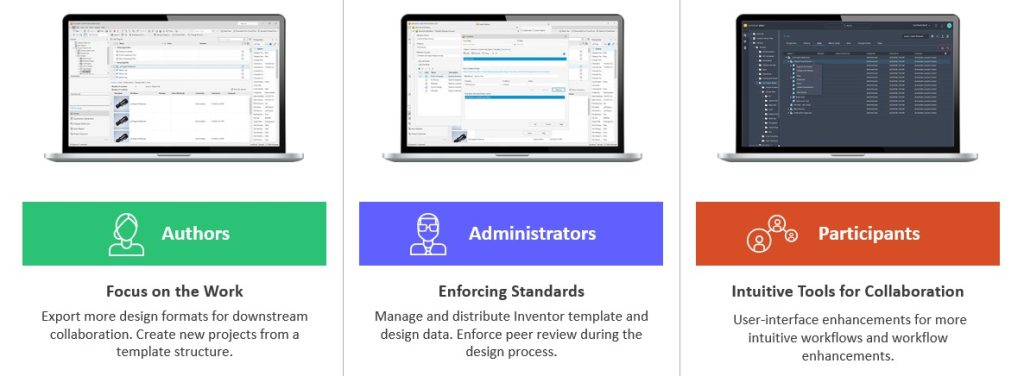
Authors: More features for CAD users in Vault 2024 to Focus on the Work
Job Processor: DXF and STEP
Users can export DXF and STEP files for manufacturing, suppliers, and subcontractors as part of the release process.
On-demand DXF/STEP publish
DXF/STEP publish on state transition
Sync LC state and revision on DXF/STEP files
DXF/STEP file getting created in vault to use Design Rep classification and PDF like workflow
DXF/STEP file publish options like PDF publish options
Copy Design Enhancements
Design re-use efficiency by reducing number of clicks to complete the workflow and pre-checks to prevent errors prior to creating a new design variation.
More usability by enabling Copy/Paste in the copy design numbering panel
Use the Copy/Paste functionality to edit multiple row values in and excel spreadsheet and then copy them to the Copy Design with one operation
More guidance through highlight restriction before copy operations start (property: –)
Export File list within the warning dialog
Copy Design BOM Enhancements
Newly copied parts can be assigned to an Item immediately after Copy Design is executed.
Copy Design updates the BOM information in part files without having to open them in Inventor first
Copy Folder Structure
You can setup a new project quickly and start with a known folder structure.
Users can create a project folder from a template or previous folder structure
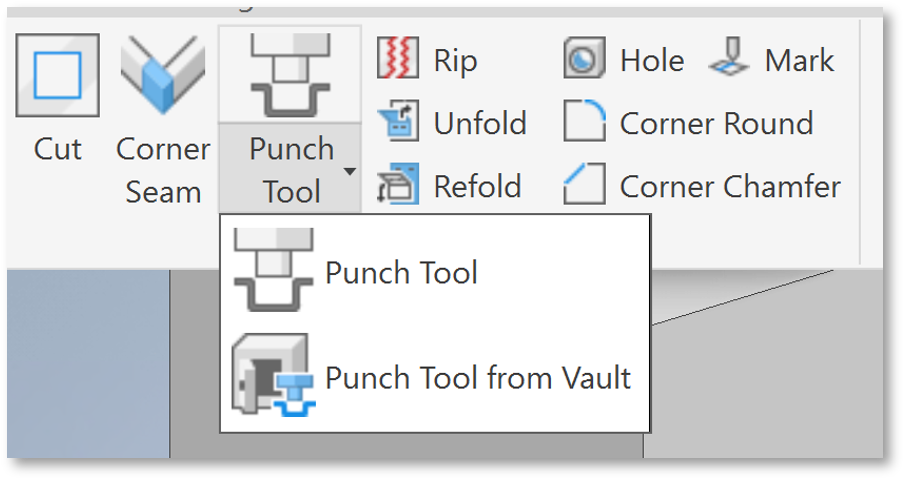
Users can select sheet metal punches from Vault when they are not in the local workspace.
Browse for 3D iFeature shapes from Vault to be inserted into the sheet metal face.
Administrators: Enforcing Vault Standards for Gratere Project Compliance
Inventor Design Data & Template Management
CAD Administrator can create and deploy template updates to users easily through Vault. Users remain up-to-date with templates and design data without manual updates.
The focus in 2024 is to create an Inventor\Vault integrated experience for the Template and Design Data Files with automatic updates of Templates and Design Data within specific workflows.
Peer Review
Control the lifecycle process by requiring a different user to transition to the next state.
With this new user requirement, you can configure the Vault State transition to require Four Eyes Check and configure multiple rules for which files require Peer Review based on property values.
Job Processor
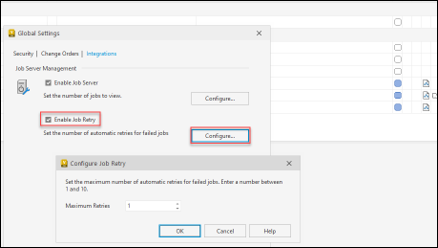
Apply retry strategy to visualization and custom jobs to reduce administration and user disruption to re-submit such jobs manually.
Automatic Retry capability for failed Job
Specify retry strategy between 1 and 10 attempts
The Job Processor will retry the failed jobs automatically without manual intervention
Thin Client Admin Settings
Administrators can set default columns for all Thin Client users in Autodesk Vault 2024.
Backup/Restore Enhancements
In Vault 2024, there is more flexibility in the Vault Server backup command to assist with backing up specified data components. This enhancement helps customers with large Vault environments that cannot use the existing backup command in the Vault Server.
Participants: Intuitive Vault Tools in 2024 for Project Collaboration
Thin Client – Enhancements
Select the Vault you need at the time of signing into the Thin Client and the Vault drop-down list shows the available Vault on the Server.
Improve interactions and control within the Thin Client interface with control for Expanding or Collapsing All for Objects with Structure.
Advanced Search capabilities paired with a modern UI for better experience:
Save searches as bookmarks in the browser
Search individual workspaces or multiple workspaces
Search workspaces of choice with search parameters
Search current folders and sub-folders
Find latest version only
Inventor Read-Only Vault Add-in
The Vault Add-in in Autodesk Vault Professional 2024 is available in Inventor Read-only, so users can open files and get access to Vault data directly from Inventor Read-only allowing users to review models efficiently without going between applications.
Autodesk Inventor Professional 2024 is out with a focus on new features and over 100 customer driven enhancements for MBD, Part Modeling, Assembly, Drawings, Graphics, Performance, iLogic, Content Center and the API.
Here’s the top features and enhancements in Autodesk Inventor Professional 2024.
General Enhancements
General
It is now possible to set Perspective With Ortho Faces as the default view setting in both Document Settings and Application options.
Set ‘Perspective With Ortho Faces’ as the default view setting
Inventor Studio has had, until now, an imposed 4096 x 4096 pixel rendering output. The limitation has been removed and Inventor Studio will render images up to 16K x 16K resolution, depending on what your graphics card supports.
Custom Environment Image Support
The workflow for using custom hdr and exr images with IBL lighting styles is much improved and is supported for both CPU and GPU ray tracing.
Support for IBL backgrounds
GPU ray tracing now supports rendering with IBL backgrounds.
The following enhancements in Graphics have been added:
Section view tools expanded
Flip
Move
Rotate
End cap
Section options added to mini-toolbar
Edit and suppress section views in “View Representations”
Control Section View end cap preview during section view plane dragging
<= 500 parts – end cap shown by default
> 500 parts – end cap not shown
Override the setting by selecting or deselecting the option in the mini-toolbar
Enhanced profile detection on overlapping sketches
Parameter Window
Text and Boolean values can now be exported
Boolean has the options of:
Text (True or False)
Number (0 or 1)
Yes or No
Hardness
Mark Feature
New behaviour section:
Project
Wrap (new)
Choose direction for mark
Mark across multiple coplanar surfaces
Assembly Modeling Enhancements
Oriented Minimum Bounding Box
Rotate Bounding Boxes to match angle of parts
Represents footprint of components more accurately
Available in:
Simplify
Derive
Simplify – bounding box edges measured and appear in parameter window
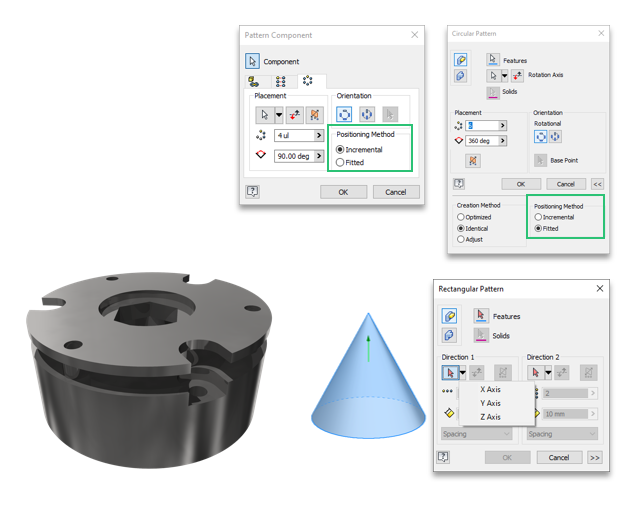
Patterns
Rectangular Pattern
You can now select a revolved face, cylindrical or conical, to define the direction for a component pattern. The Pattern Component command uses the face axis to define the pattern direction. Use the standard controls to flip the direction.
It is not necessary to activate the selector when using an origin axis, clicking the flyout activates the selector and chooses the selected axis. The direction selection does not change with the activation of the selector, you must also select a new direction.
Circular Pattern
Circular pattern for components is enhanced to provide incremental and fitted positioning methods.
The new Finish feature enables you to not only specify the appearance of your parts, components and assemblies, but also the manufacturing process such as material coating or surface finish.
All applied finishes are listed in a new Finishes folder in the browser. You can re-order the finishes in the browser node, suppress, rename or delete them.
In Drawings, a new “Parameters – Finish” type category is added to the Leader Text and the Format Text dialogs to enable Finish information to be used in drawing notes. These parameters will automatically be updated if changed in the modelling environment. This enhances your drawing by adding additional manufacturing process information to the documentation.
Each Finish feature setting has a parameter with corresponding unique name in the “Finish Parameters” category in the Parameters dialog. All Finish parameters can be exported. Exported parameters are displayed in iProperties. Note that change in iProperties doesn’t affect the model finish feature parameters.
The Finish feature can be captured in Model States, iPart an iAssembly.
3D Annotations (MBD) Enhancements
3D Weld Symbols
3D weld symbols are now available as one of the 3D annotation types. Create and edit weld and subweld symbols in a part or assembly model. Then, retrieve the associative symbols in drawings. 3D weld symbols are included in exports to 3D PDF, DWF, and Shared Views.
3DA Envelope Requirement Modifier
The Envelope Requirement modifier is now available for hole notes and dimensions. In the annotation preview, click on a dimension and in the toolbar select the envelope modifier.
Annotation Scale
In this release, 1:5 scale is added to the annotation scale drop down per DIN EN ISO 55455
All Over Modifier
The All Over modifier is now available for feature control annotations.
Drawing Enhancements
Sheet Property
Sheet Name is added as a Sheet Property and can be used in text.
It is now easier to recognize if a filter is applied to the parts list. An icon in the browser and the Parts List dialog displays a filter symbol when one is applied.
Break Line
A change was made to the “Break Out Line” object type for ISO standards. Until now, the “Visible” layer on “Thickness” was set to 0.5 mm. Now, as per the updated standard, the “Break Out Line” object type uses the “Break Line” layer by default with a thickness of 0.25 mm. This also applies to DIN/GB/JIS standards.
Many 2D weld symbols in drawings were updated as per ISO/BSI/DIN/GB standards. The newly introduced 3D weld symbols use ISO, DIN and ANSI standards. The changes include updating the names of fields and adding new fields depending on the selected weld type. The changes were made to Square Butt Welds, Fillet Welds, or Plug Welds for example.
Drawing Line Colour Controls
With this release, color scheme settings can be set for drawing sketch elements. Until now, it was difficult to work with elements if their color conflicted with the sheet color setting. The new Sketch options under the Drafting heading allow the color of sketch elements to be set for the drawing environment.
Revision Clouds
Revision clouds are full-fledged Inventor objects and no longer in the SDK. Add them to drawing sheets or views, move them around, add or delete vertices, and like other annotation styles the formatting is managed using the Styles Editor. Being sketch-based they can be edited either in their cloud state or from the sketch.
Edge Symbol
Starting from this release of Inventor, you can define an Edge Symbol based on ISO 13715:2019 standard. The new Edge Symbol command is added to the Symbols panel of the Annotate tab. The Edge symbol style is added to the drawing Style and Standard Editor.
Tube and Pipe Enhancements
Custom Elbows
In previous versions of Inventor, it was only possible to add a 45 or 90 degree elbow to a rigid pipe run. Starting from this release , it is now possible to apply custom angled elbows.
When a style with Custom Elbows is activated, select the Custom Elbows option in the Route dialog and either use the curved arrow manipulators, or type a value to angle the elbow relative to the current position.
When dragged by 45 or 90 degrees, the route is populated with a rigid elbow. Rigid elbow is placed as a Standardpart.
When dragged to other than 45 or 90 degrees, the route is populated with a custom elbow. Custom elbow is placed as a Custompart
Minimum and maximum angles are defined in the Custom Angle (CA) column within the Content Center part.
New Custom Elbow Styles
New styles which support the use of custom elbows (Custom Elbow 45, Custom Angle 90) are available in the Tube and Pipe Styles dialog.
iLogic Enhancements
Vault Workflow Enhancements
With Inventor 2024, working with Vault has never been easier. New functions added to iLogic allow Inventor to check out, get files, search Vault, and much more as part of your automations. Vault code snippets added to the editor make it easy to quickly get started.
Add a Custom Content Center Part
You now have the ability to place and define a custom part in iLogic. Create a custom part in Content Center, or insert a standard Content Center part as a custom part, and create a rule to capture the current state. The “AddCustomConterCenterPart” function is created. When you edit the part and repeat the capture operation, iLogic rule updates accordingly. Also, when you edit the rule, the part updates as well.
Close an Open Form
A new function to close an open form is added in this release of Inventor. Note that this is only available for non-modal forms.
Interoperability Enhancements
UCS Support
Both JT and STEP support the option to include UCS on import.
OBJ Import
Performance when opening OBJ files has been improved.
Solid Edge
Support for reading SolidEdge 2023 is added.
Parasolid
Support for importing and exporting Parasolid version 35 is added.
Access to Manual Inspection added to Fusion 360 tools
From within Inventor you can send a part (.ipt) file to Fusion 360 and create manual inspection tasks.
Fusion Exports Workflow
If a change has occurred in the Inventor model state or design view used for a Fusion 360 export, and you click Open in Fusion 360 in the export context menu, you are notified that the Inventor model and Fusion 360 model are out of sync and are given the option to update the Fusion 360 model before opening it.
Focus on quickly creating and collaborating on innovative solutions using assistive machine learning technology to improve design workflows.
The performance enhancements in AutoCAD 2024 really stand out—both with how fast it opens and the speed of switching between models and view ports. It’s much faster than any previous versions.
Michael Shurgalla
Senior Design Technology Specialist, Merrick
Activity Insights
Bridge information gaps in collaborative AutoCAD workflows and stay connected to essential data throughout project lifecycles
My Insights Macro Advisor & Dashboard
Provides valuable information to you at the right time and in the right context to assist with steps that you can automate.
Count & Blocks Palette
Counting blocks is now up to 70% faster and reusing design content with blocks is up to 47% faster.
Smart Blocks: Placement and Replacement
Automatically place blocks in your drawing based on where you’ve inserted the same ones thus far, reducing the number of clicks and saving you valuable time in the process.
Quickly find the blocks you need with machine learning powered functionality, delivering powerful time-saving automations.
Tailored Functionality
Organisations can customise AutoCAD for their industries, empowering teams to build and run discipline-specific routines and workflows.
Added support for Apple Silicon increased AutoCAD for Mac’s overall performance by 2x*
Connected Design Experience
Autodesk creates an ecosystem of industry-leading design software and technology partners.
Web AutoLISP APIs
AutoLISP, a staple feature of AutoCAD desktop, now enables customisations to automate a sequence of commands in AutoCAD on the web
AutoLISP
AutoCAD LT now includes AutoLISP.
Leverage thousands of previously written programs created for use in AutoCAD-based programs. AutoCAD LT supports AutoLISP Source (LSP) files, compiled LSP files, Fast-load AutoLISP (FAS), and Visual LISP Applications (VLX) files.
The CUI, tool palettes, and templates have undergone enhancements to facilitate the transfer of customised files and locations.
To utilise personalized configurations:
Access the Autodesk AutoCAD <product and release> folder drop-down list from the Windows Start menu. Choose Migrate From a Previous Release.
In the resulting Migrate Custom Settings dialog box, specify the release you wish to migrate from.
Select the customized settings you want to transfer to the latest release.
Tab Improvements
The Start, File and Layout Tabs have been improved.
Trace Updates
Enhancements to the Trace environment continue, with the introduction of the COPYFROMTRACE command and additional settings controls on the toolbar.
Autodesk Docs Improvements
The following improvements have been made to Autodesk Docs:
Improved support and performance when viewing large files on Autodesk Docs.
Improved Desktop Connector resulting in improved performance displaying a drawing in the Start tab and opening a drawing from Autodesk Docs.
Improved navigation on the Start tab for drawings stored on Autodesk Docs
AutoCAD 2024 Vs AutoCAD LT 2024
AutoCAD 2024 offers more advanced features for 3D modeling, customisation with add-on apps and APIs, rendering, and CAD standards, among other features, while AutoCAD LT 2024 is a more affordable version that still offers many of the essential features for 2D drafting, annotation, and automation.
Features
AutoCAD 2024
AutoCAD LT 2024
Find and replace blocks based on other blocks in your drawing
Yes
No
Stay informed of relevant file changes with details of multi-user activities in a DWG file
Yes
No
Utilise AutoLISP programs to automate repetitive tasks and enhance workflows
Yes
Yes
Extend AutoLISP programs with third-party automation libraries, and utilize specialised editors to write and debug programs
Yes
No
Create and edit 2D geometry
Yes
Yes
Annotate drawings with traces, text, dimensions, leaders & tables
Yes
Yes
Customize the ribbon and tool palettes
Yes
Yes
Attach and import data from PDF files
Yes
Yes
Share and use data from DGN files, Navisworks, & Bing Maps
Yes
Yes
Create and edit 3D models with solids, surfaces, & mesh objects
Yes
No
Customize with add-on apps and APIs
Yes
No
Extract object data to tables
Yes
No
Create renderings with lighting, materials, & visual styles
Yes
No
Apply and monitor CAD standards
Yes
No
Automate counting objects and blocks
Yes
Yes
Share drawings with colleagues directly from AutoCAD or AutoCAD LT
Yes
Yes
Import feedback and incorporate changes with a click of a button
Yes
No
Learn new features and workflows to work faster with My Insights
Yes
No
What's New in Specialised Toolsets
AutoCAD Architecture and MEP 2024
AEC3DPRINT
With AEC3DPRINT command, you can natively export the AEC objects to an STL file format that’s compatible with 3D printing without converting to 3D solids.
Enhanced Design Center Content
New MVBlocks and block references are available in Design Center.
More than 200 new MVBlocks and block references are added to the AutoCAD Architecture (US Imperial) and AutoCAD Architecture (US Metric) content packs for Design Center. The added content is available in metric profile for non-English languages. The content includes external lighting, bathroom accessories, furniture, site, kitchen fittings, and more.
The section line symbol within AutoCAD Mechanical is updated to support the AWS Y14.3 – 2012 standard revision. To support AWS Y14.3 – 2012, all aspects of the section line symbol are revised to correspond with AWS Y14.3 – 2012.
AutoCAD Mechanical continues to support the AWS Y14.3 – 2003 standard revision to allow documents created in previous releases to be opened, edited, and saved without updating the section line symbol standard. By supporting AWS Y14.3 – 2012 and AWS Y14.3 – 2003, you can annotate new and as-built designs using the required standard revision.
ISO Standard Revision Update for Taper and Slope Symbols
The taper and slope symbol within AutoCAD Mechanical is updated to support the ISO 3040:2016(E) standard revision. To support the ISO 3040:2016(E), all aspects of the taper and slope symbol is revised to correspond with ISO 3040:2016(E).
AutoCAD Mechanical continues to support the ISO 3040:2009(E) standard revision to allow documents created in previous releases to be opened, edited, and saved without updating the taper and slot symbol standard. By supporting ISO 3040:2016(E) and ISO 3040:2009(E), you can annotate new and as-built designs using the required standard revision.
The Ortho Table Setup dialog box includes simplified options and more table capabilities for orthographic drawings. You can now add the Bill of Materials (BOM) for piping, equipment, steel, as well as nozzle and spool lists into ortho drawings.
Spec and Catalog Editor Enhancements
The Edit Parts and Edit Properties functions are enhanced in both Spec and Catalog Editors.
Edit parts within a selected parts family for inclusion in a spec sheet or catalog.
View all parts available for a specific size in the selected spec. Use the search box to look for specific components in the Pipe Spec Viewer.
Any changes to the size and spec lists are both updated in Pipe Spec Viewer and the Part Insertion panel on the ribbon.
Ortho Single-Line Piping Enhancements
In this release, ortho single-line piping offers more enhancements including a new interface for some piping criteria providing better control when you display piping in a single-line representation in orthographic drawings.
AutoCAD Map 3D 2024
Coordinate System Update
AutoCAD Map 3D 2024 supports the new coordinate systems in the following categories:
Create a schematic symbol table from schematic reports.
The schematic report lists the symbols used in the project along with its description in a table. You can also surf through a particular symbol that is used in various locations of the project.
Wire Type Synchronisation
Wire type can now be synchronized for all wires in the network with the same signal code across the drawings.
In previous releases, when you update the type of the wire connected to the source arrows, the destination wire type was not updated. In AutoCAD Electrical 2024 toolset, when the wire type is updated at the source arrow, all wires in the network are updated to the same wire type of the source. New wire layers are created along with its properties if the destination drawing doesn’t contain the new wire type.
Discover the Right CAD Tool for Your Engineering Needs
Choosing between AutoCAD and AutoCAD Mechanical? Our free eBook offers a detailed comparison to help you make the best choice for your design projects. Gain insights into key features, pricing, and real-world applications.
Download the eBook now to make an informed decision and optimise your workflow.
Ready to get AutoCAD 2024?
Discover how Autodesk AutoCAD 2024 can streamline your workflow, increase productivity, and optimise your design process.
Get up to 20% Off Software or Services!
Contact us to find out how much money you can save on software, training or other services. Fill out the form below, by live chat, phone or email.
Connected Infrastructure Design with the Autodesk Architecture Engineering and Construction Collection
Civil engineering projects involve complex designs and planning. For a successful project, the various components of the design and planning process must work together seamlessly. Autodesk’s Architecture Engineering and Construction Industry Collection offers a suite of software tools that allow for connected design in infrastructure projects. The collection integrates different applications, including Civil3D, Revit, Autodesk Docs, and InfraWorks, to enable civil engineers to work collaboratively and efficiently. This blog post will explore how Civil3D works with other applications in the collection, the benefits of connected design for civil engineers, and infrastructure projects.
How Does Civil3D Work With Other Applications in the Collection?
Civil3D is a software tool for civil engineers that helps in the design and analysis of infrastructure projects such as roads, highways, and land development. Civil3D works seamlessly with other applications in the collection to allow for connected design in infrastructure projects.
Revit is a software tool for architects and engineers that allows for the creation of detailed building models. Revit can import Civil3D data, allowing architects to see how buildings interact with the surrounding infrastructure.
Autodesk Docs is a cloud-based document management system that enables teams to collaborate on project documentation in real-time. Civil engineers can use Autodesk Docs to manage project documentation, including design plans, construction schedules, and specifications.
InfraWorks is a software tool that allows for the creation of 3D models of infrastructure projects. Civil engineers can use InfraWorks to visualize the impact of infrastructure projects on the surrounding environment. InfraWorks can also import data from Civil3D, enabling the creation of detailed 3D models of infrastructure projects.
The Benefits of Connected Design for Civil Engineers and Infrastructure Projects
Connected design offers several benefits for civil engineers and infrastructure projects. Let’s explore some of these benefits in more detail.
Improved Collaboration
One of the main benefits of connected design is improved collaboration between engineers and other members of the project team. By using software tools like Civil3D, Revit, Autodesk Docs, and InfraWorks, engineers can work together in real-time to make changes and updates to the model. This collaborative approach can lead to more efficient and effective decision-making, which can ultimately save time and reduce errors in the design process. Connected design also allows for better communication between team members, as everyone has access to the same data and can easily share their ideas and feedback.
Streamlined Design Process Connected design also streamlines the design process for civil engineers. With software tools like Civil3D, engineers can create accurate and detailed 3D models of their designs, which can be easily imported into other applications like Revit and InfraWorks. This integration between different software tools eliminates the need for manual data transfer, which can be time-consuming and error-prone. The streamlined design process also allows for faster iteration and decision-making, as engineers can quickly make changes and updates to the model based on feedback from other team members.
More Accurate and Detailed Modeling
Connected design enables civil engineers to create more accurate and detailed models of their designs. With software tools like Civil3D, engineers can create 3D models that accurately represent the real-world conditions of the project site. This level of detail allows engineers to analyze and test their designs more thoroughly, which can help identify potential issues and prevent costly mistakes during construction. More accurate and detailed modeling also enables engineers to optimize their designs for efficiency, reducing the overall cost and environmental impact of the project.
Better Data Management Connected design also provides better data management for civil engineers. With software tools like Autodesk Docs, engineers can store and manage all project data in one central location. This eliminates the need for manual data transfer and ensures that all team members have access to the most up-to-date information. Better data management also enables engineers to track changes and updates to the design over time, which can be helpful for future maintenance and repairs.
Enhanced Visualisation
Finally, connected design enables enhanced visualization for civil engineers. With software tools like InfraWorks, engineers can create 3D models of entire cities and infrastructure projects, which can be used to visualize the impact of the project on the surrounding environment. Enhanced visualization can also be helpful for presenting designs to stakeholders and the public, as it provides a clear and detailed representation of the project.
Unlocking the Potential of Connected Civil Engineering Design with Autodesk's AEC Industry Collection
Civil 3D, InfraWorks, and Revit are all part of the Autodesk Architecture, Engineering, and Construction (AEC) industry collection, and are designed to work together for connected design workflows.
InfraWorks is used for creating and visualizing large-scale infrastructure projects, such as roads, highways, and airports. It provides tools for creating 3D models of proposed designs, analyzing the impacts of these designs on the surrounding environment, and sharing and collaborating with other stakeholders.
Civil 3D, on the other hand, is focused on detailed civil engineering design, such as grading, drainage, and road design. It allows for the creation of detailed design models, analysis of earthwork quantities, and the creation of construction documentation.
Revit is a BIM software that provides tools for creating and managing detailed 3D models of buildings and structures. It can be used to create and analyze structural designs, as well as to manage building information throughout the design and construction process.
When used together, these tools enable a connected design workflow that allows for the creation and analysis of both the infrastructure and the buildings and structures that will be integrated into it. InfraWorks can be used to create a preliminary design of the infrastructure project, which can then be imported into Civil 3D for detailed design and analysis. Revit models can also be integrated into the design process, allowing for the creation of detailed building information models that can be analyzed in the context of the surrounding infrastructure.
Overall, the connected design workflow enabled by these tools allows for greater collaboration and efficiency throughout the design and construction process, leading to better outcomes for infrastructure projects.
AutoCAD is a general-purpose CAD software used for 2D drafting and 3D modeling, whereas Civil 3D is specifically designed for civil engineering tasks such as road design and land development. Revit is a BIM software used for building design and construction documentation. While AutoCAD and Civil 3D are more focused on geometric design, Revit allows for the creation of detailed 3D models with parametric design features. Civil 3D and Revit also offer collaboration features such as cloud-based sharing and real-time updates, which are not available in AutoCAD. The choice between these software depends on the specific needs and tasks of the project.
Features
AutoCAD
Civil 3D
Revit
2D Drafting
Yes
No
Yes
3D Modeling
Yes
Yes
Yes
Geometric Design
Yes
Yes
Limited
Civil Engineering Design
No
Yes
Yes
Road Design
No
Yes
Limited
Land Development
No
Yes
Limited
BIM Features
No
No
Yes
Parametric Design
No
No
Yes
Cloud-Based Sharing
No
Yes
Yes
Real-Time Updates
No
Yes
Yes
Bridge Design
No
Yes
Yes
Topography
No
Yes
Yes
Civil Structural Engineering
No
Yes
Yes
Civil 3D vs. Infraworks
Civil 3D and InfraWorks are both part of the Autodesk AEC industry collection and are commonly used for civil engineering and infrastructure design projects. While they share some similarities, they have distinct differences in terms of their focus and capabilities.
Civil 3D is primarily focused on detailed design for civil engineering projects, such as grading, drainage, and road design. It is a powerful tool for creating accurate 3D models of proposed designs and analysing earthwork quantities, as well as for creating construction documentation. Civil 3D is ideal for engineers who need precise control over the design process and require a high level of detail and accuracy.
InfraWorks, on the other hand, is focused on conceptual design and visualization for large-scale infrastructure projects, such as highways, airports, and rail networks. It provides tools for creating 3D models of proposed designs, analyzing the impacts of these designs on the surrounding environment, and sharing and collaborating with other stakeholders. InfraWorks is ideal for early-stage design, where the focus is on understanding the potential impacts of a project and communicating that information to stakeholders.
When used together, Civil 3D and InfraWorks enable a connected design workflow that allows for the creation and analysis of both the detailed civil engineering design and the larger-scale infrastructure design. Civil 3D can be used to create detailed design models, which can then be imported into InfraWorks for visualisation and analysis in the context of the surrounding environment. InfraWorks models can also be used to create preliminary designs that can be refined and detailed in Civil 3D.
A feature comparison matrix for Civil 3D and InfraWorks might include the following:
Feature
Civil 3D
InfraWorks
Detailed design
Yes
No (focused on conceptual design)
Earthwork quantities
Yes
No
Terrain modeling
Yes
Yes
Analysis tools
Yes
Yes
Visualisation
Limited (focused on detailed design)
Extensive (focused on conceptual design)
Collaboration
Limited (focused on detailed design)
Extensive (focused on conceptual design)
Overall, the connected design workflow enabled by Civil 3D and InfraWorks allows for greater collaboration and efficiency throughout the design and construction process, leading to better outcomes for infrastructure projects. Civil 3D is ideal for detailed design, while InfraWorks is ideal for early-stage design and visualisation.
Empowering Civil Engineering Design with Dynamo for Civil 3D: Streamline Workflows and Boost Efficiency
Dynamo for Civil 3D is a powerful tool that allows users to automate complex design tasks and create custom workflows for Civil 3D. Dynamo is a visual programming language that can be used to create custom scripts that automate repetitive design tasks, such as creating road alignments, profiles, and surfaces.
With Dynamo, Civil 3D users can create custom tools and workflows that are tailored to their specific project needs. For example, users can create scripts that automatically generate designs based on predefined parameters, or scripts that analyze and optimize designs for cost and efficiency.
The use of Dynamo for Civil 3D can significantly streamline the design process, reduce errors, and improve project outcomes. By automating repetitive tasks, engineers and designers can focus on higher-level design decisions and creative problem-solving.
Connected Infrastructure Design
The Autodesk Architecture Engineering and Construction Collection is a powerful suite of software programs that can help architects create better designs and collaborate more effectively with other professionals in the construction industry. By using programs such as Revit, Navisworks, and Docs, architects can create digital models of buildings and share them with other stakeholders, streamlining the design process and reducing errors. By collaborating with MEP/HVAC, Structural and Civil engineers and designers, architects can ensure that their designs are not only visually appealing but also practical and functional, resulting in better-performing buildings that meet safety and regulatory requirements.
Ready to get your Design Connected?
Discover how Autodesk Architecture Engineering and Construction Collection can streamline your workflow, increase productivity, and optimise your design process.
Get up to 20% Off Software or Services!
Contact us to find out how much money you can save on software, training or other services. Fill out the form below, by live chat, phone or email.
Connected Architecture Design with the Autodesk Architecture Engineering and Construction Collection
The field of architecture has come a long way from hand-drawn sketches and blueprints. With the rise of technology, architects now have access to a wide range of software tools that can help them design and construct buildings more efficiently. One such tool is the Autodesk Architecture Engineering and Construction (AEC) Collection, a suite of software programs designed to facilitate connected design and collaboration among architects, engineers, and other construction professionals.
Understanding Autodesk AEC Collection
The Autodesk AEC Collection is a comprehensive suite of software programs that includes tools for building information modeling (BIM), 2D and 3D design, visualization, and analysis. It includes software programs such as Revit, AutoCAD, Navisworks, and Docs, among others. By using the AEC Collection, architects can create, manage, and share their design data more effectively, resulting in a more streamlined and efficient design process.
The Benefits of Connected Architecture Design
Connected design refers to the process of collaborating with other professionals involved in the construction process. By working together and sharing information, architects, engineers, and builders can reduce errors, speed up the design process, and ultimately create better buildings. Connected design also enables architects to incorporate feedback from other stakeholders, resulting in a more comprehensive and effective design.
Collaborating with Revit in AEC Collection
One of the key tools in the AEC Collection is Revit, a BIM software program that allows architects to design and collaborate on building projects in real-time. Revit enables architects to create a digital model of a building, complete with all the necessary information, such as dimensions, materials, and structural details. This model can then be shared with other professionals in the construction process, such as engineers and builders, to facilitate collaboration and ensure a more efficient design process.
Navisworks and Docs are two other software programs included in the AEC Collection that can help streamline the design process. Navisworks is a project review software that allows architects and engineers to visualise and analyse their designs in 3D. This can help identify any potential clashes or issues before construction begins, reducing the likelihood of errors and delays. Docs, on the other hand, is a cloud-based collaboration tool that enables architects to share and manage design data with other professionals in real-time, from any location.
AutoCAD vs. AutoCAD Architecture vs. Revit
While all three software programs are used in the architecture industry, they serve different purposes. AutoCAD is a 2D drafting and design software program, while AutoCAD Architecture is a 3D design tool specifically for architects. Revit, on the other hand, is a BIM software program that enables architects to create digital models of buildings with all the necessary information. While each program has its own strengths and weaknesses, architects can use them together in the AEC Collection to create a more comprehensive and effective design.
Tool/Command
AutoCAD
AutoCAD Architecture
Revit
2D drafting
✔️
3D design
✔️
✔️
Walls
✔️
✔️
Doors
✔️
✔️
Windows
✔️
✔️
Stairs
✔️
✔️
Roofs
✔️
✔️
Slabs/Floors
✔️
✔️
Structural elements
✔️
MEP/HVAC
✔️
Building Information Modelling (BIM)
✔️
Collaboration with Other Disciplines in AEC Collection:
The AEC Collection also includes software programs designed for MEP/HVAC, Structural and Civil engineering and design. By working together with these professionals, architects can ensure that their designs are not only visually appealing but also practical and functional. MEP/HVAC software programs such as AutoCAD MEP and Revit MEP enable architects to create accurate and detailed mechanical, electrical, and plumbing (MEP) systems. This ensures that these systems are integrated seamlessly into the building design, resulting in better performance and energy efficiency.
Structural engineering software programs such as Revit Structure and Robot Structural Analysis can help architects design structurally sound buildings that can withstand various forces and loads. By incorporating these programs into the design process, architects can create more efficient and cost-effective designs that meet safety requirements.
Civil engineering software programs such as AutoCAD Civil 3D and InfraWorks enable architects to design roadways, bridges, and other infrastructure projects with accuracy and precision. By working together with civil engineers, architects can ensure that their designs are integrated into the surrounding environment and meet the necessary safety and regulatory requirements.
Connected Architecture Design
The Autodesk Architecture Engineering and Construction Collection is a powerful suite of software programs that can help architects create better designs and collaborate more effectively with other professionals in the construction industry. By using programs such as Revit, Navisworks, and Docs, architects can create digital models of buildings and share them with other stakeholders, streamlining the design process and reducing errors. By collaborating with MEP/HVAC, Structural and Civil engineers and designers, architects can ensure that their designs are not only visually appealing but also practical and functional, resulting in better-performing buildings that meet safety and regulatory requirements.
Ready to get your Design Connected?
Discover how Autodesk Architecture Engineering and Construction Collection can streamline your workflow, increase productivity, and optimise your design process.
Get up to 20% Off Software or Services!
Contact us to find out how much money you can save on software, training or other services. Fill out the form below, by live chat, phone or email.
Connected Design with the Autodesk Architecture Engineering and Construction Collection
In today’s fast-paced world, the construction industry is continuously evolving with new technology advancements. As technology advances, it becomes essential to have an efficient and connected design process that incorporates design, analysis, and visualization. The Autodesk Architecture, Engineering and Construction Collection is a comprehensive suite of software programs that facilitate this process. This blog post will discuss how the Autodesk Architecture, Engineering and Construction Collection can benefit various industries by connecting design, analysis, and visualization.
Connected Design Workflow: How Software Programs Work Together
The Autodesk Architecture, Engineering and Construction Collection consists of multiple software programs that allow for a connected design workflow. The software programs in the collection work together seamlessly, allowing for efficient design, analysis, and visualization. The collection includes software programs such as AutoCAD, Revit, Navisworks, and more. Each software program is designed to perform a specific task, and when used together, they create a comprehensive design workflow.
Designing with Precision: AutoCAD and Revit in the AEC Collection
The first step in any construction project is design. The Autodesk Architecture, Engineering and Construction Collection includes various software programs that aid in the design process. AutoCAD is a widely used software program that allows for 2D and 3D drafting. AutoCAD is used to create detailed drawings, and it is compatible with other software programs in the collection. Revit is another software program that is used in the design process. Revit allows for BIM (Building Information Modelling), which helps in creating a detailed 3D model of the building. By using Revit, the design process becomes more efficient, as the software program allows for collaboration between various stakeholders.
Revit and Civil 3D: Enhancing Infrastructure and Construction Projects with 3D Modeling and Efficient Design Collaboration
Revit and Civil 3D are commonly used in the AEC industry for infrastructure and construction projects. Revit creates 3D models of buildings, while Civil 3D designs infrastructure projects. Used together, they complement each other and improve the design process by identifying potential design issues in 3D models. Changes made in one software program are automatically updated in the other. This streamlines the design process and helps identify issues early in the design phase.
How Revit and Advance Steel Work Together to Streamline Steel Design and Fabrication
Revit and Advance Steel are two software programs that can be used together in the architecture, engineering, and construction (AEC) industry. Revit is a building information modeling (BIM) software that is used to create 3D models of buildings, while Advance Steel is a 3D modeling software that is used to design steel structures.
When used together, Revit and Advance Steel can improve the efficiency and accuracy of the design process. For example, an engineer can create a 3D model of a building in Revit and then export it to Advance Steel to design the steel structure. The engineer can then import the steel structure design back into Revit to ensure that it is compatible with the rest of the building design.
In addition, when changes are made in one software program, they are automatically updated in the other software program. This means that any changes made to the steel structure design in Advance Steel will be automatically reflected in the building design in Revit, and vice versa.
Using Revit and Advance Steel together can also help identify potential design issues early in the design phase. The 3D models created in Revit and Advance Steel can be used to identify clashes or conflicts that may have been missed in 2D design drawings. This can help save time and reduce the risk of errors and rework later in the project.
In conclusion, Revit and Advance Steel are powerful software programs that can be used together to improve the efficiency and accuracy of the design process in the AEC industry. The ability to export and import design elements between the two software programs and ensure that changes are automatically updated can streamline the design process and help identify potential issues early in the design phase.
Efficient Analysis with Navisworks and Autodesk Robot Structural Analysis Professional
The Autodesk Architecture, Engineering and Construction Collection includes software programs that aid in the analysis process. Navisworks is a software program that allows for coordination and simulation of construction projects. Navisworks helps in identifying clashes, reducing errors and rework, and creating more efficient designs. Additionally, Autodesk Robot Structural Analysis Professional is used to perform structural analysis of buildings. The software program helps in identifying structural deficiencies and optimizes the design process.
Bringing GIS Mapping and Connected Design Together: A Comprehensive Approach with Autodesk's AEC Collection
In today’s world, design and construction projects require a more comprehensive approach than ever before. With the Architecture Engineering and Construction (AEC) Collection from Autodesk, architects, engineers, and construction professionals have access to a suite of powerful tools that can help them collaborate and work more efficiently. One of the most valuable features of the AEC Collection is its ability to integrate with Geographic Information Systems (GIS) mapping, providing a more accurate and detailed view of project sites and landscapes.
AutoCAD Map 3D is a powerful software tool for GIS mapping, which allows users to access, manage and analyse spatial data. With AutoCAD Map 3D, users can easily import and export data from various sources, such as aerial imagery, satellite imagery, and other GIS data. This software also provides a wide range of tools for data analysis, visualization and editing, making it an essential tool for GIS professionals. Some of the key features of AutoCAD Map 3D include 3D modelling and visualisation, data query and analysis, and advanced geospatial analysis tools. By leveraging these features, users can create accurate and comprehensive maps and spatial data sets for a wide range of applications.
GIS mapping is a critical component of many construction projects, particularly those that involve large-scale developments or infrastructure. By overlaying geographic data such as topography, hydrology, and geology onto a digital map, project teams can better understand the context of their projects and make more informed decisions. The AEC Collection’s integration with GIS mapping tools allows architects, engineers, and construction professionals to access this data within their design software, creating a more seamless and connected workflow.
With the AEC Collection, design professionals can also collaborate with each other in real-time using tools such as Navisworks and Docs. Navisworks allows teams to integrate and coordinate models from multiple disciplines, while Docs enables document management and sharing across teams. By using these tools in conjunction with GIS mapping, project teams can ensure that all stakeholders have access to the most up-to-date information, reducing errors and improving overall project efficiency.
Enhancing Oil and Gas Plant Design with the AEC Collection and Plant 3D
The Architecture Engineering and Construction (AEC) Collection is a powerful suite of software programs designed to facilitate connected design for the architecture industry. One of the key software programs in this collection is Plant 3D, which is specifically designed for oil and gas plant design.
Plant 3D is a comprehensive software program that enables users to design, model, and analyze piping and instrumentation diagrams (P&ID) for oil and gas plants. With its intuitive interface and advanced tools, Plant 3D allows users to create accurate and detailed 3D models of plant layouts, equipment, and piping systems.
One of the key advantages of using the AEC Collection and Plant 3D for oil and gas plant design is the ability to collaborate with other disciplines in the industry, such as civil engineering and structural design. By working together in a connected design environment, designers and engineers can ensure that all aspects of the plant design are integrated seamlessly, from the initial concept through to construction and operation.
In addition, the AEC Collection and Plant 3D offer a range of powerful tools for data management and analysis, enabling users to track and monitor plant performance, optimize plant layouts, and identify potential safety hazards or operational issues.
Some of the key features of Plant 3D include:
Intelligent P&ID design and management tools
Comprehensive 3D modeling capabilities
Advanced piping and instrumentation analysis tools
Integration with other AEC Collection software programs, such as Navisworks and Docs
By leveraging these features, designers and engineers in the oil and gas industry can streamline their design processes, improve collaboration, and ensure that their plant designs are optimized for safety, efficiency, and performance.
Enhancing Visualisation with 3DS Max and InfraWorks
Visualisation is an essential part of any construction project. The Autodesk Architecture, Engineering and Construction Collection includes software programs that aid in the visualization process. 3DS Max is a software program that allows for rendering and animation of 3D models. 3DS Max helps in creating realistic visuals, which help in selling designs to clients. Autodesk InfraWorks is another software program that helps in creating visualizations of infrastructure projects. InfraWorks allows for collaboration between various stakeholders, and it helps in creating a more efficient design process.
Streamlining AEC Projects with Autodesk Docs
Autodesk Docs is a powerful document management tool that can help streamline AEC projects when used in conjunction with the Architecture Engineering and Construction Collection (AEC Collection) software. The AEC Collection includes several software programs that are essential for building design and construction, including Revit, Civil 3D, and Advance Steel.
By using Autodesk Docs to manage project documents, stakeholders can easily access and collaborate on project files from anywhere, at any time. This can improve project efficiency and communication, as all team members can stay up-to-date on project progress and changes.
Moreover, the AEC Collection software can be seamlessly integrated with Autodesk Docs, allowing users to store and manage their project files directly within Autodesk Docs. This integration makes it easier for teams to collaborate on project files and ensures that all project documentation is stored in one place, reducing the risk of lost or missing files.
For example, Revit models can be directly linked to Autodesk Docs, allowing team members to access and collaborate on the most up-to-date model at all times. Civil 3D designs can also be stored in Autodesk Docs, making it easy to share and collaborate on complex civil engineering projects.
Overall, by using Autodesk Docs in conjunction with the AEC Collection software, AEC professionals can streamline their project workflows, improve collaboration and communication, and ensure that project documentation is secure and easily accessible.
AEC Collection in Various Industries: Architecture, Engineering, Construction, Infrastructure, and Manufacturing
The Autodesk Architecture, Engineering and Construction Collection is beneficial to various industries. Here are a few examples:
Architecture: The Autodesk Architecture, Engineering and Construction Collection is used by architects to design and visualise buildings. The software programmes in the collection allow for efficient design, analysis, and visualisation.
Engineering: Engineers use the Autodesk Architecture, Engineering and Construction Collection to perform structural analysis and design. The software programmes in the collection help in identifying structural deficiencies, optimising designs, and creating efficient designs.
Construction: The Autodesk Architecture, Engineering and Construction Collection is used in the construction industry to coordinate and simulate construction projects. The software programmes in the collection help in identifying clashes, reducing errors and rework, and creating more efficient designs.
Infrastructure: The Autodesk Architecture, Engineering and Construction Collection is used in the infrastructure industry to design and visualise infrastructure projects. The software programmes in the collection, such as InfraWorks, help in creating visualisations of infrastructure projects. InfraWorks allows for collaboration between various stakeholders, including engineers, designers, and contractors. By using the Autodesk Architecture, Engineering and Construction Collection, infrastructure projects can be completed more efficiently and cost-effectively.
Manufacturing: The Autodesk Architecture, Engineering and Construction Collection is also used in the manufacturing industry. The collection includes software programmes that aid in the design of manufacturing equipment and machinery. Autodesk Inventor, for example, is used to design and test products before they are manufactured, reducing errors and costs.
Architecture Engineering and Construction Collection Connected Design Matrix
Software
Description
File Type
Command
Import/Export
Link
AutoCAD
2D and 3D computer-aided design software used for creating blueprints, schematics, and models
DWG, DXF, DWF
DRAWING, MODEL, VIEW, PLOT
Import: DWG, DXF, DWF, PDF, STEP, SAT, IGES, STL
Export: DWG, DXF, DWF, PDF, STL, OBJ, FBX
Revit
Building information modeling (BIM) software used for creating detailed 3D models of buildings and structures
Structural analysis software used for simulating and analyzing building structures
RST, RSA
AEC Collection: A Valuable Tool for Cost-Effective Design Processes.
In conclusion, the Autodesk Architecture, Engineering and Construction Collection is a comprehensive suite of software programs that facilitates a connected design workflow. The software programs in the collection work together seamlessly, allowing for efficient design, analysis, and visualization. By using the Autodesk Architecture, Engineering and Construction Collection, various industries can benefit from a more efficient and cost-effective design process. The collection is beneficial to architects, engineers, construction professionals, infrastructure designers, and manufacturers. The collection is continuously evolving to meet the needs of these industries, and it remains a valuable tool in the construction industry.
Ready to get your Design Connected?
Discover how Autodesk Architecture Engineering and Construction Collection can streamline your workflow, increase productivity, and optimise your design process.
Get up to 20% Off Software or Services!
Contact us to find out how much money you can save on software, training or other services. Fill out the form below, by live chat, phone or email.
Connected Visual Design With Autodesk Product Design & Manufacturing Collection
Introduction to Visualisation With Autodesk Product Design & Manufacturing Collection
Autodesk Product Design & Manufacturing Collection is a comprehensive suite of software tools designed for manufacturers, product designers, and engineers. The collection includes a range of software applications, including Autodesk Inventor, Fusion 360, Nastran, 3ds Max, Navisworks, and Recap. These tools are designed to work together seamlessly, enabling users to create and visualise designs with ease.
One of the key benefits of the Autodesk Product Design & Manufacturing Collection is its ability to facilitate connected visual design. This means that the software tools in the collection work together to provide users with a holistic view of their designs, from initial concept to final product.
In this blog, we will explore some of the key features of the Autodesk Product Design & Manufacturing Collection that enable connected visual design, including photo rendering, shared views, simulation, project management collaboration, and 3D laser scan visualisation.
Photo Rendering in Autodesk Inventor
Photo rendering is an important aspect of visual design, as it enables designers to create realistic and detailed images of their designs. Autodesk Inventor, one of the software tools included in the Autodesk Product Design & Manufacturing Collection, includes powerful photo rendering capabilities.
Autodesk Inventor’s photo rendering tools enable users to create high-quality, photorealistic images of their designs. The software includes a range of lighting and material options, enabling users to customise the look and feel of their designs.
In addition, Autodesk Inventor’s photo rendering tools are integrated with its modelling tools, enabling users to create and edit their designs in real-time as they render them. This enables designers to quickly make changes to their designs and see how they will look in real-time.
Shared Views and Presentation Environment in Autodesk Inventor
In addition to its photo rendering capabilities, Autodesk Inventor also includes features that enable users to share their designs with others. The software’s Shared Views feature enables users to share their designs with others, regardless of whether they have Autodesk Inventor installed on their computer.
Using Shared Views, users can share their designs with others via a web link. This enables designers to collaborate with others and receive feedback on their designs from a wider range of stakeholders.
In addition, Autodesk Inventor includes a Presentation Environment feature, which enables users to create interactive presentations of their designs. This feature enables designers to showcase their designs in a more engaging and interactive way, helping to communicate the value of their designs to others.
Photo Rendering in Fusion 360
Fusion 360 is another software tool included in the Autodesk Product Design & Manufacturing Collection that includes powerful photo rendering capabilities. The software includes a range of lighting and material options, enabling users to create realistic and detailed images of their designs.
In addition, Fusion 360 includes a cloud rendering feature, which enables users to render their designs in the cloud.
This means that users can send their rendering jobs to the cloud, where they will be processed using powerful cloud-based hardware. This enables users to quickly and easily create high-quality, photorealistic images of their designs without having to invest in expensive hardware.
Photo Rendering in Navisworks
Navisworks is a project management software tool included in the Autodesk Product Design & Manufacturing Collection. The software is designed to facilitate collaboration and project management across the entire product design process.
In addition to its project management capabilities, Navisworks also includes powerful photo rendering tools. This enables users to create high-quality, photorealistic images of their designs, helping to communicate the value of their designs to stakeholders.
Simulation in Autodesk Inventor and Fusion 360
Simulation is an important aspect of the product design process, as it enables designers to test and validate their designs before they are manufactured. The Autodesk Product Design & Manufacturing Collection includes a range of simulation tools, including simulation capabilities in both Autodesk Inventor and Fusion 360.
Autodesk Inventor’s simulation tools enable users to simulate a range of scenarios, including stress analysis, deformation analysis, and motion analysis. This enables users to identify potential design flaws and make improvements before the product is manufactured.
Similarly, Fusion 360’s simulation tools enable users to simulate a range of scenarios, including structural, thermal, and fluid simulations. This enables users to gain a deeper understanding of how their designs will perform in the real world, helping to identify potential issues and make improvements.
Visualising Simulation Studies with Nastran and 3ds Max
In addition to simulation capabilities, the Autodesk Product Design & Manufacturing Collection includes tools that enable users to visualise and communicate their simulation studies. Nastran, a finite element analysis software tool, is included in the collection and enables users to perform advanced simulations.
Using Nastran, users can simulate a range of scenarios, including linear and nonlinear stress analysis, dynamic analysis, and heat transfer analysis. Once a simulation study is complete, users can use 3ds Max, a cinematic photo rendering and animation software tool included in the collection, to visualise the results.
This means that users can create high-quality, photorealistic animations of their simulation studies, helping to communicate their findings to others. This is particularly useful for designers who need to communicate their findings to non-technical stakeholders, such as executives or investors.
Simulation with 3ds Max
While 3ds Max is primarily known for its capabilities in creating 3D models and animations, it also includes powerful simulation tools that can be used to test and validate designs. These tools can be particularly useful for designers who are creating complex assemblies, such as mechanical or architectural systems.
One of the key simulation tools included in 3ds Max is the MassFX physics engine. This engine enables users to simulate realistic physical interactions between objects, such as collisions, gravity, and friction. Users can create simulations of objects falling, bouncing, and rolling across surfaces, and adjust the properties of the objects and the environment to create realistic effects.
Another simulation tool included in 3ds Max is the Particle Flow system. This system enables users to simulate the behavior of particles, such as dust, smoke, or debris. Users can create complex simulations of particle systems, adjusting the speed, direction, and density of the particles to create realistic effects.
In addition to these tools, 3ds Max also includes a range of plugins and add-ons that can be used to enhance its simulation capabilities. For example, the ThinkingParticles plugin enables users to create complex particle simulations, while the FumeFX plugin can be used to simulate smoke and fire.
Overall, the simulation tools included in 3ds Max can be a valuable resource for designers who need to test and validate their designs before they are manufactured. By creating simulations of complex systems, designers can identify potential problems and make adjustments before the design is finalized, helping to ensure that the final product meets the needs of its users.
It is important to note that while 3ds Max includes powerful simulation tools, it is not a dedicated simulation software like Nastran or Inventor. Therefore, it may not be suitable for all types of simulations and may require additional plugins or tools to create more complex simulations.
Cinematic Photo Rendering and Animations in 3ds Max
3ds Max is a cinematic photo rendering and animation software tool included in the Autodesk Product Design & Manufacturing Collection. The software includes powerful rendering capabilities, enabling users to create high-quality, photorealistic images of their designs.
In addition, 3ds Max includes a range of animation tools, enabling users to create complex animations of their designs. This is particularly useful for designers who need to create animations of their designs for marketing or instructional purposes.
Visualising 3D Laser Scans with Recap
Recap is a 3D scanning software tool that is included in the Autodesk Product Design & Manufacturing Collection. It enables users to create detailed 3D scans of physical objects, which can then be imported into other software tools for further processing.
One of the primary ways that Recap is used in the collection is to import 3D scans into other design software tools, such as Autodesk Inventor or Fusion 360. Once the scan data has been imported into these tools, designers can use it to create precise 3D models of the scanned objects.
For example, a designer might use Recap to create a 3D scan of an existing object, such as a machine part. The scan data can then be imported into Inventor, where the designer can create a 3D model of the part. This can be useful for designers who need to create replacement parts or make modifications to existing designs.
In addition to Inventor and Fusion 360, Recap data can also be imported into other software tools included in the Product Design & Manufacturing Collection. For example, the scan data can be imported into 3ds Max, where it can be used to create detailed visualisations and animations of the scanned objects.
Recap data can also be imported into Navisworks, which is a powerful project management and collaboration tool. By importing scan data into Navisworks, designers can create detailed 3D models of existing structures or environments, which can be used to plan construction projects or renovations.
Overall, Recap is a powerful tool that can be used to create detailed 3D scans of physical objects, which can then be imported into other software tools in the Product Design & Manufacturing Collection. This can be useful for designers who need to create precise 3D models of existing objects, or for those who need to plan construction projects or renovations using detailed 3D models of existing structures or environments.
Recap scans can be imported into several other software tools included in the Autodesk Product Design & Manufacturing Collection, including AutoCAD with specialized toolsets.
AutoCAD with specialized toolsets is a version of AutoCAD that includes additional features and tools designed for specific industries, such as architecture, engineering, and construction. It includes toolsets such as Architecture, Electrical, Mechanical, and MEP, among others.
By importing Recap scans into AutoCAD with specialized toolsets, designers can use the scan data to create precise 2D and 3D models of existing structures or environments. For example, the Architecture toolset includes features such as walls, doors, windows, and stairs, which can be used to create detailed architectural plans based on the scan data. Similarly, the Mechanical toolset includes tools for creating 3D models of mechanical components based on the scan data.
In addition to AutoCAD with specialized toolsets, Recap scans can also be imported into other software tools included in the Product Design & Manufacturing Collection, such as Nastran and Simulation Mechanical. These tools are used for advanced simulation and analysis of complex mechanical systems, and by importing scan data into these tools, designers can create precise 3D models of existing systems and components.
Recap scans can also be imported into Navisworks, which is a powerful project management and collaboration tool. By importing scan data into Navisworks, designers can create detailed 3D models of existing structures or environments, which can be used to plan construction projects or renovations.
Overall, Recap scans can be imported into a variety of software tools included in the Autodesk Product Design & Manufacturing Collection, including AutoCAD with specialized toolsets, Nastran, Simulation Mechanical, and Navisworks. This enables designers to create precise 2D and 3D models based on scan data, as well as perform advanced simulation and analysis of complex systems and components.
Bringing in 3D Models into 3ds Max and Navisworks
Connected visual design refers to the process of using various software tools to create and visualise 3D models of products or structures in a connected, integrated way. The Autodesk Product Design & Manufacturing Collection includes several software tools that can be used for connected visual design, including 3ds Max and Navisworks.
3ds Max is a powerful tool for creating highly detailed 3D models, as well as visualisations and animations of those models. By importing designs from other software tools, such as Inventor or Fusion 360, into 3ds Max, designers can create highly detailed visualisations of their products or structures. This can be useful for creating marketing materials or for visualising how products will look in real-world environments.
One of the key benefits of using 3ds Max for connected visual design is its ability to create highly realistic photo-renderings and animations. The software includes a range of tools and features for creating realistic lighting, textures, and materials, which can help designers create highly realistic visualisations of their designs. This can be particularly useful for designers who need to create realistic images or animations for marketing materials or presentations.
Navisworks, on the other hand, is a powerful project management and collaboration tool that is designed for use in the construction industry. It allows designers and project managers to create detailed 3D models of buildings or other structures, which can be used to plan and manage construction projects.
By importing 3D designs from other software tools, such as Inventor or Fusion 360, into Navisworks, designers can create highly detailed 3D models of their structures or environments. These models can then be used to plan construction projects or to identify potential issues or clashes in the design.
In addition to its project management and collaboration features, Navisworks also includes tools for creating realistic visualisations of designs. The software includes a range of photo-rendering and animation tools, which can be used to create highly realistic visualisations of buildings or other structures. This can be useful for creating marketing materials or for visualising how buildings or structures will look in real-world environments.
Overall, the Autodesk Product Design & Manufacturing Collection includes several software tools that can be used for connected visual design, including 3ds Max and Navisworks. By importing designs from other software tools into these applications, designers can create highly detailed and realistic visualisations of their products or structures, as well as manage construction projects and collaborate with other team members.
Exporting Navisworks to 3ds Max
To export Navisworks models to 3ds Max for further visualization such as photo rendering and animation, you can use the FBX file format. First, open your Navisworks model and select the objects you wish to export. Then, go to the “Add-Ins” tab and click on “Export FBX”. In the Export FBX dialog box, select the appropriate options such as the file location and units, and click “Export”. Once exported, open 3ds Max and import the FBX file. You can then apply textures, materials, and lighting to the model and use the software’s rendering and animation tools to create high-quality visuals and animations.
Compare Visualisation in Product Design & Manufacturing Collection
Software Title
Visualisation Tool
Key Features
Autodesk Inventor
Photo Rendering
• Realistic rendering of 3D designs
• Supports a variety of materials, textures, and lighting options
• Ability to create exploded views and animation
Autodesk Inventor
Shared Views and Presentation Environment
• Share designs with others and receive feedback
• Collaboration and commenting tools
• Ability to create presentations with interactive features
Autodesk Fusion 360
Photo Rendering
• Cloud rendering for faster rendering times
• Realistic rendering of 3D designs
• Supports a variety of materials, textures, and lighting options
Autodesk Simulation
Inventor
• Ability to simulate mechanical, thermal, and fluid flow properties
• In-product simulation analysis
• Interactive result visualisation
Autodesk Simulation
Fusion 360
• Cloud-based simulation analysis
• Ability to simulate mechanical, thermal, and fluid flow properties
• Interactive result visualisation
Autodesk Nastran
Visualise Simulation Studies
• Advanced simulation analysis capabilities
• Ability to simulate a wide range of materials and physical properties
• Interactive result visualisation
Autodesk Navisworks
Photo Rendering
• Realistic rendering of 3D models
• Ability to create animations and walkthroughs
• Collaboration and commenting tools
Autodesk Navisworks
Project Management and Collaboration
• Ability to create highly detailed 3D models of buildings or structures
• Identify potential issues or clashes in the design
• Collaboration and commenting tools
Autodesk Navisworks
5D Scheduling
• Create and manage construction schedules
• Ability to simulate construction sequences and identify potential issues
• Collaboration and commenting tools
Autodesk 3ds Max
Cinematic Photo Rendering and Animations
• Highly realistic photo-rendering and animation capabilities
• Supports a variety of materials, textures, and lighting options
• Advanced animation capabilities
Autodesk Recap
Visualise 3D Laser Scans with 3D Models
• Ability to create detailed 3D scans of physical objects
• Import scans into other software tools for further processing
• Integration with AutoCAD with specialised toolsets for modelling and visualisation
Ready to get your Visualisations Connected?
Discover how Autodesk Product Design & Manufacturing Collection can streamline your workflow, increase productivity, and optimise your design process.
Get up to 20% Off Software or Services!
Contact us to find out how much money you can save on software, training or other services. Fill out the form below, by live chat, phone or email.
Connected Factory Design with Autodesk Product Design & Manufacturing Collection
The Benefits of Connected Factory Design with Autodesk Product Design & Manufacturing Collection
In today’s competitive manufacturing landscape, it’s crucial for companies to design and build factories that are efficient, cost-effective, and adaptable to changing market demands. With the help of advanced technology, such as Autodesk’s Product Design & Manufacturing Collection, Autodesk Inventor, AutoCAD Architecture, and Navisworks, manufacturers can streamline their factory design process, reduce errors, and improve productivity.
In this blog post, we’ll explore the benefits of using Autodesk’s Product Design & Manufacturing Collection, Inventor, AutoCAD Architecture, and Navisworks using the Factory Design Utilities and how these tools are connected. We’ll also discuss real-world applications of connected factory design and how it can empower manufacturers to stay ahead of the competition.
Introduction to Connected Factory Design with Autodesk
Connected factory design refers to the use of advanced software tools to create a cohesive, streamlined design process for factories. This approach involves integrating various design and simulation tools to create a single, unified workflow. Autodesk’s Product Design & Manufacturing Collection is a powerful suite of software tools that allows manufacturers to create a connected factory design process.
Benefits of Using Product Design & Manufacturing Collection for Factory Design
The Product Design & Manufacturing Collection includes several powerful tools that can help manufacturers design and simulate their factories with greater efficiency and accuracy. Here are some of the key benefits of using these tools for factory design:
Streamlined Design Process: Autodesk’s tools allow manufacturers to create a connected factory design process that integrates various design and simulation tools. This approach can help reduce errors and streamline the design process, resulting in faster time-to-market.
3D Modeling: With Autodesk Inventor, manufacturers can create 3D models of their factories, allowing them to visualize and optimize their designs before construction begins. This can help reduce costs and ensure that the factory meets all functional requirements.
Building Design Optimization: AutoCAD Architecture provides a suite of powerful tools for building design optimization. This includes features such as automated documentation, advanced rendering, and collaboration tools, which can help manufacturers create optimized building designs.
Factory Design and Simulation: Navisworks allows manufacturers to create detailed simulations of their factories, including machinery, equipment, and workflows. This can help identify potential issues before construction begins and ensure that the factory operates efficiently once it’s up and running.
Enhancing Factory Design with Navisworks and Factory Design Utilities
Navisworks and Factory Design Utilities are two key tools within the Product Design & Manufacturing Collection that can help manufacturers enhance their factory design process. Navisworks allows for detailed factory simulation, while Factory Design Utilities provides a suite of tools specifically designed for factory design.
Some of the key features of these tools include:
Factory Design Utilities: This tool provides a suite of powerful tools specifically designed for factory design, including conveyor design, layout optimization, and factory equipment libraries.
Navisworks: Navisworks allows manufacturers to create detailed simulations of their factories, including machinery, equipment, and workflows. This can help identify potential issues before construction begins and ensure that the factory operates efficiently once it’s up and running.
One of the key advantages of Autodesk’s Product Design & Manufacturing Collection is that it allows manufacturers to connect various tools within the suite to create a seamless factory design process. For example, manufacturers can use Navisworks to simulate their factory design, then use Factory Design Utilities to optimize the layout and equipment design, before using Inventor to create detailed 3D models of the factory.
Real-world Applications of Connected Factory Design
Connected factory design has numerous real-world applications across a wide range of industries. For example, automotive manufacturers can use these tools to design and build factories that are optimized for the production of electric vehicles. Pharmaceutical companies can use these
Top 5 Reasons to use Connected Factory Design with Product Design & Manufacturing Collection instead of only AutoCAD or Inventor
Layout Optimization: One of the biggest advantages of using Factory Design Utilities is its ability to optimize the layout of a factory. This software enables users to create 3D factory models and simulate their operations, allowing them to test different layout configurations and optimize them for better productivity and efficiency.
Equipment Design: Factory Design Utilities provides specialized tools for designing and placing factory equipment, including conveyors, robots, and other machinery. This software enables users to create accurate 3D models of equipment, test its functionality, and optimize its placement for maximum efficiency.
Collaboration Tools: Factory Design Utilities also provides collaboration tools that allow multiple stakeholders to work on the same project simultaneously. This feature enables designers, engineers, and other team members to collaborate on designs, exchange feedback, and make changes in real-time, improving the overall quality of the design.
Real-world Applications: Factory Design Utilities has been specifically designed for factory design and is widely used in real-world applications. This software has been used by manufacturers in various industries, including automotive, pharmaceutical, and consumer goods, to create efficient and effective factory designs.
Time-to-Market: The use of Factory Design Utilities can help reduce the time-to-market of a product by enabling manufacturers to design and optimize their factories quickly and efficiently. This software allows manufacturers to test and optimize their designs before they are built, reducing the need for costly and time-consuming modifications during the construction phase.
Factory Design Utilities Commands
Command/Tool
Factory Design Utilities
AutoCAD
Inventor
Navisworks
Layout
Factory tab > Create Layout
–
–
–
Edit Layout
Factory tab > Edit Layout
–
–
–
Auto-Route
Factory tab > Auto-Route
–
–
–
Auto-Place
Factory tab > Auto-Place
–
–
–
Factory Components
Factory tab > Factory Components
–
–
–
Insert DWG/DXF
Factory tab > Insert DWG/DXF
–
–
–
Align and Distribute
Factory tab > Align and Distribute
Modify tab > Align
Assemble tab > Align
Modify tab > Align
Grounding and Surface
Factory tab > Grounding and Surface
–
–
–
Place Equipment
Factory tab > Place Equipment
–
–
–
Factory Assets
Factory tab > Factory Assets
–
–
Navisworks Manage tab > Manage Assets
Assets from Inventor
Factory tab > Assets from Inventor
–
–
Navisworks Manage tab > Import Inventor
Asset Properties
Factory tab > Asset Properties
–
–
Navisworks Manage tab > Asset Properties
Visualize
Factory tab > Visualize
Visualize tab > Render
Studio tab > Create Studio Render
Navisworks Manage tab > Visualize
Analyze
Factory tab > Analyze
–
–
Navisworks Manage tab > Analyze
Optimize
Factory tab > Optimize
–
–
Navisworks Manage tab > Optimize
Sync to Factory
Factory tab > Sync to Factory
–
–
Navisworks Manage tab > Synchronize
Add to Factory Assets
Factory tab > Add to Factory Assets
–
–
Navisworks Manage tab > Add to Assets
Update from Factory Assets
Factory tab > Update from Factory Assets
–
–
Navisworks Manage tab > Update from Assets
Factory Reports
Factory tab > Factory Reports
–
–
Navisworks Manage tab > Report
Case Studies
Here are some case studies for Autodesk Factory Design Utilities and Factory Design Suite:
FLSmidth: FLSmidth, a global supplier of cement and minerals processing equipment, used Autodesk Factory Design Suite to design and optimize a new manufacturing facility in China. The software allowed them to create a 3D model of the plant layout and simulate different scenarios to identify the most efficient design.
Pratt & Whitney: Pratt & Whitney, a manufacturer of aircraft engines, used Autodesk Factory Design Suite to design a new production facility in Singapore. The software allowed them to visualize the facility in 3D and optimize the layout to reduce material handling and increase efficiency.
Hekuma: Hekuma, a manufacturer of injection molding systems, used Autodesk Factory Design Suite to design a new factory in Germany. The software allowed them to create a 3D model of the facility and simulate different scenarios to optimize the layout for efficiency and safety.
Sandvik Mining: Sandvik Mining, a global supplier of mining equipment and services, used Autodesk Factory Design Suite to design a new manufacturing facility in South Africa. The software allowed them to visualize the layout in 3D and optimize the design to reduce material handling and increase productivity.
The Heinz Endowments: The Heinz Endowments, a nonprofit organization focused on environmental sustainability, used Autodesk Factory Design Utilities to design a new sustainable manufacturing facility in Pittsburgh. The software allowed them to create a 3D model of the facility and simulate different scenarios to optimize the design for energy efficiency and sustainability.
These case studies demonstrate the diverse range of industries and applications for Autodesk Factory Design Utilities and Factory Design Suite, and the software’s ability to improve efficiency, productivity, and sustainability in manufacturing and production facilities.
Ready to get your Factory Design Connected?
Discover how Autodesk Product Design & Manufacturing Collection can streamline your workflow, increase productivity, and optimise your design process.
Get up to 20% Off Software or Services!
Contact us to find out how much money you can save on software, training or other services. Fill out the form below, by live chat, phone or email.
Connected PCB Design with Autodesk Product Design & Manufacturing Collection
Revolutionising Electronics Design: How Autodesk Inventor's PCB Interoperability Tools are Changing the Game
Autodesk Inventor is a powerful CAD software that offers a range of advanced features for mechanical and electrical design. One of the most valuable features for electronic designers is the ability to work with printed circuit boards (PCBs) directly in the software. With Autodesk Inventor’s PCB interoperability tools, users can streamline their design process and create more accurate designs
How to Achieve Connected Design with Autodesk Inventor and Eagle (Fusion 360)
Are you looking to streamline your printed circuit board (PCB) design workflow? Look no further than Autodesk’s connected design solution between Inventor and Eagle. This powerful combination allows for seamless collaboration between mechanical and electrical design teams. Autodesk Eagle, now a part of Fusion 360, is a popular PCB design tool that offers a range of powerful features to create schematics, layout designs, and manufacturing outputs. By integrating Eagle with Inventor, designers can easily incorporate PCBs into their mechanical assemblies and optimize the fit and function of their designs.
One key advantage of using Inventor and Eagle together is the ability to maintain a “single source of truth” for your design data. With the integration, design changes in one tool can be automatically propagated to the other, reducing the risk of errors and ensuring consistency across the design process.
Another benefit of this connected design approach is the ability to visualize the PCB and its components in a 3D mechanical assembly context. This allows designers to check for potential interferences, optimize the placement of the PCB and its components, and ultimately achieve a more efficient and cost-effective design.
To get started with connected design between Inventor and Eagle, simply import your Eagle board file into Inventor. From there, you can place the PCB into your assembly and start working on the integration with your mechanical components. Changes made to the PCB in Eagle will be reflected in Inventor, and vice versa.
Inventor's PCB Interoperability Tools
Inventor offers a suite of tools for working with PCBs, including:
ECAD-MCAD Collaboration
This tool allows electrical and mechanical designers to work together seamlessly by importing 3D models of the PCB into Inventor. This tool eliminates the need for physical prototypes and enables designers to test the fit of the PCB in the mechanical assembly.
PCB layout import
Inventor can import and view PCB layouts from other software tools such as Eagle, Altium, and OrCAD. This feature allows designers to view their designs in a 3D environment and make any necessary changes before finalizing the design.
Design rule checking
Inventor offers a comprehensive design rule checking tool that allows designers to check their PCB designs against a set of predefined rules. This feature ensures that the design meets industry standards and helps identify any potential errors before the manufacturing process.
Export to Manufacturing
Once the design is complete, Inventor can export the PCB design to the manufacturing process. This feature ensures that the design is accurate and ready for production.
Streamlining Design Workflows: Importing and Exporting Data Between Autodesk Inventor and Eagle (Fusion 360)
Importing and exporting data between Autodesk Inventor and Eagle is a critical function for any engineer working on a connected design project. Fortunately, the process is straightforward, thanks to the seamless integration between the two applications.
To import an Eagle board into Inventor, the first step is to create a new board assembly in Inventor. Next, click on the Eagle PCB Import command and select the .brd file. Inventor will then import all the PCB data, including the component placement and board outline.
Exporting data from Inventor to Eagle is equally easy. Simply open the board assembly in Inventor and select the Eagle PCB Export command. This will generate a .brd file that can be imported into Eagle, complete with all the board data and component placement.
One critical aspect of importing and exporting data between these two applications is ensuring that the design rules and constraints are consistent. Any discrepancies in the design rules can cause significant issues, including board failures or electrical shorts.
Fortunately, Autodesk has developed a comprehensive set of tools to ensure that data is accurately exchanged between Inventor and Eagle. For example, the Eagle board data is automatically translated into the Inventor format, ensuring that all dimensions and placement data are consistent.
Seamless Integration: How Autodesk Inventor and Fusion 360 Work Together for Streamlined PCB Design
Autodesk Inventor and Fusion 360 are both powerful design tools that can be used for a wide range of applications. While Inventor is known for its advanced 3D design capabilities, Fusion 360 is a comprehensive product development platform that allows designers and engineers to work together in a collaborative environment.
One of the ways that Inventor and Fusion 360 work together is through their interoperability with PCB design software. In particular, Fusion 360 includes an integrated PCB design tool called Eagle that can be used to create schematics and layouts for printed circuit boards. By leveraging the power of Eagle and the design capabilities of Inventor and Fusion 360, designers can create complex PCB designs with ease.
One of the key benefits of using Inventor and Fusion 360 for PCB design is the ability to work in a connected design environment. This means that designers can collaborate in real-time with other members of their team, including electrical engineers, mechanical engineers, and other stakeholders. This collaborative approach can help to streamline the design process and reduce errors, ensuring that the final product is of the highest quality.
Another advantage of using Inventor and Fusion 360 for PCB design is the ability to import and export data between the two platforms. This means that designers can easily move between the two tools, leveraging the strengths of each platform as needed. For example, designers can create a 3D model of a PCB in Inventor, then import the data into Fusion 360 to add electrical components and wiring.
To get started with using Inventor and Fusion 360 for PCB design, users should first become familiar with the basic workflows and tools of each platform. They should also explore the various integration points between the two tools, including the ability to import and export data, collaborate in a connected design environment, and use the integrated Eagle PCB design tool within Fusion 360.
Why Use Autodesk Inventor for PCB Design?
Autodesk Inventor’s PCB interoperability tools make it an ideal choice for electronic designers. The ability to work with both mechanical and electrical designs in the same software environment streamlines the design process and eliminates the need for multiple software tools. This feature also enables designers to test the fit of the PCB in the mechanical assembly, reducing the risk of errors and rework.
Additionally, Inventor’s ability to import and view PCB layouts from other software tools enables designers to work with existing designs and make any necessary changes in a 3D environment. This feature saves time and improves accuracy.
Finally, Inventor’s comprehensive design rule checking tool ensures that the design meets industry standards and identifies any potential errors before the manufacturing process. This feature reduces the risk of costly errors and ensures that the design is accurate and ready for production.
Conclusion
In conclusion, the interoperability between Autodesk Inventor and Fusion 360, along with the integrated Eagle PCB design tool, makes these tools an excellent choice for designers and engineers looking to create complex PCB designs. By working together in a connected design environment and leveraging the strengths of each platform, designers can create high-quality PCB designs in a fraction of the time it would take with other tools.
Ready to get your PCB Design Connected?
Discover how Autodesk Product Design & Manufacturing Collection can streamline your workflow, increase productivity, and optimise your design process.
Get up to 20% Off Software or Services!
Contact us to find out how much money you can save on software, training or other services. Fill out the form below, by live chat, phone or email.
Connected MEP Design with Autodesk Product Design & Manufacturing Collection
Streamlining MEP Design with Autodesk: An In-Depth Look at AutoCAD MEP and Inventor's Tools and Benefits
MEP (mechanical, electrical, and piping) design is an essential part of building construction, and Autodesk’s Product Design and Manufacturing Industry Collection provides software tools to simplify and streamline the MEP design process. In this blog post, we’ll explore how Autodesk’s AutoCAD MEP and Inventor can be used for efficient and accurate MEP design
Using AutoCAD MEP for MEP Design
AutoCAD MEP is a powerful software tool specifically designed for MEP industry professionals. It comes equipped with a range of tools that make MEP design more efficient, including mechanical, electrical, and plumbing content, tool palettes, space coordination, electrical circuiting, and data extraction. These tools make it easy to create, edit, and share MEP designs with precision and accuracy
Using Autodesk Inventor for MEP Design
Autodesk Inventor is a 3D mechanical design software tool that can be used for MEP design. Its tube and pipe routing features, assembly environment, XREF, and AnyCAD features make it ideal for designing and analysing piping systems. The software allows for the creation of intelligent 3D models that can be used for interference checking, stress analysis, and simulation, providing MEP professionals with the necessary tools to streamline their design process.
Benefits of Using Autodesk's Product Design and Manufacturing Industry Collection
Using Autodesk’s Product Design and Manufacturing Industry Collection provides many benefits for MEP design. It saves time, improves accuracy, and ensures compliance with industry standards. With this software collection, MEP professionals have access to a suite of tools that can be used for 2D and 3D design, simulation, and analysis. Additionally, the software integrates with other Autodesk products, allowing for seamless collaboration between teams.
Importing DWG Files into AutoCAD MEP and Inventor
Both AutoCAD MEP and Inventor allow for the import of 2D and 3D DWG files. In AutoCAD MEP, you can import 2D DWG files using the “Insert” command. You can also import 3D DWG files and use them as a reference to create a new MEP model. In Inventor, you can import 2D DWG files using the AnyCAD feature. This feature allows you to link the 2D DWG file to your Inventor model, allowing you to update your design in real-time.
XREFing an Inventor Model into AutoCAD MEP
In addition to importing DWG files, you can also XREF an Inventor model into AutoCAD MEP. This feature allows you to bring in a 3D model created in Inventor and use it as a reference for your AutoCAD MEP model. By doing so, you can ensure that your MEP design is accurate and coordinated with other building systems.
Conclusion
In conclusion, Autodesk’s Product Design and Manufacturing Industry Collection provides MEP professionals with a suite of tools that can be used to streamline their design process. AutoCAD MEP and Inventor are two software tools that provide MEP professionals with a range of features, including mechanical, electrical, and plumbing content, tube and pipe routing, assembly environment, XREF, AnyCAD, and more.
You can also check out our Fabrication page to learn more about Fabrication workflows for MEP.
Ready to get your MEP Design Connected?
Discover how Autodesk Product Design & Manufacturing Collection can streamline your workflow, increase productivity, and optimise your design process.
Get up to 20% Off Software or Services!
Contact us to find out how much money you can save on software, training or other services. Fill out the form below, by live chat, phone or email.
Connected Structural Design with Autodesk Product Design & Manufacturing Collection
Transforming Structural Design with Autodesk Product Design & Manufacturing Collection
The Autodesk Product Design and Manufacturing Industry Collection is a comprehensive set of software tools for designing and manufacturing products across various industries. This collection includes software for 3D design, engineering, and production, and it’s ideal for product designers and manufacturers. In this blog post, we will explore the connected structural design tools in Autodesk Inventor and how they can be used to design and analyse structures. We will also discuss how the structural designs from Inventor can be used in Plant 3D to design production plants, oil and gas projects, and how to export dwg or adsk file formats to AutoCAD.
Structural Design and Analysis Tools in Autodesk Inventor
Autodesk Inventor offers a range of structural design and analysis tools that enable users to create complex structures with ease. The software comes equipped with frame generator, sheet metal, and assembly modeling environment to facilitate the design of structural elements. These tools are ideal for designers and engineers who need to create robust and reliable structures.
Exporting dwg or adsk File Formats to AutoCAD
Autodesk Inventor offers the ability to export designs in dwg or adsk file formats to AutoCAD. This feature enables users to work with the designs in AutoCAD, which is useful for designers who need to create 2D drawings or for those who prefer working in AutoCAD. The process of exporting designs is straightforward and requires only a few clicks.
Structural Design in Plant 3D
Plant 3D is a specialized toolset of AutoCAD that allows users to design and analyse production plants, oil and gas projects, and other industrial structures. Users can utilise structural designs created in Inventor in Plant 3D to design various elements such as pipe supports, equipment, and structural steel. This feature enables designers to create a comprehensive 3D model that includes all the structural and mechanical elements of a plant.
Frame Generator
Frame Generator is a powerful tool in Autodesk Inventor that enables users to design and create structural frames with ease. This tool allows users to create complex frame structures using pre-defined structural shapes or custom shapes. The tool also provides the ability to create structural members with different cross-sections and apply various constraints to optimize the frame’s strength and stability.
Frame Analysis
Frame Analysis is a feature in Autodesk Inventor that allows users to analyse and optimize frame structures. This feature provides a comprehensive set of tools for analysing frames, including calculating the frame’s natural frequencies, calculating the stresses and displacements, and evaluating the frame’s stability. The tool also provides the ability to modify the frame’s design and re-run the analysis to optimise the frame’s performance.
Simulation
Autodesk Inventor offers simulation tools that enable users to simulate various types of mechanical and structural behavior, including structural analysis, motion analysis, and dynamic simulation. These tools allow users to evaluate the structural and mechanical performance of their designs, identify potential issues, and optimize their designs for better performance.
Nastran Structural Simulation Analysis is a comprehensive simulation tool in Autodesk Inventor that allows users to simulate and analyse complex mechanical and structural behaviour. This tool provides advanced simulation capabilities for analysing stress, deformation, vibration, and other mechanical behaviours. The tool also provides the ability to perform finite element analysis (FEA) to optimize designs for better performance.
Structural Design Workflow
The workflow from designing a structural design in Inventor to performing a frame analysis and Nastran structural analysis study involves several steps, which are as follows:
Step 1: Designing the Structural Design in Inventor
The first step is to create the structural design in Autodesk Inventor using tools such as Frame Generator, Sheet Metal, or Assembly Modelling Environment. The design can include various elements, such as beams, columns, braces, and trusses.
Step 2: Preparing the Model for Analysis
Once the structural design is created, the next step is to prepare the model for analysis. This involves assigning material properties, loads, and boundary conditions to the model. Material properties include properties such as modulus of elasticity, Poisson’s ratio, and density, while loads and boundary conditions can include forces, moments, supports, and constraints.
Step 3: Performing a Frame Analysis
The next step is to perform a frame analysis to evaluate the structural behaviour of the design. In Autodesk Inventor, Frame Analysis can be performed using the Frame Analysis Environment. This environment allows users to perform various types of analysis, including static, modal, and buckling analysis. Frame Analysis can be used to calculate natural frequencies, stresses, and deformations of the structure.
Step 4: Performing a Nastran Structural Analysis Study
If more advanced analysis is required, a Nastran Structural Analysis Study can be performed. Nastran is a finite element analysis software that is integrated into Autodesk Inventor. This tool provides advanced simulation capabilities for analysing stress, deformation, and other mechanical behaviours. It can also be used to perform more complex analyses, such as dynamic and thermal analysis.
Step 5: Optimizing the Design
Once the analysis is complete, the next step is to optimize the design based on the results of the analysis. This can involve modifying the structural design or adjusting the loads and boundary conditions to improve the performance of the design.
Step 6: Iterating the Process
Finally, the design process is iterated, with the model being adjusted and re-analysed until an optimal design is achieved. This can involve going back to Step 2 and re-defining the loads and boundary conditions, or adjusting the design in Inventor and re-analysing in the Frame Analysis or Nastran Structural Analysis Study environment.
In summary, the workflow from designing a structural design in Inventor to performing a Frame Analysis and Nastran Structural Analysis Study involves several steps, including preparing the model for analysis, performing the analysis, optimizing the design, and iterating the process until an optimal design is achieved. These tools in Inventor allow for the creation of complex structures and ensure their mechanical behaviour is analysed and optimized for performance.
Ready to get your Structural Design Connected?
Discover how Autodesk Product Design & Manufacturing Collection can streamline your workflow, increase productivity, and optimise your design process.
Get up to 20% Off Software or Services!
Contact us to find out how much money you can save on software, training or other services. Fill out the form below, by live chat, phone or email.
Connected Mechanical Design with Autodesk Product Design & Manufacturing Collection
Streamlining Mechanical Design with Product Design & Manufacturing Collection: A Guide to Connecting Autodesk Inventor, Fusion 360, AutoCAD, and AutoCAD Mechanical
Mechanical design is an intricate process that requires the use of multiple software tools. Each software tool has its unique features, which are essential for creating a functional design. The Product Design & Manufacturing Collection from Autodesk brings together all the necessary tools for mechanical design. This collection includes Autodesk Inventor, Fusion 360, AutoCAD, and AutoCAD Mechanical. By using these tools together, mechanical design becomes more streamlined and efficient. In this guide, we will explore the benefits of using these tools in conjunction with each other and provide a step-by-step process on how to connect them for maximum efficiency.
Overview of Product Design & Manufacturing Collection
The Product Design & Manufacturing Collection from Autodesk is a comprehensive collection of software tools that are designed to streamline the product design process. The collection includes Autodesk Inventor, Fusion 360, AutoCAD, and AutoCAD Mechanical. These tools work together seamlessly, allowing engineers and designers to collaborate on projects and share data across platforms. By using these tools together, teams can reduce errors, improve accuracy, and speed up the design process.
The Benefits of Using Autodesk Inventor, Fusion 360, AutoCAD, and AutoCAD Mechanical Together
The benefits of using Autodesk Inventor, Fusion 360, AutoCAD, and AutoCAD Mechanical together are numerous. First, the tools provide a comprehensive set of features that cover all aspects of mechanical design, from 3D modeling to simulation to manufacturing. Second, the tools are designed to work together seamlessly, allowing teams to collaborate on projects and share data across platforms. Third, the tools are constantly updated and improved, ensuring that users always have access to the latest features and functionality.
Connecting Autodesk Inventor, Fusion 360, AutoCAD, and AutoCAD Mechanical
To connect Autodesk Inventor, Fusion 360, AutoCAD, and AutoCAD Mechanical, follow these steps:
Install all the software tools from the Product Design & Manufacturing Collection on your computer.
Open Autodesk Inventor and create a new part or assembly.
From the menu bar, select “Manage” and then select “Import/Export.”
From the dropdown menu, select the file format you wish to use (e.g., DWG, DXF, IGES).
Select the file you wish to import and click “Open.”
The file will be imported into Autodesk Inventor, and you can start working on it.
Using Autodesk Inventor, Fusion 360, AutoCAD, and AutoCAD Mechanical for Mechanical Design
Autodesk Inventor is a powerful 3D CAD software that is used for mechanical design. It allows designers to create 3D models of parts and assemblies, perform simulations, and generate documentation. Fusion 360 is a cloud-based CAD/CAM software that allows designers and engineers to collaborate on projects in real-time. AutoCAD is a 2D CAD software that is used for creating detailed drawings, and AutoCAD Mechanical is a 3D CAD software that is used for mechanical design.
Unlocking the Power of AnyCAD: Combining Autodesk Inventor, Fusion 360, and AutoCAD Mechanical for Seamless Mechanical Design
AnyCAD in Autodesk Product Design & Manufacturing Collection lets you transfer 3D models between different software platforms effortlessly, making collaboration on complex projects easier. AnyCAD enables you to link Autodesk Inventor, Fusion 360, and AutoCAD Mechanical to create an integrated mechanical and electrical design with automatic updates. The 2D detailing in AutoCAD Mechanical benefits from AnyCAD’s ability to import the Inventor model, maintaining a single source of truth for design data and reducing the risk of errors.
AnyCAD and DWG Files
Autodesk Inventor and AutoCAD are powerful design tools for 3D and 2D design, respectively. With AnyCAD, users can import AutoCAD DWG files into Inventor and work with both 2D and 3D geometry. AnyCAD eliminates the need for manual conversions and allows for faster and more accurate design changes. It also enables users to work with annotations and other design details in both environments, improving collaboration and communication between stakeholders. Overall, AnyCAD streamlines the design process, making it more efficient and accurate.
Combining all Designs from Fusion 360 and AutoCAD Mechanical into Autodesk Inventor
The Product Design & Manufacturing Collection from Autodesk offers a suite of powerful tools for designing and manufacturing products. One of the major benefits of this collection is the ability to seamlessly integrate designs from different software platforms, such as Autodesk Inventor, Fusion 360, and AutoCAD Mechanical. In this post, we’ll explore how to combine all designs from Fusion 360 and AutoCAD Mechanical into Autodesk Inventor.
To import a Fusion 360 design into Inventor using Anycad, you first need to export the design as a STEP file from Fusion 360. In Fusion 360, select the design you want to export, go to the File menu, and select Export. Choose the STEP file format and save the file.
Next, open an Inventor assembly and go to the Anycad tab. Click on the Import command and select the exported STEP file. The Fusion 360 design will now be imported into the Inventor assembly, where you can combine it with other designs.
Importing AutoCAD Mechanical designs
To import an AutoCAD Mechanical design into Inventor using Anycad, you need to export the design as a DWG file from AutoCAD Mechanical. In AutoCAD Mechanical, select the design you want to export, go to the File menu, and select Save As. Choose the DWG file format and save the file.
Next, open an Inventor assembly and go to the Anycad tab. Click on the Import command and select the exported DWG file. The AutoCAD Mechanical design will now be imported into the Inventor assembly, where you can combine it with other designs.
Combining all designs in Inventor
Once you’ve imported the designs from Fusion 360 and AutoCAD Mechanical into Inventor, you can start combining them. You can use the assembly tools in Inventor to mate and constrain the different components, creating a complete 3D model. You can also use the drawing tools in Inventor to create 2D drawings and detailing.
Combining all Designs into AutoCAD Mechanical
When using the Product Design & Manufacturing Collection, it’s possible to combine the strengths of different software programs to create a more comprehensive mechanical design workflow. One example of this is using Autodesk Inventor to create a 3D mechanical model, which could have a Fusion 360 model linked into it.
Once the 3D model is complete, it can be imported into AutoCAD Mechanical to further refine the design and create detailed 2D drawings. AutoCAD Mechanical offers a range of powerful tools for creating mechanical drawings, including the ability to create and edit mechanical symbols, automate common tasks, and easily generate bills of materials.
To import the Inventor model into AutoCAD Mechanical, simply use the “Insert” command to bring the 3D model into the 2D workspace. Once the model is in place, you can use AutoCAD Mechanical’s powerful annotation tools to add dimensions, notes, and other details to your drawings.
It’s worth noting that AutoCAD Mechanical also has a range of built-in tools for working with Inventor files directly, including the ability to import Inventor assemblies and parts directly into the software. This can be a great way to leverage existing Inventor designs and incorporate them into your AutoCAD Mechanical workflows.
Overall, the combination of Inventor, Fusion 360, and AutoCAD Mechanical offers a powerful suite of tools for mechanical design and detailing. By leveraging the strengths of each software program, designers can create comprehensive mechanical designs and detailed 2D drawings with greater efficiency and accuracy.
Ready to get your Mechanical Design Connected?
Discover how Autodesk Product Design & Manufacturing Collection can streamline your workflow, increase productivity, and optimise your design process.
Get up to 20% Off Software or Services!
Contact us to find out how much money you can save on software, training or other services. Fill out the form below, by live chat, phone or email.
Connected Design with Autodesk Product Design & Manufacturing Collection
Connecting Autodesk Inventor with Other Software Tools for Efficient Design
Are you looking for ways to streamline your product design and manufacturing process? Autodesk Product Design & Manufacturing Collection which includes Autodesk Inventor, a powerful 3D modelling software, can be a game-changer for your business. Not only can Inventor help you create complex designs with ease, but it can also connect with other Autodesk software tools for a more efficient and integrated design process.
Here’s how Product Design & Manufacturing Collection and Inventor can connect with other Autodesk software tools to improve your design workflow:
Connected Design with Product Design & Manufacturing Collection
Inventor can be used in conjunction with other Autodesk software tools such as Revit, 3ds Max, and AutoCAD. This “connected design” approach allows for seamless data exchange between software applications, improving collaboration and reducing the risk of errors and delays.
Using Inventor and AutoCAD to improve Design and Collaboration
Inventor and AutoCAD can be used together to create 2D drawings of 3D models. This integration streamlines the design process and allows for quick changes to be made to drawings as the design evolves.
Collaboration in Navisworks
Models can be imported into Navisworks for simulation and analysis. This integration allows designers to evaluate the performance of their designs and identify potential issues before production begins.
Editing Properties in Vault
Connected Design with 3ds Max
Export 3D models to 3ds Max for high-quality rendering and visualization. This integration allows designers to create photorealistic images and animations of their designs, making it easier to communicate their vision to stakeholders and customers.
Connecting Product Design & Manufacturing Collection to Revit
Inventor can import Revit models to create detailed designs for mechanical and electrical components. Revit models can also be exported to Inventor for further refinement.
Autodesk Shared Views: Collaborate Easily with Stakeholders
Autodesk Shared Views is a cloud-based tool that enables users to share their designs and models with stakeholders in real-time. It simplifies the review process by allowing users to share a link to the Shared View, where reviewers can access the design directly in their browser. Shared Views supports multiple reviewers and provides markup tools for collaboration. The tool also includes version control features for tracking changes and viewing previous versions. Being cloud-based, Shared Views requires no software or hardware installation, making it accessible from any device with an internet connection.
How Autodesk Inventor Helps You Achieve BIM Interoperability
Autodesk Inventor simplifies BIM workflows and enhances collaboration with other stakeholders by providing BIM interoperability tools. These tools allow you to create, import and export BIM data in various formats, enabling you to work more efficiently with software like Revit and Navisworks. Inventor’s BIM Content Creation, BIM Content Import, BIM Project Review and BIM-to-Fabrication tools provide accurate and consistent designs. These tools can be used in conjunction with the Product Design and Manufacturing Industry Collection, which includes additional software tools. Start using Inventor’s BIM interoperability tools today to streamline your workflow and deliver better projects.
Revolutionizing Electronics Design: How Autodesk Inventor's PCB Interoperability Tools are Changing the Game
Autodesk Inventor is a powerful CAD software that offers a range of advanced features for mechanical and electrical design. One of the most valuable features for electronic designers is the ability to work with printed circuit boards (PCBs) directly in the software. With Autodesk Inventor’s PCB interoperability tools, users can streamline their design process and create more accurate designs.
Inventor’s PCB Interoperability Tools
Inventor offers a suite of tools for working with PCBs, including:
ECAD-MCAD Collaboration
PCB layout import
Design rule checking
Export to Manufacturing
Additionally, Inventor’s ability to import and view PCB layouts from other software tools enables designers to work with existing designs and make any necessary changes in a 3D environment. This feature saves time and improves accuracy.
Finally, Inventor’s comprehensive design rule checking tool ensures that the design meets industry standards and identifies any potential errors before the manufacturing process. This feature reduces the risk of costly errors and ensures that the design is accurate and ready for production.
Finite element analysis (FEA) software used for simulating and analyzing product designs
NAS, OP2
OPEN, ANALYSIS, RESULTS
Import: IPT,
Interoperability between design and analysis software
Import/Export: Inventor supports a variety of file formats for import and export, including STEP, IGES, and SAT. This flexibility allows for easy data exchange between Inventor and other software tools, improving collaboration and reducing errors.
Collaboration
By connecting Inventor with other Autodesk software tools, designers can create complex designs with ease, reduce errors and delays, and streamline the design process. With improved collaboration and data exchange, the product design and manufacturing process can be more efficient and cost-effective.
In conclusion, Autodesk Inventor is a powerful tool that can be used in conjunction with other Autodesk software tools to improve the design workflow. By following the tips outlined in this article, you can optimize your design process, reduce errors and delays, and create high-quality designs that meet your business needs.
Ready to get your Design Connected?
Discover how Autodesk Product Design & Manufacturing Collection can streamline your workflow, increase productivity, and optimise your design process.
Get up to 20% Off Software or Services!
Contact us to find out how much money you can save on software, training or other services. Fill out the form below, by live chat, phone or email.
Connected Electrical Design with Autodesk Product Design & Manufacturing Collection
Autodesk Inventor and AutoCAD Electrical are two of the most popular software applications used in engineering design, particularly in electrical and electronic design automation. While each has its own strengths, combining these two powerful tools can lead to even greater design efficiency and productivity. In this article, we will explore how Autodesk Inventor and AutoCAD Electrical work together, focusing on the EMX project, syncing files, and how they can be combined with Fusion 360 for advanced PCB design.
Autodesk Inventor and AutoCAD Electrical: Combining Forces for Better Schematic Design
Introduction to Autodesk Inventor and AutoCAD Electrical
Autodesk Inventor is a 3D modeling software used primarily for mechanical engineering design. It allows users to create precise 3D models of mechanical parts, assemblies, and even entire machines. On the other hand, AutoCAD Electrical is a specialized software used for electrical engineering design. It provides a comprehensive set of tools for creating and modifying electrical control systems, wiring diagrams, and other related documentation.
The EMX Project: Enhancing Design Efficiency and Productivity
The EMX Project is an add-on for AutoCAD Electrical that enables users to create 3D representations of their electrical schematics in Autodesk Inventor. This makes it possible to visualize the electrical components in 3D space, making it easier to detect potential design issues before fabrication. The EMX project also allows users to import Inventor models into AutoCAD Electrical, giving them a more realistic representation of the actual components used in their designs.
Syncing Files Between Inventor and AutoCAD Electrical
Another advantage of using Autodesk Inventor and AutoCAD Electrical together is the ability to sync files between the two applications. This allows users to transfer 3D electrical harness models from Inventor to Electrical or vice versa, as well as easily update changes made in one application to the other. This seamless integration not only saves time but also ensures accuracy and consistency in design documentation.
Combining with Fusion 360: Taking PCB Design to the Next Level
Fusion 360 is a cloud-based CAD/CAM platform that allows users to collaborate on projects in real-time. It integrates with both Autodesk Inventor and AutoCAD Electrical, enabling users to bring their schematic designs into the 3D modeling environment of Fusion 360 for more advanced PCB design. This integration streamlines the design process and helps eliminate errors by providing a seamless workflow from schematic design to PCB layout and manufacturing.
How to Get Started with Autodesk Inventor and AutoCAD Electrical
To get started with Autodesk Inventor and AutoCAD Electrical, users need to have a basic understanding of electrical engineering principles and practices. They also need to have access to both software applications, as well as the EMX Project add-on for AutoCAD Electrical. Additionally, users can benefit from online training resources, tutorials, and forums provided by Autodesk to help them master the software.
Revolutionizing Electronics Design: How Autodesk Inventor's PCB Interoperability Tools are Changing the Game
Autodesk Inventor is a powerful CAD software that offers a range of advanced features for mechanical and electrical design. One of the most valuable features for electronic designers is the ability to work with printed circuit boards (PCBs) directly in the software. With Autodesk Inventor’s PCB interoperability tools, users can streamline their design process and create more accurate designs.
How to Achieve Connected Design with Autodesk Inventor and Eagle (Fusion 360)
Look no further than Autodesk’s connected design solution between Inventor and Eagle. This powerful combination allows for seamless collaboration between mechanical and electrical design teams. Autodesk Eagle, now a part of Fusion 360, is a popular PCB design tool that offers a range of powerful features to create schematics, layout designs, and manufacturing outputs. By integrating Eagle with Inventor, designers can easily incorporate PCBs into their mechanical assemblies and optimize the fit and function of their designs.
One key advantage of using Inventor and Eagle together is the ability to maintain a “single source of truth” for your design data. With the integration, design changes in one tool can be automatically propagated to the other, reducing the risk of errors and ensuring consistency across the design process. Another benefit of this connected design approach is the ability to visualize the PCB and its components in a 3D mechanical assembly context.
This allows designers to check for potential interferences, optimize the placement of the PCB and its components, and ultimately achieve a more efficient and cost-effective design. To get started with connected design between Inventor and Eagle, simply import your Eagle board file into Inventor.
From there, you can place the PCB into your assembly and start working on the integration with your mechanical components. Changes made to the PCB in Eagle will be reflected in Inventor, and vice versa.
Inventor’s PCB Interoperability Tools
Inventor offers a suite of tools for working with PCBs, including:
ECAD-MCAD Collaboration
This tool allows electrical and mechanical designers to work together seamlessly by importing 3D models of the PCB into Inventor. This tool eliminates the need for physical prototypes and enables designers to test the fit of the PCB in the mechanical assembly.
PCB layout import
Inventor can import and view PCB layouts from other software tools such as Eagle, Altium, and OrCAD. This feature allows designers to view their designs in a 3D environment and make any necessary changes before finalizing the design.
Design rule checking
Inventor offers a comprehensive design rule checking tool that allows designers to check their PCB designs against a set of predefined rules. This feature ensures that the design meets industry standards and helps identify any potential errors before the manufacturing process.
Export to Manufacturing
Once the design is complete, Inventor can export the PCB design to the manufacturing process. This feature ensures that the design is accurate and ready for production.
Seamless Integration: How Autodesk Inventor and Fusion 360 Work Together for Streamlined PCB Design
https://www.autodesk.com/redshift/pcb-design-with-fusion-360/Autodesk Inventor and Fusion 360 are both powerful design tools that can be used for a wide range of applications. While Inventor is known for its advanced 3D design capabilities, Fusion 360 is a comprehensive product development platform that allows designers and engineers to work together in a collaborative environment.
One of the ways that Inventor and Fusion 360 work together is through their interoperability with PCB design software. In particular, Fusion 360 includes an integrated PCB design tool called Eagle that can be used to create schematics and layouts for printed circuit boards. By leveraging the power of Eagle and the design capabilities of Inventor and Fusion 360, designers can create complex PCB designs with ease.
One of the key benefits of using Inventor and Fusion 360 for PCB design is the ability to work in a connected design environment. This means that designers can collaborate in real-time with other members of their team, including electrical engineers, mechanical engineers, and other stakeholders. This collaborative approach can help to streamline the design process and reduce errors, ensuring that the final product is of the highest quality.
Another advantage of using Inventor and Fusion 360 for PCB design is the ability to import and export data between the two platforms. This means that designers can easily move between the two tools, leveraging the strengths of each platform as needed. For example, designers can create a 3D model of a PCB in Inventor, then import the data into Fusion 360 to add electrical components and wiring.
To get started with using Inventor and Fusion 360 for PCB design, users should first become familiar with the basic workflows and tools of each platform. They should also explore the various integration points between the two tools, including the ability to import and export data, collaborate in a connected design environment, and use the integrated Eagle PCB design tool within Fusion 360.
Why Use Autodesk Inventor for PCB Design?
Autodesk Inventor’s PCB interoperability tools make it an ideal choice for electronic designers. The ability to work with both mechanical and electrical designs in the same software environment streamlines the design process and eliminates the need for multiple software tools. This feature also enables designers to test the fit of the PCB in the mechanical assembly, reducing the risk of errors and rework.
Additionally, Inventor’s ability to import and view PCB layouts from other software tools enables designers to work with existing designs and make any necessary changes in a 3D environment. This feature saves time and improves accuracy.
Finally, Inventor’s comprehensive design rule checking tool ensures that the design meets industry standards and identifies any potential errors before the manufacturing process. This feature reduces the risk of costly errors and ensures that the design is accurate and ready for production.
In conclusion, the interoperability between Autodesk Inventor and Fusion 360, along with the integrated Eagle PCB design tool, makes these tools an excellent choice for designers and engineers looking to create complex PCB designs. By working together in a connected design environment and leveraging the strengths of each platform, designers can create high-quality PCB designs in a fraction of the time it would take with other tools.
Connected Design with Product Design & Manufacturing Collection
Click a link below to learn more about Connected Design using the Autodesk Product Design & Manufacturing Collection
Ready to get your Electrical Design Connected?
Discover how Autodesk Product Design & Manufacturing Collection can streamline your workflow, increase productivity, and optimise your design process.
Get up to 20% Off Software or Services!
Contact us to find out how much money you can save on software, training or other services. Fill out the form below, by live chat, phone or email.